HeyGen, ElevenLabs and Make.com: AI Avatar Videos
Quick answer
Upload at least two minutes of clear footage to HeyGen, record the consent clip, and wait for the avatar. Give it a voice from HeyGen’s instant clone or an ElevenLabs clone imported with an API key. Then generate videos in the HeyGen editor, or send scripts from Make.com. In my July 2025 test the Make.com route failed because the HeyGen API rejected any video over 180 seconds on my plan, so I finished videos by hand.
This is a written version of a long July 2025 course walkthrough. It uses three tools: HeyGen for the avatar, ElevenLabs for an optional professional voice clone and Make.com for automation. HeyGen is an affiliate link on this site, and prices and limits below are the ones shown in my walkthrough, so check each plan page. For a shorter first run, start with the HeyGen avatar tutorial and come back for the voice and automation parts.
Which faceless-video path? Syllaby for the fastest first publish; Make + JSON2Video for spreadsheet-driven batches; HeyGen + ElevenLabs when you want an avatar and voice clone (and to see the API plan wall).
1. Train a hyperrealistic avatar
HeyGen is free to start, with paid plans above it. I was on the Creator plan at $29 a month, which this walkthrough said allows unlimited videos up to 30 minutes at 1080p with fast processing and voice cloning. The Creator plan had one avatar slot and a limited number of replacements each month, so I deleted my old avatar before making a new one.
For the new avatar I chose a hyperrealistic avatar and followed HeyGen’s footage guide: unedited footage of at least two minutes (HeyGen suggests two to five), a good background, natural speech with a one-to-two second pause between sentences and subtle movement. I uploaded a clip of about two and a half minutes recorded on a beach, kept the ambient sound and turned on background removal. 4K needed the team plan, which I skipped.
HeyGen then asks you to record a consent script giving permission to use your likeness. It validated in 10 to 20 seconds and ran a checklist on the footage: lighting, background contrast, a visible mouth and only one person in frame. A few items were imperfect because my camera was not steady, and the avatar was still usable. It took a couple of minutes to build and I named it AI Mike.
2. Give the avatar a voice
Under AI voice you can use HeyGen’s own voice cloning or connect ElevenLabs. HeyGen’s instant voice clone needs about two minutes of audio and was good enough for most cases. For a professional clone, this walkthrough used ElevenLabs on its Creator plan, which trains on up to 30 minutes of audio. A professional clone also needs a free voice slot on your ElevenLabs plan, and my one slot was already used.
To connect the two, create an API key in ElevenLabs with read access to voices and, if you want them, text-to-speech, speech-to-speech and speech-to-text. In HeyGen, open the third-party voice integration, choose ElevenLabs, paste the key and confirm. Then import the voices you want and switch them on. If you plan to automate, also copy the voice ID from ElevenLabs because Make.com asks for it.
3. Make a scripted video in HeyGen
In Projects, choose Create video, pick landscape or portrait and swap the default avatar for yours. Select the imported ElevenLabs voice or the HeyGen one. Paste a script, or speak it and let HeyGen transcribe it. I tried a ChatGPT script for a community intro first, then used a Make.com script automation instead. Leave scene directions out of the script because the voice will read them aloud. Pick the resolution and frame rate and generate.
4. Automate the pipeline in Make.com
The Make.com scenario I imported was longer than a beginner needs. In order: read the next topic with status to-do from Airtable, research it with Perplexity, write a script with a custom OpenAI assistant, create a HeyGen avatar video, wait, fetch the finished video, download the video and thumbnail with HTTP requests, upload to YouTube as unlisted with the AI-generated label switched on, set the thumbnail and mark the Airtable row done.
In the HeyGen module I pasted the avatar ID from HeyGen, set voice type to text, chose the professional voice clone, passed in the script, picked an excited emotion, left captions and test mode off and chose 720p, the most my API plan allowed. A 300-second wait gave HeyGen time to render, and I found videos usually finished within about 600 seconds. The same scenario can post to Facebook or Instagram by swapping the last modules.
If you would rather not rebuild it, the Make.com beginner scenarios cover the basics of connecting modules first.
5. Where my automation failed
The first run failed with “not found” because I had replaced my avatar and the scenario still held the old avatar ID. After I pasted the new ID, the next run failed with a HeyGen API video processing error: the video was longer than 180 seconds. I cut the script to 500 words and it failed again, so the length cap is on the API, not just the script.
I said HeyGen support told me I needed a higher API plan. The API pricing page showed a Pro plan at $99 a month, which I understood still limits generated avatar video to one minute, and a Max plan near $330 a month. I did not buy either. Instead I used Make.com only to research a topic and write a script into a Google Doc, pasted it into HeyGen by hand and uploaded the finished video myself. Check HeyGen’s current API limits before building around them.
Done when
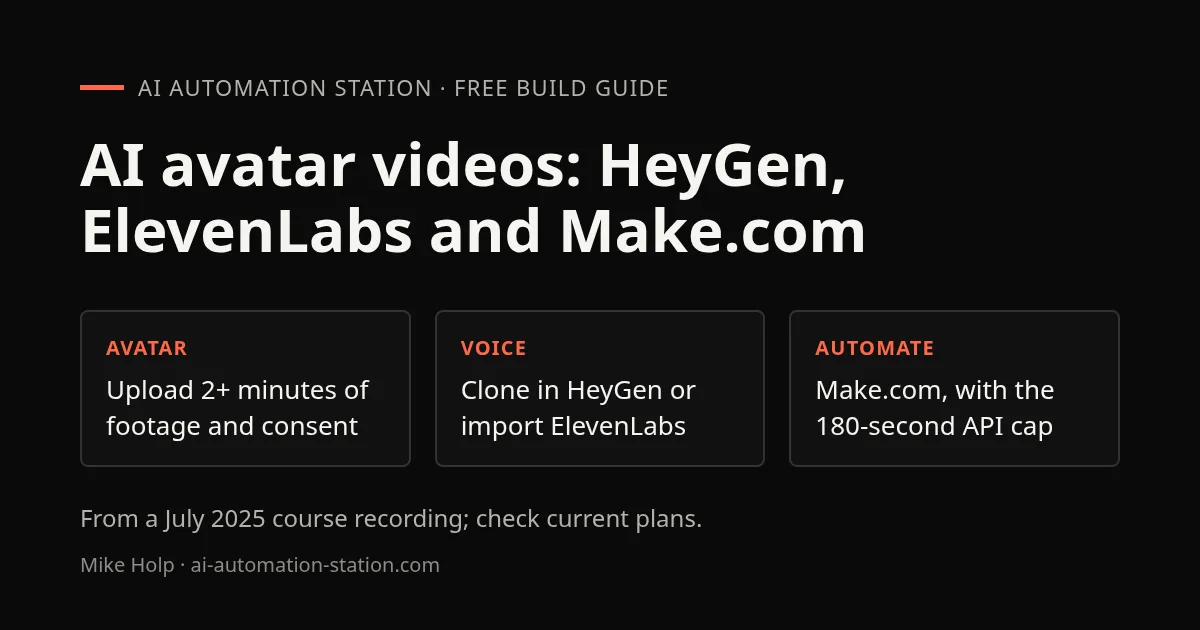
- Upload 2+ minutes of footage and consent
- Clone in HeyGen or import ElevenLabs
- Make.com, with the 180-second API cap
What I didn't cover
- A finished, uploaded video from the Make.com route. I ended with the length error and a manual fallback.
- Whether YouTube’s policy on AI-generated content has changed since July 2025. I only said YouTube was cracking down on low-value AI content.
- ElevenLabs pricing in detail. I gave a Creator tier, but check the current plan page.
Watch the walkthrough

- 0:00 AI Video Overview
- 3:30 HeyGen Dashboard
- 7:00 Train AI Avatar
- 10:30 AI Voice Options
- 14:00 ElevenLabs Setup
- 17:30 Create Avatar Video
- 21:00 Make.com Automation
- 24:30 API Limits Issues
- 28:00 Coaching Program Pitch
From the video
Lines from the video's transcript that this guide does not cover, lightly trimmed. Each time opens the video at that point. Read the full transcript.
- 26:43
For my API plan, I can only create up to 720p videos. Unfortunately, I can't use 1080.
- 31:27
That says operation failed with Okay, so it may be the wrong avatar ID. And that makes perfect sense because I've actually created a new avatar if you remember from earlier.
- 34:32
It says it can't be longer than 180 seconds. So, this is the one, you know, this is something that you're probably going to have to upgrade to the pro plan of the API.
FAQ
How much footage does a HeyGen avatar need?
HeyGen asked for at least two minutes of unedited footage and suggested two to five. Better footage gives a better avatar.
Do I need ElevenLabs for the voice?
No. HeyGen has an instant voice clone from about two minutes of audio. ElevenLabs is for a professional clone trained on up to 30 minutes.
Why did the Make.com scenario fail?
First an out-of-date avatar ID, then the HeyGen API rejected videos longer than 180 seconds on my plan.
Can I automate longer videos?
Not on my plan. Create the script in Make.com and render the video in HeyGen yourself, or check whether a higher API plan lifts the limit.
Sources
- Video: Create Lifelike AI Avatars in Minutes (HeyGen Guide) (recorded July 2025)
- Sign up through my affiliate link: HeyGen
- ElevenLabs: elevenlabs.io · Make.com: make.com (affiliate link)
- HeyGen pricing: heygen.com/pricing (Checked November 15, 2026)
Build the next one with AI Income Lab
Step-by-step courses, reusable templates, and a community that answers when you get stuck.
Members get the Claude Code & Skills and Codex Tutorials & Courses lessons.
- Courses for builds like this one
- Copy-ready templates
- Ask questions while you build
- Weekly coaching on VIP


