AI content creation workflow: images, video and audio
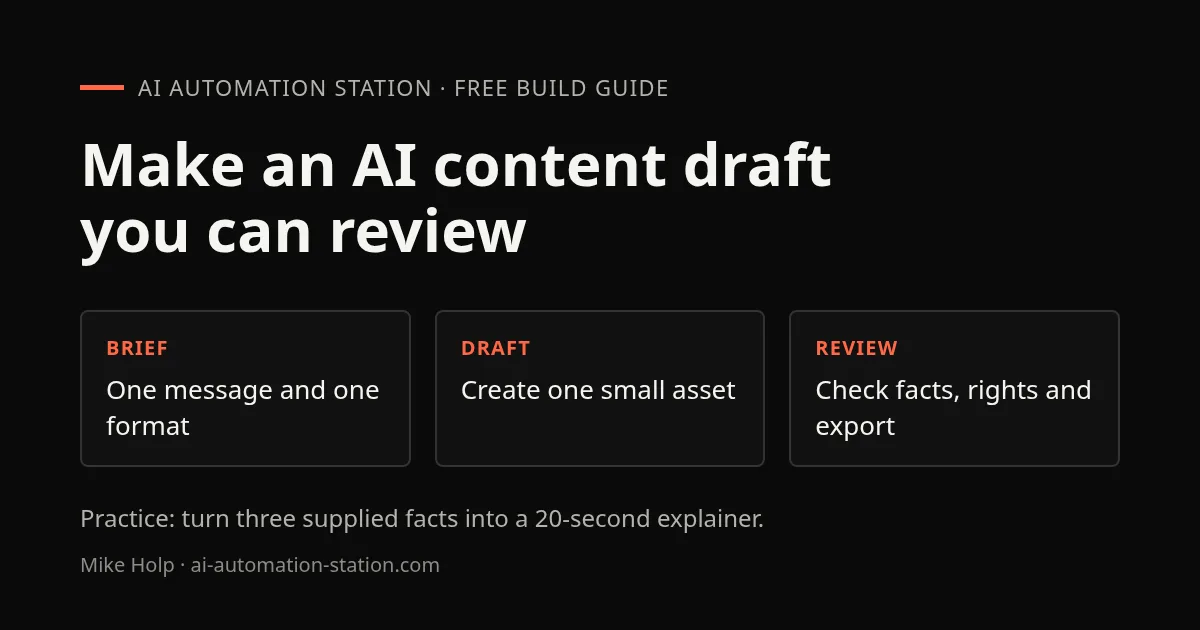
Quick answer: use AI to draft or transform content, then review every output before publishing. Start with the audience and format, prepare the source material, generate one small draft, check accuracy and rights, and export only after a person approves it.
The same workflow works for an image generator, video editor, avatar service, music tool or presentation builder. The controls differ by product, so check its current help and terms before uploading private material or using an output commercially.
The checks below come from four builds I made on the channel: an avatar video, an AI-assisted editor, a YouTube-to-LinkedIn repurposing flow and a Shorts pipeline. Section 5 shows where each one broke.
1. Write a small production brief
Record the audience, intended platform, length or dimensions, core message, source materials, and what must not appear. Name the person who approves the final asset. For a short clip, that might mean one idea, one audience and a clear end frame. For a presentation, it can mean the decision the audience should make and the evidence the slides must show.
Keep source facts separate from creative instructions. A model can suggest a script or visual treatment, but it cannot make an unverified claim true. Keep a link to the original source for each fact that matters.
2. Make one draft at a time
Use the smallest useful test: one image, one 20-second edit, one slide or one music cue. Give the tool only the files and context it needs. Avoid uploading client, customer or unreleased material until you have checked the product's privacy controls and your agreement with the owner.
For a one-image exercise, try the sketch-to-scene image-editing workflow. It shows how to compare the generated scene with your sketch and check the whole image after a local edit.
For a talking avatar, confirm that you have permission to use the face, voice and script. For generated music, images or video, read the current commercial-use terms and keep records of source assets and licenses. Do not imitate a real person in a way that could mislead viewers.
3. Review the result before export
- Check names, dates, numbers, captions and factual claims against the source.
- Watch or listen from beginning to end, including transitions and the final frame.
- Check subtitles, contrast, crop and readability on a phone-sized screen.
- Remove private details, accidental logos and any material you lack permission to publish.
- Keep an editable source and a clean export so corrections do not require rebuilding.
Use a written checklist rather than asking a second model to approve the first model's work. A model can help find likely errors, but a person remains responsible for the final asset.
4. Automate only the repeatable parts
Once a manual version works, automate predictable steps such as naming files, creating draft captions or moving approved exports into a review folder. Keep generation and publication as separate steps. Require an explicit approval before a workflow posts, sends or spends money.
For a first avatar video, see the HeyGen AI avatar tutorial. For connecting content tasks to other apps, use the AI automation first-build guide. For ideas from the channel, watch a video editor built with an AI skill.
5. What my own builds showed
Each of these worked as a manual draft first. The trouble started when I automated it or trusted a score, and the notes below are what I check now.
| Build | What held up | Where it broke | Check I use now |
|---|---|---|---|
| HeyGen avatar video | A studio video from a trained avatar and an ElevenLabs voice | The Make.com version failed twice on HeyGen's 180-second API limit and once on a stale avatar ID | Review a manual draft, then read the API limits before automating |
| Editing skill in Claude Code | A 13-minute video edited in about 45 minutes | The first version was not completely correct | Watch the whole export, whatever score the tool gives itself |
| YouTube to LinkedIn flow | An infographic, post and newsletter from one transcript | 4K infographics were too large, around 20 MB | Export at 2K and keep posting manual |
| Shorts pipeline | Ideas and scene scripts from scraped channel data | The render step stopped when a free quota ran out, and test runs left duplicate rows | Test with one record and check quotas first |
Avatar video: the manual draft worked, the automation did not
In the HeyGen avatar course I trained an avatar from about two and a half minutes of footage and a recorded consent statement, imported an ElevenLabs voice with an API key, and rendered a 30 fps video from a script. That part worked. The Make.com scenario (Airtable topic, Perplexity research, ChatGPT script, HeyGen render, YouTube upload) did not. HeyGen's API rejected videos over 180 seconds on my plan, and after I retrained the avatar the old avatar ID stopped working. The same limit showed up in my Make.com content machine, where I finished the demo by creating the video by hand. API plans and limits change, so check HeyGen's current ones before you build around them.
Editing with a coding agent: a score is not a review
In the video editor I built inside Claude Code, the skill merges clips, transcribes them with Whisper, picks a hook and the best segments, removes filler words and dead pauses, normalizes audio and exports a 1080p, 30 fps MP4 with a chapters file. A 13-minute video took about 45 minutes. The first run was not completely correct, so I had Claude audit the skill in phases and rewrite it. It ended with a confidence rating of 94 out of 100, but that is the model grading its own work. I still watched the full export.
Repurposing: strip timestamps, export at 2K
The YouTube to LinkedIn workflow takes a video URL in an n8n form, fetches the transcript with Apify, splits and aggregates it to drop timestamps, summarizes it with Gemini and sends an image prompt to KIE's Nano Banana Pro at 2K and 16:9. A polling loop waits for the image, a Drive step saves it and Claude writes a post and a newsletter into a Google Doc. I chose 2K because 4K files were about 20 MB against 5 to 6 MB. The text in the infographics I checked was clean, but that is not a guarantee for the next one, and I post to LinkedIn by hand.
Shorts pipeline: free quotas end mid-run
The Shorts pipeline scrapes recent videos from three creators, saves them to Airtable, turns the most viewed titles into ideas, has GPT-4.1 write scene scripts, renders with JSON2Video and uploads with the AI-generated label. In the recording the final run failed because JSON2Video's free time quota was used up, and my repeated test runs had added duplicate Airtable rows. Scraping can also conflict with a platform's terms, and templated Shorts built from other creators' topics need a check against YouTube's current rules on repetitive content before you publish a series.
A compact publishing checklist
- Does the draft match the brief and platform format?
- Can every factual statement be traced to a source?
- Are rights, consent and privacy checked?
- Did someone review the complete export?
- Can you correct or remove the asset if a problem appears?
Use AI to reduce repetitive production work while keeping the final review with a person. That boundary makes the workflow easier to correct when tools produce an unexpected result.
Practice: a 20-second explainer from three facts
Use the following fictional product brief as the only factual source. You can complete the script and storyboard in a text editor; generation tools are optional and may charge for usage.
Product: Pocket Queue, a fictional personal task list.
Facts: tasks can be added, marked complete, and filtered by status.
Audience: a person who loses small jobs in chat messages.
Deliverable: a 20-second vertical video with three scenes.
Do not claim cloud sync, privacy guarantees, pricing, or measured time savings.- Draft a short script with one scene for adding a task, one for completing it, and one for filtering the list.
- Make a storyboard with the spoken words, visible action, and caption for each scene. Use your own mock screens or simple shapes.
- If you use an image, avatar or video tool, generate one scene first and inspect it before making the rest.
- Assemble a draft and play it from start to finish on a phone-sized screen with sound off, then again with sound on.
The expected output is a three-scene draft that shows all three supplied features and adds no unsupported claims. Captions should match the narration, fit inside the visible frame, and remain readable against the background. A product name misspelling, invented feature, unreadable caption or missing final frame fails the check.
Save the editable storyboard and export beside a small checklist recording the source of each fact and asset. Do not publish this fictional-product exercise as a real offer. For a real project, replace the brief with checked source material and confirm the owner's approval.
FAQ
Do I need a paid AI generator for this exercise?
No. You can write the script and storyboard in a text editor and use simple shapes for the visuals. If you choose a generation tool, check its current usage charges and export limits first.
Why did my automated avatar video fail when the manual one worked?
Automation adds limits the studio does not show. In my HeyGen build the API rejected videos over 180 seconds on my plan, and a retrained avatar had a new ID. Check the API plan limits and the IDs the automation uses before relying on it.
What should I check before publishing an AI-assisted video?
Compare every factual claim with the source, review the complete export, correct captions and crops, and confirm permission for the faces, voices, music and images you used.
Sources
Build the next one with AI Income Lab
Step-by-step courses, reusable templates, and a community that answers when you get stuck.
Members get the Claude Code & Skills and Codex Tutorials & Courses lessons.
- Courses for builds like this one
- Copy-ready templates
- Ask questions while you build
- Weekly coaching on VIP


