GrokBot for Beginners: First Bot, Access and Approvals
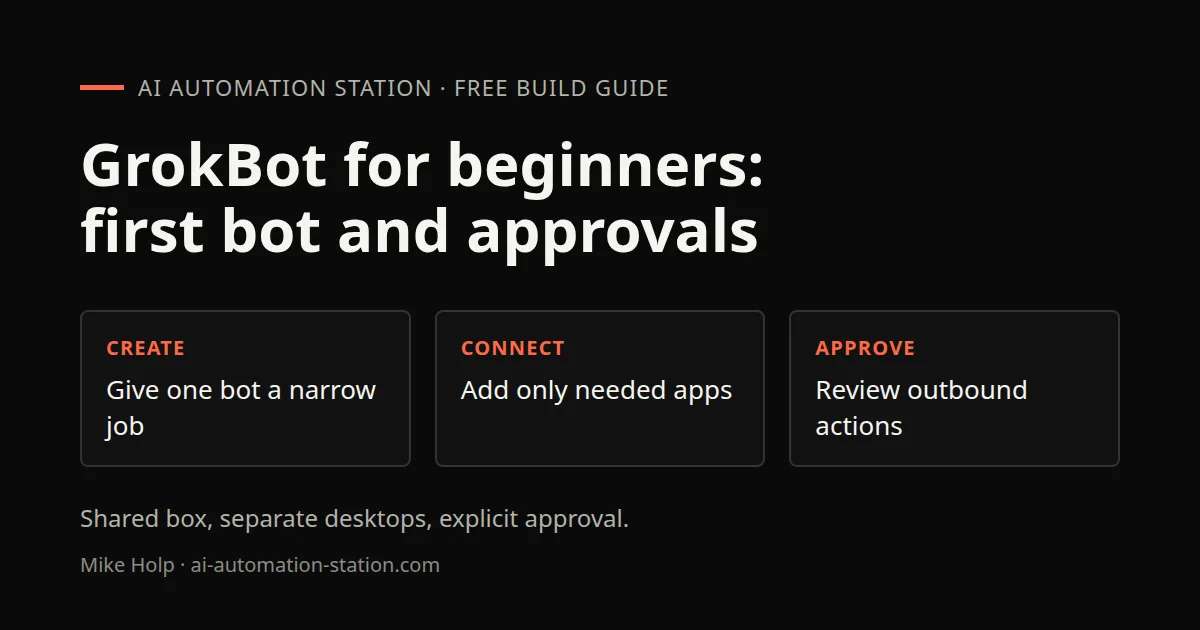
Quick answer: GrokBot gives you AI "bots" that work like teammates. Bots share one persistent Linux box with separate agent desktops and browsers, can run in the background while your laptop is closed, and can save a workflow as a routine. To start, install the app, create one bot with a narrow job, connect only the apps it needs, require explicit approval for anything that sends or posts, and turn the task into a routine once it works twice.
GrokBot is also searched as “Grok Bot”. This guide walks through the setup I use on my own channel. It sticks to what the official page says and what I showed on camera. Anything I could not confirm is marked as such.
1. What GrokBot is
The GrokBot product page describes bots as AI teammates. In the environment used for this guide, bots share one persistent Linux box with separate agent desktops and browsers. That runtime observation should not be confused with the marketing phrase “own computer.” The product describes background work while your laptop is closed. Account limits, approvals and the task’s actual dependencies still apply. You can show a bot how a task is done and it saves that as a routine. Several bots can share a thread and hand work to each other.
That is the core idea. You are not chatting with one assistant. You are building a small team, and each member has a job.
In my videos I run more than 30 bots. You do not need that many. One well scoped bot is a better start than ten vague ones.
2. Install and sign in
Use the client and sign-in instructions currently offered by the official product page. The account and billing screens shown in my recording are a historical setup, not a promise that every current installation uses the same labels or identity flow.
Plans and entitlements change. Check the current product page and your account before relying on a recorded price or allowance.
3. Create your first bot
Pick one job that you do every week and that has a clear finish line. Good first jobs from my own setup:
- A job search bot that checks listings for a role and reports matches
- A site audit bot that checks your website on a schedule
- A blog drafting bot that turns a video transcript into a draft post
Then describe the job in plain language. Tell the bot what "done" looks like, what it must never do, and where it should put its output. For example:
"Every Monday, check my site for broken links and missing page titles. Put the results in a short list with the URL and the problem. Do not change anything on the site."
The official page also offers job templates, such as Chief of Staff and Sales Outbound. A template is a fine starting point, but edit the instructions so they fit your work.
4. Connect apps with plugins
Bots reach outside services through plugins. In my videos I connected Gmail, Airtable and WordPress. Each plugin asks you to sign in or paste a token.
Two rules keep this safe:
- Connect only what the bot needs for its job. A research bot does not need your email.
- Check which tools inside a plugin are switched on. Some plugins expose many actions, and you can turn individual tools off.
If you need a service that has no plugin, the bot can often use it through the shared box and its own desktop and browser, with your help signing in.
5. Require explicit approval
The product page describes returning for approvals. In my recorded workflow, bots stop before an email, site post or message is sent. I review the exact action in the chat rather than treating earlier task instructions as permission.
Require explicit approval for external actions. Read what the bot plans to send. A successful past run does not replace explicit approval for a new outbound message, publication, purchase or other sensitive action.
6. Add a chief of staff
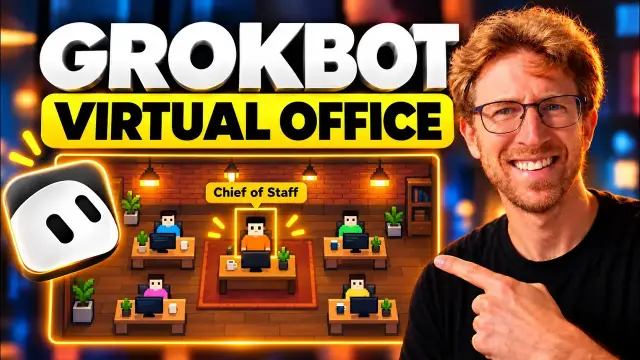
Once you have three or four bots, a coordinator helps. In my setup a "chief of staff" bot sits at the top of the sidebar. I talk to it, and it passes the work to the right bot. The official page lists Chief of Staff as a job template.
Keep its instructions short:
- A list of your other bots and what each one does
- A rule to ask you when no bot fits
- A rule to report back when delegated work is finished
You can also move a routine from one bot to another later. I did this when a job outgrew the bot that started it.
7. Turn repeat work into routines
A routine is a saved workflow that can run on a schedule. My recorded examples include recurring site checks and channel checks. Keep the source queue restricted to the approved long-form videos, and distinguish writing a draft from publishing it.
A good rule: run the task by hand twice, fix what went wrong, then save it as a routine.
8. Troubleshooting
The bot stopped partway. Check your usage page. In one video my plan hit 100% of its weekly usage, and work paused until the reset. Usage limits vary by plan.
The bot cannot sign in to a site. Use the supported connection or sign-in flow. Complete account access yourself when required. A bot’s desktop is separate from other agents’ desktops, but its installed tools and sessions live on the shared box.
Results are vague. Your instructions are probably vague. Add an example of good output.
Too many bots to track. Give each bot a clear role and review the source task logs before relying on a custom overview.
Recorded build: a content-repurposing agent
The qualifying recording moves beyond the use-case tour and builds a content factory. Mike first asks ChatGPT for a detailed brief, then pastes it into GrokBot. The bot creates a content-repurposing agent and an Airtable structure. He supplies a YouTube URL and checks the returned draft package. The bot explicitly says that nothing has been published.
For a controlled first content workflow, use one long-form source video and written outputs. Check each piece against the source, avoid unsupported product claims and keep every external post as a review draft.
Mike then discovers that the first run is URL-triggered, not already automatic. He requests a recurring channel check and moves ownership to his Chief of Staff. The recording ends without testing the next upload. Do not represent that requested trigger as a verified ongoing system. No recurring workflow has been started for this article.
Watch the walkthrough

FAQ
What does this guide mean by GrokBot?
The teammate-style app with distinct bot roles, desktops and routines on the shared persistent computer, rather than a generic chat session. Check which product a tutorial covers.
Do I need to code?
You can describe a bot’s job in plain language. Integrations and coding-agent setup still require deliberate account, permission and result checks.
Does it keep working when my computer is off?
The product page describes background cloud work while your laptop is closed. In the current environment, bots share a persistent box but use separate desktops. Account limits and approval requirements still apply.
How much does it cost?
Check the current product page and your account. This recording is not a current price quote.
Is it safe to let a bot send email?
Keep approvals on and connect only the accounts a bot needs. Read each draft before you approve it.
Sources
- xAI, GrokBot product page: https://x.ai/bot (accessed October 30, 2026)
- Video: https://www.youtube.com/watch?v=gNcHbc2kdzw. The two other historical source videos are operational tours excluded from the current guide scope.
You may also like



Build the next one with AI Income Lab
Step-by-step courses, reusable templates, and a community that answers when you get stuck.
Members get the Claude Code & Skills and Codex Tutorials & Courses lessons.
- Courses for builds like this one
- Copy-ready templates
- Ask questions while you build
- Weekly coaching on VIP


