GrokBot Virtual Office: Build a Custom Agent Dashboard
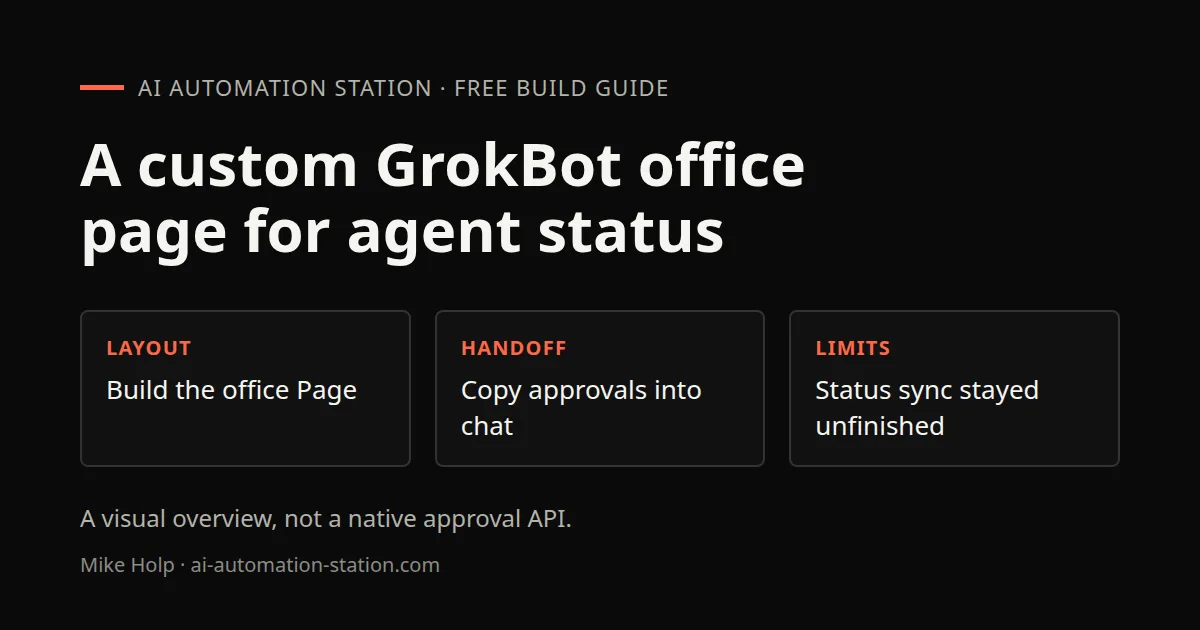
Quick answer: A virtual office is a visual dashboard that shows every bot you run, what each one is doing and which tasks wait for your approval. I built mine in GrokBot by asking my chief of staff bot to create a Page. It shows active, finished and waiting tasks, an event log and a review handoff control for the selected bot, not a native one-click authorization mechanism. You build it the same way: describe the dashboard in plain language, then fix it one request at a time.
Once I passed about 35 bots, the sidebar stopped being enough. I wanted one screen that showed the whole team. This guide covers what I built, the order I built it in, and the problems I hit along the way.
1. What the office shows
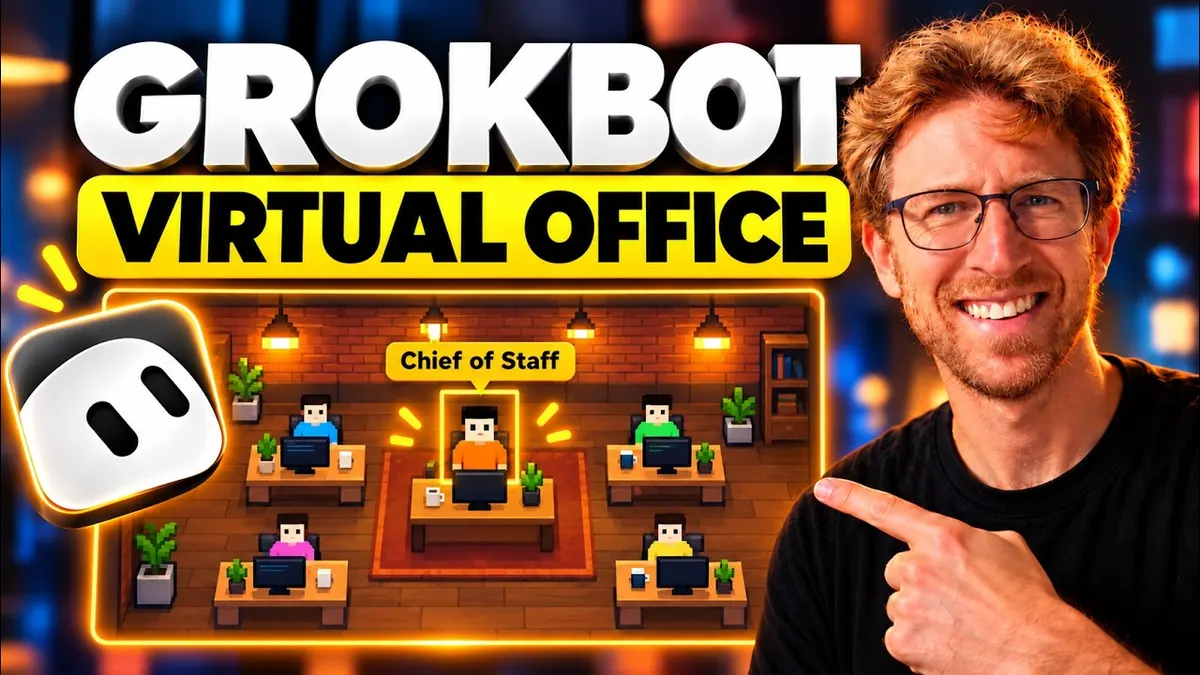
My office page has four parts:
- A top bar with counts for active tasks, tasks finished today, and tasks waiting for approval, plus a pause control.
- A floor plan with a small character for each bot. The chief of staff sits in the middle. Characters move around, and some take coffee breaks. That part is decoration, and it makes the page easier to scan.
- An event log (I called it a quest log) that lists recent actions across all bots.
- A detail panel for the selected bot, with its own event log and any pending approval.
None of this is a built-in GrokBot feature. It is a page the bot wrote for me. That means you can shape yours however you like.
2. Before you start
3. Ask for the first version
Open your chief of staff and describe the page. Mine started as a short request along these lines:
"Build a virtual office that shows all my bots. Put the chief of staff in the middle. Show active tasks, tasks done today and tasks waiting for my approval. Add an event log on the right. When I click a bot, show its recent events."
The first version came back blurry. I asked the bot to fix it, and it reported that the canvas was being stretched on screen. It then checked the result at 2x zoom and sharpened the text. Ask your bot to check its own work in the same way when something looks wrong.
4. Move it from the virtual computer to a Page
My first version ran inside the bot's virtual computer, in a browser. It worked, but it was slow.
GrokBot had recently added Pages, so I asked the bot to rebuild the office as a Page instead. The Page version loaded much faster and opened right in the GrokBot window. If your dashboard runs in the virtual computer, try the same request:
"Can you run this as a Page inside this window instead of the virtual computer?"
5. Add an approval handoff
Approvals were the main reason I wanted the office. I asked:
"Let me approve tasks directly from the office by clicking a bot and pressing a check mark."
The bot added an "approve and chat" button. My first click led to a blank white page. I reported it, and the bot fixed it. After the fix, the button copied the approval line. I pasted it into that bot's chat and the task went ahead.
So in my build, approval still finishes in the bot's own chat. That is a reasonable safety step. Do not treat a custom dashboard control as authority to bypass the app’s native approval requirements.
I also asked the office to update a task's status automatically after approval. That was still in progress at the end of the video.
6. Give it its own bot
The office should not live inside your chief of staff's long chat. I asked the chief of staff:
"Create a separate bot for viewing everything in the virtual office."
It created a "virtual office monitor" bot. I dragged it near the top of the sidebar, next to the chief of staff, and asked it to make an avatar in the same style as my other bots. The first avatar request did not take, so I asked again.
Now I open the office bot and say "start the virtual office in this tab" whenever I want an overview.
7. Fix what breaks
Expect a few rounds of fixes. Mine included:
- Blurry text. Fixed by asking the bot to render at the right scale.
- Slow loading. Fixed by moving to a Page.
- Blank page on approve. Fixed by reporting the exact behavior.
- Status not updating after approval. Still open at the time of recording.
Describe what you clicked and what you saw. "When I click approve, I get a white page and nothing happens" got a fix much faster than "approve is broken."
Watch your usage too. Each round of changes uses part of your plan's allowance. In this video my account showed 15% used with a reset 7 days away.
Why bother
A dashboard does not do any work for you. What it does is shorten the time between "a bot needs me" and "I noticed." The recording does not quantify time saved or establish that every status is synchronized. Check source task logs before relying on the display.
Watch the walkthrough
FAQ
Is the virtual office a GrokBot feature?
No. It is a Page I asked GrokBot to build. You describe what you want and the bot writes it.
Do I need to code?
No. I built mine through conversation. Knowing a little HTML helps you describe fixes, but it is not required.
Can I approve tasks from the office?
In my build, the button copies an approval line that I paste into the bot's chat. A different custom interface must still respect the app’s native approval requirements.
Why use a separate bot for the office?
It keeps the dashboard out of your coordinator's chat history and gives you one place to open it.
Does it update in real time?
The recording does not establish fully synchronized real-time state. Automatic status changes after approval were still being built. Check the source task log before relying on the display.
Sources
- xAI, GrokBot product page: https://x.ai/bot (accessed October 30, 2026)
- Video: https://www.youtube.com/watch?v=wzC2r426KWs
You may also like



Build the next one with AI Income Lab
Step-by-step courses, reusable templates, and a community that answers when you get stuck.
Members get the Claude Code & Skills and Codex Tutorials & Courses lessons.
- Courses for builds like this one
- Copy-ready templates
- Ask questions while you build
- Weekly coaching on VIP


