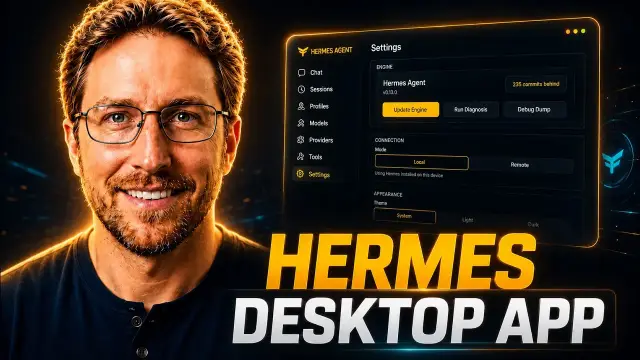
Hermes Agent desktop app: complete setup
Watch on YouTube ↗ Subscribe on YouTube ↗
Set up the official Hermes Agent desktop app from Nous Research on Linux with the one-line installer and the setup wizard, using a free Step 3.7 Flash model. The tour covers models, themes, memory, provider keys, messaging gateways, MCP servers, skills and tools, and a cron job tab with two existing jobs. Gateways and the new cron job are not completed.
Video summary
Official Hermes Agent desktop app setup (Nous Research): curl install on Linux/Windows/Mac, pricing wizard, themes, OpenRouter keys, WhatsApp/Telegram gateways, skills, and cron jobs. Hermes Agent install guide for the official desktop UI.
Hermes Agent tutorial — complete setup from download to first scheduled automation.
The video covers 10 parts: Introduction to the official Hermes desktop app, Installing via curl command (Linux, Windows, Mac), Pricing plans and setup wizard walk-through, First look at the user interface and updating, Selecting LLM models and changing theme settings, Connecting external API keys (Open Router), Configuring chat gateways (WhatsApp, Telegram) & MCPs, Activating built-in agent skills and tools, Creating and managing automated cron jobs, and Checking credit usage and community outro.
What this video covers
What you build
A Hermes desktop app install connected to a free Nous model, OpenRouter and OpenCode Go models, with persistent memory on and an existing cron job list.
Tools used
Key steps
- 0:34 - Run the curl command that installs or updates the desktop app on Linux, with downloads for Windows and Mac.
- 1:07 - Look at the plans, which run from free up to $200 a month, and enter the setup wizard code.
- 2:14 - Open the app, install the available update and send a first message.
- 3:02 - Pick models, including Codex and OpenCode Go, and change the theme.
- 4:19 - Add an OpenRouter API key and turn on the models you want.
- 5:14 - Review the messaging gateways and MCP server settings, and skip the phone gateways.
- 5:59 - Check the built-in skills and tools, such as cron jobs and search.
- 7:49 - Ask for cron job ideas, list the existing jobs and open the cron tab.
- 9:28 - Check credit usage per model.
Not covered
- Connecting WhatsApp, Telegram or other gateways, which Mike skips.
- Whether the suggested health watchdog cron job was created or ran.
- What the paid plans add beyond the free plan, or current prices, which are quoted from the video.
- Data handling and privacy for the memory feature.
In this video
- 0:00 Introduction to the official Hermes desktop app
- 0:34 Installing via curl command (Linux, Windows, Mac)
- 1:07 Pricing plans and setup wizard walk-through
- 2:14 First look at the user interface and updating
- 3:02 Selecting LLM models and changing theme settings
- 4:19 Connecting external API keys (Open Router)
- 5:14 Configuring chat gateways (WhatsApp, Telegram) & MCPs
- 5:59 Activating built-in agent skills and tools
- 7:49 Creating and managing automated cron jobs
- 9:28 Checking credit usage and community outro
Questions and answers
Is this the official Hermes Agent desktop app?
Yes. Mike contrasts it with an unofficial desktop app covered in an earlier video.
Which systems does it support?
Linux through the curl command, plus a Windows executable and a Mac DMG, according to the video.
Do I need the terminal afterwards?
Mostly no. Mike says provider keys, models, skills and cron jobs can all be handled inside the app.
Keep learning
Transcript
Hey there, welcome to the channel. In this video, I'm going to be taking you through and showing you how to set up the official desktop app from News Research for Hermes Agent. I previously made a tutorial on this channel showing the unofficial one, which was available on GitHub, currently has around 20,000 views. So, a lot of people found it really interesting and useful. And now I just want to show how to set it up officially through News Research. So, I've got the website pulled up here.
And you can see down here, this is what it looks like. So all you have to do is run Hermes desktop. It'll automatically spawn the desktop app and run it on your computer. Pretty much all you have to do is run this oneline curl command. So I can just come down here, run the curl command, and that's basically just going to update it since I already have it installed on my computer.
Read the rest of the transcript
It will pull in all of the latest packages, and then I can just go ahead and install all of those quickly and easily from the terminal. In this case, I'm on Debian, but you could also do this on Windows or Mac OS as well. You would simply just click here, download the executable for Windows, or you can download the DMG file for Mac OS. And you can also see some of the features that are built in here as well.
So, you can connect it to Telegram, Discord, Slack, WhatsApp, Signal, email. It also learns the more that you use it. Has a persistent memory, so it learns your projects, autogenerates skills, and never forgets how it should solve a problem. They offer the free plan, uh the plus plan for 20 bucks a month, super for $100 a month, and alter for $200 a month. In this case, of course, I'm just going to use the free plan, which I should already have access to.
And now, all we have to do is enter in this code, which was provided over here in the setup wizard, and we can just go ahead and connect that up to the Hermes agent. From here, we can actually select stepf fun step 3.7 flash, which is currently free. And I'm just going to continue with that model. This is where you're going to connect your gateway. So that could be Telegram, Slack, Matrix, Mattermost, WhatsApp, a bunch of different options here.
In this case, I don't really use this from the phone. So I'm going to skip that step. And now the Hermes setup is complete. Now we have the official desktop app for Hermes agent. It's starting up the Hermes agent here inside the desktop app. And boom, there we go. So this is what the user interface looks like. Overall, I really like this a lot. There is a new update available to the Hermes desktop app.
So, if I want to update Hermes desktop app, I can just go ahead and click on update. Definitely took a bit longer than I expected, but now I have the latest version of the app. So, we're good to go there. We can get started right away. I'm just going to go go ahead and say hello, and it should respond immediately. Here, I'm currently on the Stepf fun 3.7 flash model. I've already got OpenCode built into it.
Uh both the free models and the paid models over here. And if I want to switch my model to let's say miniax 2.7 through OpenCode go, I could just go ahead and switch that. I could say I would like to create a cron job. This is where we can configure all of our models. As you can see, I've already got quite a few different models connected, including codecs. So if you want to use Codex inside Hermes agent, that is also an option.
I could select 5.4 mini over here and I could just click apply and then I would be using the Codex model. But in this case, I think I'll just stick with the news portal for now. And we're going to select the free model. They also have a lot of other paid models which you can connect up in over here as well. You will just need your API key.
And then you can also set uh some auxiliary models from here as well, which I'm not going to do right now. We can also configure the appearance of the desktop app. So, we can switch it over to dark mode. We can set the color scheme from here as well. I I would say I like this a little bit better, but for this case, I'm just going to use the light mode. I could also set like cyberpunk if I wanted it to look cyberpunky.
In this case, I think I'll just stick with the light mode for now because it's going to look best on the tutorial. You can also set your memory. So, we want to make sure persistent memory is turned on so that it can learn as it goes along. But, if you want to turn that off, you can switch it off here as well. You can also set your providers. So, if you want to connect up any of your providers, you can do so over here.
If I want to connect Open Router, I can simply just enter in my API key over here. I'm just going to grab my API key. And we're just going to generate a new API key. I'm going to call it Hermes. And we can just copy and paste this. We're just going to paste it in over here. And then we will connect up open router. So now we should have access to all of the open router models.
You can see this is where you can enter in all of your API keys. So again, I can just go ahead and connect Open Router. I could connect Gemini if I want to. I can uh OpenCode is already connected from within the desktop app. You don't have to screw around with the terminal which could be a little bit more complicated. You could just do everything from over here inside the desktop app.
And as you can see there's a lot of different models that you can integrate in including Stefon, you've got ZOMI, you've got the Ollama cloud, you've got Nvidia models and then you can also connect up your gateways over here as well. So if I wanted to connect up WhatsApp so that I can talk directly to Hermes agent from my phone could also do that over here as well.
Typically I don't use uh Hermes agent from a gateway but if I did want to connect up my WhatsApp account I can go ahead and do that from here. All I have to do is open up this setup guide and it will take me through the process of setting up WhatsApp. You could also use Telegram, Discord, Slack. There's a whole bunch of different options here. and MCPs. So, if you want to connect to specific uh MCPS, you can add your servers over here.
I actually have one for my software as a service. So, if I wanted to add that in over here, I could do that as well. Looks like we also have a whole bunch of different skills over here as well. These are many of the skills that I've already installed. And then we've got all the different tools as well. So, if you want to turn on cron jobs, that's already enabled. And if you want to like enable Twitter search, you can go ahead and turn that on.
So now it has access to that tool. So it looks like I do have the open routers built in over here as well. If we want to turn on any more, we can click on edit models. And from here we can turn on the different models that we want to have access to through open routers. And if I want to choose any of those, I could just go ahead and turn them on quickly and easily from the desktop app over here.
I definitely want DeepSec V4 flash for sure through Open Router. And I also have it through OpenCode as well. So, I can turn those on through OpenCode Go. You can see they're all listed here. I'm just going to go ahead and turn all of those on so that I have access to all the different models through OpenCode Go, which is only $10 per month. I highly recommend OpenCode Go. I'll just go ahead and turn that on. We're going to set the thinking model here.
S thinking level, it's going to say, I want to create a cron job. Give me a few suggestions. Here's some of the different suggestions that it came up with for different cron jobs that I might want to create with the Hermes agent desktop app. List the cron jobs I have. And you can see here it's pulling in the two different cron jobs that I have. This one is for sending emails from school to my email marketing platform. And that runs every day at 10 900 p.m.
We've also got a YouTube AI trend scanner as well, which is currently not running. I could say create the cron job for Hermes health watchdog and that should be able to just go ahead and start creating the cron job right away. In the bottom here there's a section called cron. If you click on this it will open up the cron jobs and from here you can go ahead and create new cron jobs to run at certain time either daily, weekly, monthly, hourly, every 15 minutes or
custom. You could just describe what the crown job's about. give it the entire prompt as I've already got set up over here. This is one that I've already created and it's just a script that runs that automatically sends new email subscribers from my Skool community into my marketing platform and that's just running every single day at 9:00 p.m.
And I have another one which is a AI trend scanner for YouTube that's also running every day, but I'm going to go ahead and pause that one because it's not actually doing anything at the moment. And I can go ahead and create as many cron jobs as I want over here. So you can access those quickly and easily from down here. You can also take a look at your overall usage directly from the desktop app as well.
So you can see exactly how many credits you've spent on each of the models. So overall, this is a really really nice app. It's definitely going to make things easier so that more people are using Hermes Agent, which I believe is their ultimate goal for creating this desktop app. Yeah. So, it's really easy to use and you don't have to be going over to the terminal all the time. This is just a little bit more complicated.
And so, yeah, I'm going to leave a link in the description below where you can get started with the official Hermes agent desktop app. Again, all you have to do is run the oneline curl command. It will install on your computer. Then, you can just run Hermes desktop, go through the setup wizard, and you'll have your own desktop app running over here. Please go ahead, subscribe to the channel if you haven't already. And also check out my Skool community over here. We've currently got 2900 members.
It's completely free to join. More and more people joining every single day. You can take a look around the classroom where I have lots of tutorials, courses, and resources, most of them free as well. And go ahead and introduce yourself in the community tab. Go ahead, join the Skool community. And with that being said, thank you so much for watching this video. Please go ahead subscribe to the channel if you haven't already. and I will see you in the next one. Take care. Stay safe.
Peace from Thailand.