Herdr Desktop Setup: Workspaces, Themes and Claude Code
Watch on YouTube ↗ Subscribe on YouTube ↗
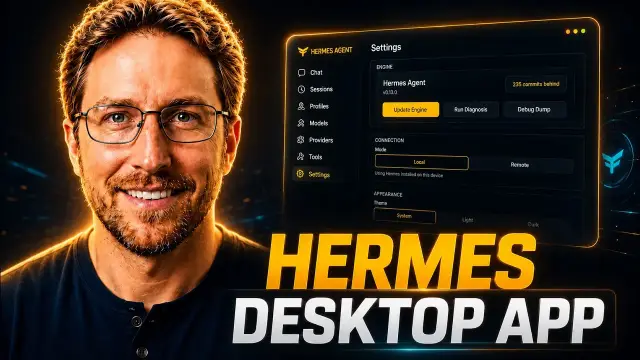
Set up Herdr Desktop, open coding-agent workspaces and try themes. The walkthrough resumes Claude Code and explores agent panes, with migration and access limits.
Video summary
Master the Herder GUI for efficient AI coding. Learn how to manage your development tasks with this accessible new GUI for built for vibe coders.
The video covers 10 parts: Herdr Desktop App Setup Guide, Installing Herdr GUI on Linux & Mac, Theme & Color Scheme Customization, Sidebar & Panel Configuration, Running Claude Code in Herdr, Retro Windows 98 Theme Showcase, Adding Custom Community Themes, Multi-Agent Side-by-Side Workflows, Herdr Memory Usage & Performance, and AI Income Lab Community Outro.
What this video covers
What you build
A desktop workspace for terminal coding agents that are already installed and authenticated. The written companion records a resumed Claude Code session, changes appearing in the file panel, and responses from several agent panes. Existing terminal workspaces did not migrate automatically, and Kimi was not authenticated.
Tools used
Key steps
- 1:13 Choose a theme and panels, then open a workspace in the desktop app.
- 2:27 Launch Claude Code in a terminal pane and resume its own session.
- 7:12 Open agent panes side by side and check which agents actually respond.
Not covered
- Installing or authenticating every coding agent.
- Migrating all Herdr terminal workspaces or setting up a remote machine.
- A controlled memory benchmark or proof that several agents can safely edit the same files.
In this video
- 0:00 Herdr Desktop App Setup Guide
- 0:36 Installing Herdr GUI on Linux & Mac
- 1:13 Theme & Color Scheme Customization
- 1:45 Sidebar & Panel Configuration
- 2:27 Running Claude Code in Herdr
- 3:08 Retro Windows 98 Theme Showcase
- 4:19 Adding Custom Community Themes
- 7:12 Multi-Agent Side-by-Side Workflows
- 9:12 Herdr Memory Usage & Performance
- 10:46 AI Income Lab Community Outro
Questions and answers
How do you install the Herdr desktop app on Linux or Mac?
Copy the one-line curl command from the download page and paste it into a terminal. Windows uses a PowerShell command instead.
Do my existing Herdr workspaces carry over to the desktop app?
The first-run prompt says the workspaces stay where they are, so the ones already open in the command-line version appear in the app.
Can the desktop app use community themes?
Yes. Mike adds a community theme by pasting its install instruction into the running agent, after which it appears in settings, where the light and dark tint can also be set.
Keep learning
Transcript
Herdr is my favorite command line interface for getting AI coding work done. In fact, I've actually got it running right here. Claude Code is working through one of my projects. And fortunately, they now have a guey or graphical user interface which you can install for Linux, Windows, and Mac. I've got the official website pulled up for it here. Previously, they only had a command line interface, but now you can actually install the guey.
So, in this tutorial, I'm going to be showing you step by step how to get started with the new Herdr guey. So, in order to get started, I'm just going to click on download her. And you can see the options for Mac OS and Linux. It's just a simple oneline curl command. And for Windows, you would have to use the PowerShell. I'm just going to copy this curl command.
Read the rest of the transcript
We're going to come over to Herdr, which is running in the terminal in this case, and I'm just going to paste that in. So, that's going to download the guey, and it should already be installed. So, now I'm going to open up my menu launcher, which I've created. This is fully open source on GitHub, and I'm just going to type in Herdr, and we can open it up right away. I already like the way this looks right off the bat.
So, from here, we can easily update the color scheme. I'm just going to use dark mode because it's just easier on the eyes, I find. And it has some simple prompts right here. It says, "This is a new app on the new core. Your Herdr workspaces stay stay where they are." So, we've already got all our workspaces open in the command. I have another remote machine that I want to add. I also have the option to add those.
And then we can just control them directly from Herdr. But in this case, I only have one computer, so we're going to skip that. And this is where we choose our panels. It says Herdr comes with a couple of panels. Turn one on and it appears beside your terminals. Drag this window aside to see it later. Later the buttons in the tab bar open and close them. So I think I'm just going to turn these on.
So if we want to update the agents file, we can do that as well. But I'm just going to go ahead and open up spaces. And this is what it looks like. This is the default theme. So from here I can just do an ls and we can list off the directories. I can open up any number of spaces that I want to.
I wish it did actually save what I have over here, but unfortunately it didn't automatically migrate my workspaces from the command line over to the guey. But that's okay. I can just simply open up Claude right away. So now we've got Claude running in the Herdr guey. I definitely like the way this looks a little bit better than the command line over here. just seems a little bit easier to use. From here, we can just do a resume to resume where we were. Open that up.
I was running a full audit and this is what it came back with. So now we could just go ahead and start implementing all of these fixes. Looks like it already went ahead and fixed up a bunch of stuff directly from the guey. And if I want to just push this up to GitHub, I can do a deploy to main and it's going to push all of that up directly.
So, we can see that we've resumed this session from the terminal which is now running in the guey. I also want to check out some of the settings as well. And it's even got like this Windows 98 theme as well, which is pretty interesting. You can switch over to Herdr 98. It just popped this thing up. It says begin an agent. Herdr runs your coding agents Windows like it's 1998 and the future at once. Oh, we've even got Clippy down here as well.
I don't know if you guys remember Clippy, but he's down there. We've got a little start menu, which we can open up. This is the Mind Sweeper game, which was originally built into Windows 98. Uh, we've got Solitaire over here as well, which looks like it is playable, I believe. And we've got some settings. I can open up my control panel. This is where we actually go ahead and update the theme. So, I can change the theme from here, like the color theme as well.
But honestly, I don't really want to use that one. We'll just switch back to the default. I'll switch over to this one. We can also configure our machines as well. Like I mentioned earlier, we can set different machines on the remote or the local network. Uh check for updates. And that's about all there is in terms of settings. But overall, I like the way this looks right out of the box. And then also, we've got gallery over here where we can browse different themes.
And if I want to, let's say, update my theme to something else, I could just tell my agent to run this command and it will just pull it down from GitHub and then we can update the theme. So if I want to add, let's say, another theme to this, maybe something that looks more similar to this, and we should just be able to update that agents.m MD file and import this theme directly into Herdr.
So, it's going to read the Herdr instructions and the repository setup steps and then it's going to add the layout. So, then we should be able to access it, I'm assuming, from over here inside settings. So, we'll wait for this to finish. And overall, I really like this. This is very, very clean interface. I can al also obviously drag and slide the sidebar. I can collapse the sidebar if I want to. And it is considerably easier to use than the command line interface.
So I'm really liking this. And then down here we can also see the agents that are running. So currently I'm running this theme switcher inside codec. So we can see it's currently working. I can also collapse and expand these as well. We can also browse our files easily in this sidebar and we can see the changes that are being made. So if I open up changes over here, we should see the changes that are being made locally to my files.
But it looks like these things haven't actually updated anything yet. But if I were to change some things, they would probably be reflected over here under changes. So we can go ahead and give that a try. I'll just say continue. So now this agent is also running for my MSI controller. And hopefully we'll see some changes to the files over here. Can come back to the theme and see if it's updating the theme. Looks like it's still in the process of pulling everything down from GitHub.
And then we should be able to update the theme. Sure enough, there it is. So, we can switch over to that new Herdr T3 theme. And this is what it looks like. So, we've got the working processes. We can easily go through each of them. I honestly like the other one a little bit better, but this one's also looking pretty cool. It's fairly minimalist. Uh, we can show the inbox. So, we can expand this up. We can easily drag the sidebars as well.
We can also open new tabs from over here as well, just by clicking the plus. Uh, this one we can easily close as well. But I think I'm going to switch back to the default Herdr theme. And ah, we can see the changes to the files over here now as well. Since we're actually doing work inside this local directory, which is something that you can't easily do inside the command line interface, I don't even know if there is a way to do it to be honest.
So, I'm definitely preferring the guey quite a bit more than the command line. And it's making it a bit easier to get these things done. Looks like we can also add multiple tabs over here as well. So if you want to add a bunch of different tabs side by side instead of opening a new tab every time doing this, you can do that as well. And then also on this theme when I select open a new tab, it'll automatically start up the coding agent.
So if I want to start a new tab and launch OpenCode right away, boom, it's done. So now we've got OpenCode running in its separate tab. And if I want to start up a cursor agent as well, I can also do that. And now we've got a cursor agent running in this local directory. I can also start up one for Hermes as well. Hermes is taking its sweet ass time to start up. Uh, if we want to start Codex, I can start up a Codex agent.
I can start up a Kimi agent. Since all of these coding agents are already installed on my computer, it makes it really, really easy. I can just do a test over here. But I'm actually not logged into this particular one. So I don't really use the Kimi coding agent all that much. So we've got Hermes running. We've got Codex running OpenCode as well as claude code over here. And if I want to close these up, I can easily do so as well.
But that makes it really easy to run multiple claents from the same tab. So I can start up basically as many of these as I want to. Theoretically, if I had a larger display, obviously they would be a little bit easier to use, but I can start up, you know, three Claude agents side by side. And now we've got two Claude coding agents running side by side. We can also start up OpenCode over here. I just updated it.
So now it's got the latest version and it's saying what's new in the latest version. And then we can just do like a test over here. So now we've got OpenCode running. We've got Hermes running. We can do a test over here. and we've got uh codecs running all within the Herdr guey. Now, if I come over here, I do want to see how much memory this is using.
Currently, it's up to about 309 megabytes, but that's really not that bad considering how much we're doing inside this app. And by the way, if you guys want to grab this task manager, it's also available completely for free and open source on my GitHub. So, you're welcome to check that out. This test was received in Codex. We've also got the test received in Hermes and we got the test received in OpenCode over here as well.
So, this just makes it really, really easy to do all of your multitasking as you're building out different projects. If I want to start up another workspace, I definitely prefer using this versus the ChatGPT and claw desktop apps because they are really CPU intensive and they use a lot of memory. Whereas this one, you can control all of your AI coding agents from a single guey. So if I want to add another theme, I should be able to do that as well.
So we can find another theme over here that looks kind of cool. Um kind of like this one. This one looks pretty nice. Uh this one's also pretty nice as well. So if I want to add this theme to the guey, I could just come up here and we're in Codex right now. I'm just going to add that theme and it will appear in settings once again over here.
We can set the tint as well if you want to set the tint for light and dark mode. And yeah, I'm definitely going to be using this Herdr gooey coding agent a lot more moving forward. If you guys have any questions about any of this stuff, just drop a comment down below. Please go ahead and also check out my landing page for AI Income Lab. You can read through all of the details over here.
And you can also join my Skool community starting at $29 a month for the standard plan and going up to $89 a month for the VIP plan. You can also check out a lot of my open-source projects on GitHub. And if you would like to sponsor a video, you can book a call directly through my landing page or send me an email. Thanks so much for watching. Take care. Stay safe. Peace from Thailand. Signing off. We'll see you in the next one.