Hermes Agent desktop on Debian: setup and provider checks
Watch on YouTube ↗ Subscribe on YouTube ↗
Follow the Hermes desktop walkthrough on Debian: sessions, profiles, provider authentication, diagnostics, and the optional virtual office.
Video summary
Hermes Agent tutorial: set up the Hermes Agent desktop app on Windows, Mac, and Linux — connect models (OpenRouter, Gemini), enable skills, multi-agent coordination, cron scheduling, and Hermes Doctor auto-fix. Full Hermes Agent setup / desktop walkthrough.
What is Hermes Agent? A community desktop interface for AI agents — install guide and real demo below.
The video covers 10 parts: Introduction to Hermes Agent Desktop App, Installation Guide (Windows, Mac, & Linux), UI Tour & Command Line Integration, Customizing Agent Profiles & Personalities, Connecting Models (OpenRouter, Gemini, etc.), Enabling Skills & Multi-Agent Coordination, Scheduling Automated Cron Jobs, Auto-Fixing Issues with Hermes Doctor, Activating Thinking Models & News Portal, and Real-World Demo: Agents in Action.
What this video covers
What you build
A desktop control panel for Hermes Agent with custom agent profiles, model connections such as OpenRouter and Gemini, skills, scheduled jobs and a virtual office of several agents.
Tools used
Key steps
- 1:01 - Install the desktop app on Windows, Mac or Linux.
- 2:08 - Tour the interface and its command line integration.
- 3:11 - Customize agent profiles and personalities.
- 4:00 - Connect models such as OpenRouter and Gemini.
- 5:24 - Enable skills and multi-agent coordination.
- 6:41 - Schedule automated cron jobs.
- 7:44 - Run Hermes Doctor to fix problems.
Not covered
- Cost of the model providers used.
- A long-running test of the scheduled jobs.
In this video
- 0:00 Introduction to Hermes Agent Desktop App
- 1:01 Installation Guide (Windows, Mac, & Linux)
- 2:08 UI Tour & Command Line Integration
- 3:11 Customizing Agent Profiles & Personalities
- 4:00 Connecting Models (OpenRouter, Gemini, etc.)
- 5:24 Enabling Skills & Multi-Agent Coordination
- 6:41 Scheduling Automated Cron Jobs
- 7:44 Auto-Fixing Issues with Hermes Doctor
- 8:54 Activating Thinking Models & News Portal
- 10:14 Real-World Demo: Agents in Action
Questions and answers
Is this the official Hermes app?
The description calls it a community-built desktop interface, and this walkthrough installs it from its GitHub project.
Why use it over the command line?
Mike finds the command line powerful but hard for most users to set up, and the app adds profiles, a model screen and scheduling.
Which models can it connect to?
Mike connects providers such as OpenRouter and Gemini.
Keep learning
Build notes: connect the provider before adding agents
Mike installs a Debian package for Hermes desktop, explores the interface, and connects an optional 3D office. The useful checkpoint is a responding agent with a working provider connection. An animated office alone does not prove that a task has completed.
Follow the recorded setup
- Install the package matching the operating system and architecture. The demonstration uses Debian; it does not test the Windows or macOS packages.
- Open the desktop interface and inspect sessions inherited from the command-line workflow. Profiles provide separate agent configurations.
- Configure a provider, model identifier, and any required credentials. The interface also exposes skills, personality, memory, tools, schedules, and messaging gateways.
- Run diagnostics and inspect the reported problems. Mike sees missing configuration and API-key issues; having the app open does not mean every tool is ready.
- After an internal-server error, authenticate the model connection through the terminal and repeat setup. The recorded agent then responds inside the office.
What remains unverified
The video asks an agent to read email and shows it loading an email skill. It does not demonstrate a completed inbox summary or verify that all connected tools work. The daily reminder and gateway settings are a tour of configuration options, not evidence of a long-running successful schedule.
For a first task, use a small request whose output you can inspect. Enable the tools that task needs, check the provider response, and add schedules or additional agents only after the basic path works. Current provider quotas and access may differ from this walkthrough.
If credentials and endpoints are unfamiliar, start with the local API request exercise. It teaches request checks without connecting an inbox or calling a paid model.
Transcript
Hey there, welcome to the channel. In this video, I'm going to be showing you how to get started setting up and installing the Hermes desktop app, which is now available for Windows, Mac OS, as well as Linux. I've got it running on my Debian machine right here, and I'm just in the process of setting up my virtual 3D office. So, I'm going to go ahead and connect.
And as you can see here, I've now got one agent inside the office working for me, and I can add others as well. So, if I want to configure and add another agent, I can set up the avatar, I can give it a personality, I can create the agent, give it a name, access to all the tools, the memory, and a heartbeat. So, now we've got two different agents inside this virtual office, and we can just give them commands get to work.
Read the rest of the transcript
And then, it should start working for me right away. So, without further ado, let's get into the tutorial. Please go ahead, subscribe to the channel, and I look forward to showing you how to set up the Hermes Agent Desktop app. You can see here, I've got the terminal open with the command line interface, and this is really powerful, but it's also sort of difficult for most users to set up and get started with.
So, I want to show you how to install the desktop app in this tutorial. So, here's the GitHub for Hermes Desktop. It currently has around 1,800 stars. And if we take a look through this, you can see it is now available for Mac OS in the .dmg, as well as Linux, Debian, Fedora, and Windows as an executable. But, in my case, I'm on Debian, so I'm just going to click over here, and then we can download this for Debian.
I'm going to click on the Hermes Desktop AMD Debian file, and we can just go ahead and download that real quick. And then, I'm going to come over to the terminal, and we're just going to go ahead and install this Debian file. You can see it's installing all of the packages right now, and then we should just be able to run Hermes desktop. And here we are inside the Hermes agent desktop app on Debian Linux.
You can see right away that this provides a much more intuitive and easy to understand interface, and I can just say, you know, quickly search the web for today's top tech news. And that's just going to pull in the search and should start searching the web using I one of the available skills, probably DuckDuckGo. You can also start a new chat from here. So, if I want to open up a new chat, I can do that as well.
And then we also have the option to check our sessions over here as well. And another really nice thing is it pulls in from the Hermes command line interface as well. So, here's something that I'm currently working on in the command line, and we can also pull that into the desktop app over here as well. So, you can see these are some of the projects that I'm working on right now in Hermes agent, and it has the entire history over here in sessions of everything that
I'm currently building, which it can easily pull in from the command line interface over here. And then we've also got profiles, so you can create as many agents for different tasks that you want to set up. So, if I wanted to create another one in addition to my default agent here, I could call this one uh default two, for example. And then we can just go ahead and create another agent. We can create as many agents as we want over here, pretty much inside profiles.
And we also have the option to set up sort of like a 3D office, which seems pretty cool. If I click on the GitHub here, you can just, you know, watch your essentially virtual employees work for you. So, if I want to do that, I can install cloth 3D, and it's just going to install directly from within the desktop app over here. It's going to install all the packages, and then we should see an interface that looks like this inside Hermes agent.
And while this is installing, I'm also going to go through models. So, you can see over here I can add as many different models as I want. And I don't have to use the command line interface to do this. I could just simply come over here, and then I can select the provider that I want to connect as well as the model ID, the base URL, and then I would also have to provide the API key over here as well.
So, if I wanted to set up MiniMax for example, I could configure that directly from within the desktop app, which makes it a lot easier to set up your different models. And we have providers over here as well. So, you can enter in all of your API keys for open router, Gemini, OpenCode, Zephyr, uh you can just put all of your API keys over here. This will just pull your API keys in from the .env file. As you can see, it's already doing here.
And then if you want to set up additional API keys for tools and different skills and training that you might want to do, you can see here are some of the different services that they provide, including Firecrawl, Foul.ai if you want to generate images. We've also got a browser base in here, as well as the OpenAI voice key if you want to generate AI voices, you can do that through here as well.
So, I would recommend setting up as many of these as you want to have access to. You can also set your provider here as well. So, if you want to just set it to auto detect, and then we also have to all of the skills. Many of these are bundled directly into Hermes agent when you first install it. And another nice thing about this is you can also browse additional skills over here as well. And just install skills based on what you're looking to do.
Could be GitHub, could be email, creative autonomous AI agents. We've also got the persona. So, this is where you're going to configure your agent's personality. And as is essentially the soul.md file similar to OpenClaw. So, if I wanted to give it more of a personality, we can configure all of that under the personality tab. Then we also have memory over here as well. Hermes is always learning based on how you use the app.
And if you want to configure the memory, you can do that over here as well simply by adding memories. And you can see some of the memories that it already has here as well based on other commands that I've already executed inside Hermes agent. Here's all the different tools that I have access to inside Hermes agent. If I want to enable or disable any of these, I also have the option to do that to do that over here.
And I'm also going to turn on the mixture of agents tool as well to coordinate multiple AI models together. So, we'll just go ahead and turn all of these on. And we've also got schedules. So, this is your cron jobs that you can set up directly from within Hermes agent, the desktop app. So, if I wanted to run like, let's say a daily backup reminder, I could just type that in here.
And then we could deliver that to the local machine or we also have the option to deliver it to one of the gateways that we've connected inside Hermes agent as well. But in this case, I'm just going to stick with local and then that's going to run daily at 9:00 a.m. So, we can just go ahead and create that. But we've also got gateways over here as well. So, this is essentially where you're going to connect up your messaging apps.
So, if I wanted to connect up WhatsApp for example, I could just turn this on. And then I would enter in my WhatsApp API URL as well as enter in the token. So, this makes it really, really easy to connect your different gateway services. And I would say I actually like this design system a lot better versus OpenClaw. It's just a lot more user-friendly and intuitive. And then we also have access to all of the settings over here as well.
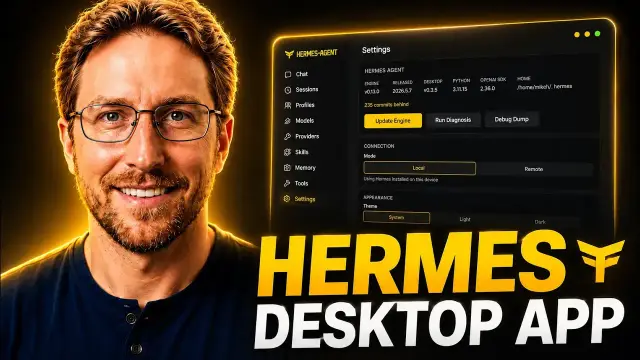
It shows the current version number that we're on. Just went ahead and ran the diagnostics and what that did was it spooled up the Hermes doctor. And from here we can see all of the packages that are installed, the configuration files, where they're located, as well as the different auth providers that we've connected and ones that we haven't connected yet, and the entire directory structure. You can see over here external tools, API connectivity, all the modules and tools that are installed inside Hermes agent.
It's just a really, really nice interface. And it also found four issues to address as well, so I may want to fix these up. I'm just going to go Hermes doctor fix. And what that's going to do is it's just going to fix the issues that I'm having with the Hermes agent. And it shows here these are the issues that need to be addressed.
So basically I just need to run Hermes setup to configure the missing API keys for full tool access, which I can do later. You can also change the theme over here as well if you want to set it to light or dark mode, you can do that. And you can choose uh where you want to run your Hermes agent. That could be either locally on your own computer or you could run it using a remote URL on a server somewhere else.
That's about it for the Hermes agent desktop app. I'm going to come back up to the office here. I want to see what this looks like. We're going to start up Cloth 3D to see the virtual 3D office environment. I am getting an internal server error because I'm not connected to the news portal. So what I'm going to do is just come over to the terminal and type Hermes model and that's going to authenticate with the Hermes news model.
You see they do have a free plan here. I'm just going to select that as the subscription. And then we can subscribe and connect. On the free plan they also have the plus plan for $20 a month. But in this case I'll just use the free one. It's now connected to Google. It's going to create my wallet and boom, there we go. So now I've subscribed. It says Hermes agent connected.
And now as you can see over here I now have access to the R key AI Trinity large thinking model, which is free. I'm going to go ahead and allow that. I'm just going to go through the Hermes setup one more time here. There we go. We have the virtual office. And if I want to control these agents here, I could just come over here and we can type a message such as get to work. And now it's using the News portal API.
It says, "Hello, ready to work. What would you like me to do?" I'm just going to say, "Read my emails." And it's saying, "I'll help you read your emails. Let me load the email management skill first to understand how to access your inbox." So, it's just going ahead and reading in that skill. And you can see the prompt over here as well inside the virtual office. There we go. So, we've got our two agents working for us.
We can also zoom in here as well if we want to zoom in. You can take a look here and then if we want them to get to work, I can just go ahead and click on this guy and say, "Get to work." Thank you so much for watching this full tutorial showing how to set up the Hermes desktop app. I hope you found it useful.
Please go ahead, drop a comment, and give this video a like if you wouldn't mind, and subscribe to the channel, and also check out my Skool community over here. We've currently got 2,600 members. It's completely free to join. I also offer paid plans as well. Would love to see you inside the community. Take care, stay safe, peace from Thailand, signing off.