HeyGen and Make.com: Script, Render and Upload to YouTube
Quick answer
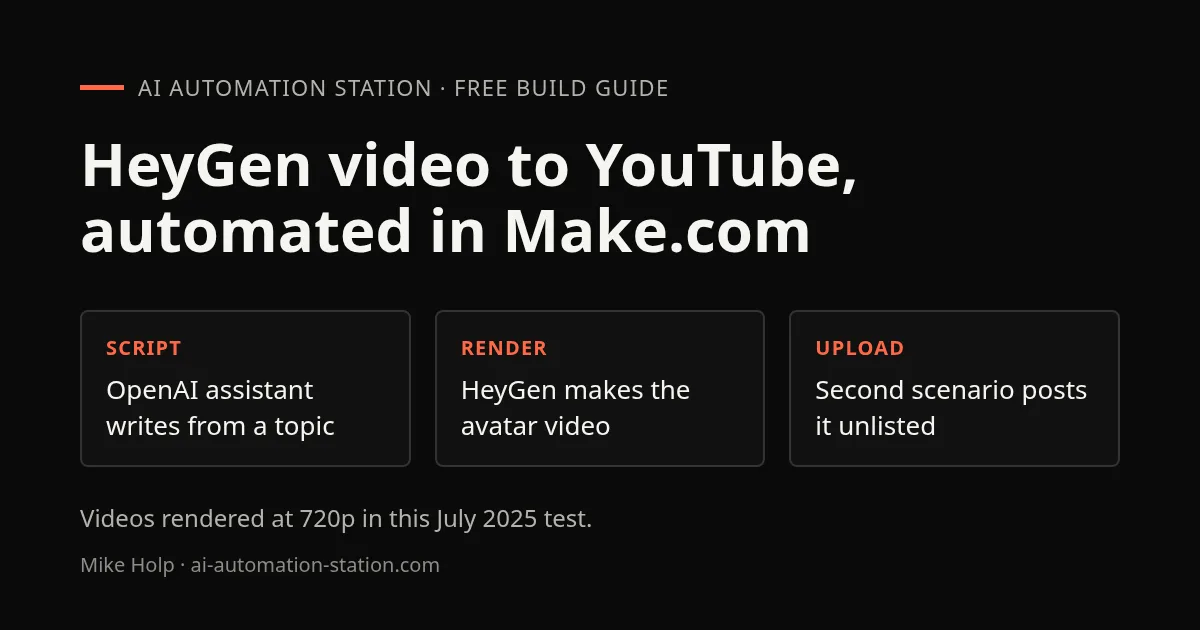
Use two Make.com scenarios. The first sends a topic to an OpenAI assistant that writes the script, then passes it to HeyGen with your avatar ID, cloned voice and a friendly emotion. The second watches for new HeyGen videos, downloads the file and uploads it to YouTube as unlisted. In my July 2025 test the videos came out at 720p, and a “resolution not allowed” error went away only after I hardcoded the video ID.
This is a short build from a July 2025 walkthrough, written up so you can follow the steps without the video open. It uses a HeyGen avatar and voice, an OpenAI assistant and Make.com. HeyGen and Make.com links on this page are affiliate links. If you have not made an avatar yet, the longer HeyGen course notes cover footage, consent and voices first.
Which faceless-video path? Syllaby for the fastest first publish; Make + JSON2Video for spreadsheet-driven batches; HeyGen + ElevenLabs when you want an avatar and voice clone (and to see the API plan wall).
Prices and plan names change. Confirm them on the vendor page before you buy. Checked November 15, 2026 against the Sources links below where listed.
1. Create the avatar and the voice
I recommended the Creator plan at around $29 a month, which this walkthrough said allows unlimited videos with a custom avatar. It had one avatar slot and let me delete avatars up to five times a month. To make an avatar, choose Create new avatar, then hyperrealistic avatar, and upload about two minutes of video. Mine used footage from one of my YouTube videos and looked close to me.
For the voice, choose Create a new voice, pick instant voice cloning and upload about two minutes of audio. Set it to multilingual if you want other languages: this walkthrough had it speaking Thai from the language list. You can also connect an ElevenLabs key if you already have a voice there. Then open Edit look on the avatar, choose the cloned voice and save.
2. Set up the script assistant
On platform.openai.com I created an assistant for HeyGen scripts. Its instructions describe how to write a script for the avatar, and it has file search turned on over transcripts of my past videos, so the scripts sound like me. Copy the assistant ID because Make.com needs it.
3. Build the script-to-video scenario
The first scenario has two modules. The first messages the assistant with a topic. The second is HeyGen’s create avatar video module: pick the avatar ID, the normal style, your cloned voice and a friendly emotion, pass in the assistant’s script, turn test mode off and run it. HeyGen rendered the video in a few minutes at 720p, which I took to be the limit of my plan.
4. Upload finished videos to YouTube
The second scenario watches for new HeyGen videos. It downloads the file with an HTTP request and uploads it to your channel as unlisted, so you can add a title and description before making it public. It first failed with a resolution-not-allowed error. Hardcoding the video ID in the upload step got it through, the video appeared unlisted on the channel and I filled in the metadata by hand.
I suggested connecting an Airtable table of topics next, so the scenario would pull a topic every day. That was an idea, not something I built in this walkthrough. For a Make.com version that already includes Airtable, see the Airtable and Facebook content machine.
Done when
- OpenAI assistant writes from a topic
- HeyGen makes the avatar video
- Second scenario posts it unlisted
What I didn't cover
- Whether the resolution error needs the hardcoded video ID on every run, or came from my plan.
- The Airtable topic queue. It was proposed, not built.
- Video titles, descriptions and thumbnails, which were still added by hand.
Watch the walkthrough
- 0:00 Introduction
- 1:00 Create Heygen AI Avatar
- 2:00 HeyGen AI Voice Cloning
- 3:00 Script Assistant Setup
- 4:00 Make.com Workflow
- 5:00 Generate AI Avatar Video
- 7:00 Troubleshooting Errors
From the video
Lines from the video's transcript that this guide does not cover, lightly trimmed. Each time opens the video at that point. Read the full transcript.
- 5:16
I also give it the time limit, 5 to 8 minutes. Do not include scene directions, just the spoken lines.
- 7:36
Not exactly sure why that is, but it's fine. I'll just create the 720p videos, right?
- 10:36
I do recommend getting the paid plan of make.com because you can download larger files on the paid plan versus the free plan.
FAQ
How long should the footage for the avatar be?
About two minutes of video for a hyperrealistic avatar, per the HeyGen upload step in my walkthrough.
Why did the upload fail with a resolution error?
I hit a “resolution not allowed” error in the second scenario. It went through after the video ID was hardcoded. I did not find the underlying cause.
Is the YouTube upload public?
No. The scenario uploaded as unlisted so you can check the video and add details before publishing.
Sources
- Video: How to Scale Content with HeyGen + Make.com Automation (recorded July 2025)
- Sign up through my affiliate links: HeyGen and Make.com
- HeyGen pricing: heygen.com/pricing (Checked November 15, 2026)
Build the next one with AI Income Lab
Step-by-step courses, reusable templates, and a community that answers when you get stuck.
Members get the Claude Code & Skills and Codex Tutorials & Courses lessons.
- Courses for builds like this one
- Copy-ready templates
- Ask questions while you build
- Weekly coaching on VIP


