Build an AI content workflow in Make.com
Watch on YouTube ↗ Subscribe on YouTube ↗
Written guide: Make.com Content Machine: Airtable, Perplexity and HeyGen
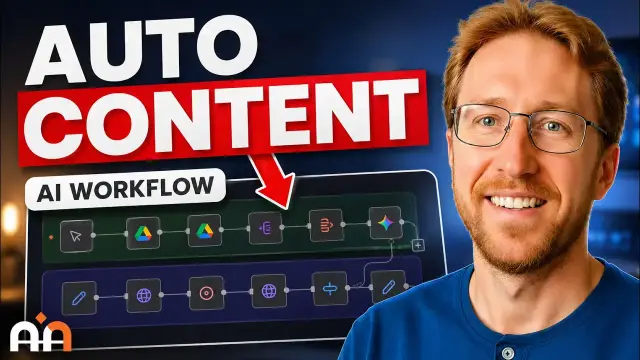
A Make.com scenario for AI avatar videos: it reads topics from Airtable, researches with Perplexity, writes a script with a custom ChatGPT assistant, creates a HeyGen avatar video with a voice clone, waits for rendering, uploads to a Facebook page and updates Airtable. The HeyGen API limits videos to 3 minutes and 720p with a watermark on lower plans, and a script over the limit fails. Mike makes the video manually in HeyGen to finish the demo, and the upload to Facebook works.
Video summary
The video covers 12 parts: Introduction to the Workflow, Integrating AirTable for Topics, Using Perplexity AI for Deep Research, Generating Scripts with ChatGPT, Creating AI Avatar Videos with HeyGen, Understanding API Limitations, Automating Video Uploads to Facebook, Updating AirTable Records, Running Automated Processes, Troubleshooting Common Issues, Manual Workarounds for Rendering, and Conclusion & Subscription Plans.
What this video covers
What you build
A Make.com scenario with Airtable, Perplexity, an OpenAI assistant, HeyGen, sleep steps, a Facebook video upload and an Airtable update.
Tools used
Key steps
- 0:39 - Search Airtable for the first topic with status to-do.
- 1:45 - Research the topic with Perplexity's Sonar model.
- 2:31 - Write a script with a custom assistant from the topic and research.
- 3:32 - Create a HeyGen avatar video with an avatar ID, a voice clone and the script.
- 4:41 - Find that the API limits videos to 3 minutes and lower resolution unless an expensive plan is used.
- 6:22 - Upload the finished video to a Facebook page from its URL.
- 7:27 - Update the Airtable record with the video URL and mark it done.
- 13:16 - Generate the video manually in HeyGen, then run the upload steps with its video ID.
Not covered
- A fully automatic run. The script exceeded 180 seconds and the render failed, so the video was made by hand.
- HeyGen API pricing in detail. Mike quotes Pro at about $99 a month and Scale at about $330.
- Quality control before posting and disclosure of AI avatar videos on Facebook.
- Consent and rights around voice and avatar clones.
In this video
- 0:00 Introduction to the Workflow
- 0:39 Integrating AirTable for Topics
- 1:45 Using Perplexity AI for Deep Research
- 2:31 Generating Scripts with ChatGPT
- 3:32 Creating AI Avatar Videos with HeyGen
- 4:41 Understanding API Limitations
- 6:22 Automating Video Uploads to Facebook
- 7:27 Updating AirTable Records
- 9:02 Running Automated Processes
- 10:34 Troubleshooting Common Issues
- 13:16 Manual Workarounds for Rendering
- 16:49 Conclusion & Subscription Plans
Questions and answers
Why did the automatic run fail?
HeyGen's API rejected a script that made a video over 180 seconds.
What does the API limit?
Videos up to 3 minutes and 1280 by 720, with a watermark on lower plans, per Mike.
Did the Facebook upload work?
Yes, after a delay the manually made video appeared on the page.
Keep learning
Transcript
Hey there, welcome to the channel. In this video, I'm going to show you how to set up the complete workflow in make.com, which will get topics from an Airtable, do research in perplexity AI, generate a script using a custom AI assistant in ChatGPT, and then create an AI avatar video using Heyen. This is a really powerful tool, and there's a module available inside make.com.
So that will create the video and then it will get the video and upload it to a Facebook page in this particular example and then update the record in Airtable. So without further ado, let's get to it. First of all, we've got an Airtable module right here. You're going to want to make sure to connect this. I would recommend just using OOTH. You can log into your account and connect it up and make.com. And then you're going to want to select your base and your table.
Read the rest of the transcript
So, I have a table for Facebook and YouTube. In this case, I'm just using the Facebook one. And then select all of your output fields here. The these are going to be outputed in JSON. And then for formula, I'm just saying status equals to-do and limit is one. So, I only want to get one at a time to create the videos. I'll show you what the Airtable looks like.
If we come over here, you can see it's just got topic, which is a single line text, and then URL, which is obviously a URL, and status, which is just single single select. It can either be to do or done. So, this one I've already finished. The best cities to live in Southeast Asia for digital nomads in 2025. And then it will actually output the URL of the finished video here as well once we run it.
And then I've just got a couple other ones here as well which I've done research on using another automation uh to fill out this Airtable. I'll show you what that looks like a little bit later. So this one is finished and then next it's passing it into a module uh for perplexity AI. This particular LLM really shines for research.
So there's actually a deep research model, but I'm just using sonar in this case cuz I just deep research takes a little bit too long and I want to keep it short on information. Right? Then we're just passing in the topic from Airtable that it got from the previous step. And that's all there is to it. So after it's done the research, then it's generating a script for the video using a custom assistant.
Uh, I actually showed what this looks like in a previous video, so I'm not going to repeat it. You're welcome to watch my other video on how to create these AI avatar videos for YouTube. It's exactly the same as that one. So, I just have this custom script in here. And the role is assistant. And then I'm just passing in the message to create a threeminut video script for Facebook on topic, which I got from Airtable based on the following research.
So we're just coming over here and passing in this text from Perplexity. So that's the research that is already done on this topic, right? And then here you can choose your tool like if you have files available. Uh but I recommend just leaving this off for now because sometimes it has some trouble with that. So we're just going to leave that off. And that's all there is to it for that step. Next, we're going to be doing the important work of creating the video itself.
So, I will say that Hunen is a little bit limited in terms of the length of video you can create using its API. If you have the creator plan, which is around $29 per month, link in the description below to sign up, then it will allow you to create up to 30 minute videos, but you can only do that using the platform itself. So, as you can see over here, I've just created this video using HeyGen.
Um, but if you're using the API, which is what make.com requires, you can only create videos up to 3 minutes long for some reason. So, then you will have to actually upgrade to the pro plan to get longer access without a watermark. And that's $99 per month. And it goes all the way up to $330 per month. So, I'm just creating the videos manually for now. Uh, but that's just something good to know, right?
And then here, you will actually pass in your avatar ID right here. So, this is your avatar ID. Um, but in my case, I just hardcoded it in. That's my avatar ID. And in order to get that, you'll come over to HeyGen here and go to your avatars. And then you can just rightclick and select uh copy avatar ID. Actually, you need to click here first. And then you can uh get your avatar ID right here. So that's just what I've done.
I just copy and pasted it in. And then here you can set the avatar scale. It can either be I think 0 to two. So that's basically just the zoom level on the avatar. I've set mine to 08. Avatar style. Just keep it as normal. And then voice text. This is going to be your AI voice clone. Again, I've already made a video on my YouTube channel showing how to train the voice clone. It's really pretty simple inside HeyGen.
Uh you'll just come over here and come on down to AI voice and then you can create your new voice and upload 2 minutes of audio and then you'll get a a voice that sounds very similar to yourself, your actual voice. So that's what I've done here. I've just got the mic voice clone and this right here I'm just passing in the input text. So that's going to be the result from the script that we've generated using ChatGPT.
So that's going to be the script from ChatGPT and then it will just create the video using that script. Right? And then you can even choose the voice emotion. I'm just selected excited here. And for the title of the video, I'm um using the topic from Airtable. That's the title. And test mode, you're going to want to make sure to turn that off. Um and you can also turn on captions as well if you want to. I just usually leave that off. That's it.
So now the next step right here, we're actually waiting for the video to finish processing or rendering. Um so I've just chosen tools. You can create a tools module. just rightclick and type tools right here. And then you're going to want to select sleep right here. So you can choose to do it this way or you can create another automation which will just be waiting for new videos to come in the pike. But I've learned that that doesn't always work so well.
So I just chose to set two different sleep modules here. So it's going to wait 600 seconds. Um, I just did some experimenting and I see that it usually takes a while to render the videos and 600 seconds should be long enough. And then once the video is finished rendering, uh, we're going to pass in the video ID right here. So, create an avatar video. You're just going to pass in the ID of that video. Pretty simple.
And then we're just going to upload it to your Facebook page. So you can choose to use an HTTP request. So if you want to download a file, you could do HTTP and then get a file right here. Um, and then you would just pass in the URL. So that would be the URL of the video that we just created. So there's the video URL. And then you can basically just upload.
So instead of download a video, you could upload a video using the uh HTTP request, right? But I've chosen to not do it that way because the Facebook page module already has this which is just downloading a video from the URL. So you can do it directly from within the Facebook module. So I can just delete this one. And then for description, again, we're just uh putting in the topic here from Airtable. And obviously you want to make sure to connect your Facebook page.
Uh I've got my Facebook page connected here. I've got about 166,000 followers on this Facebook page. And now I just want to start automating creating videos and posting to Facebook like every day, right? So that's what I'm doing to save time and money for my business. And then last step is just updating the Airtable. So we're going to pass in the video URL for the URL field and then mark the status as done right here. So that's all we're doing here. And that's it.
So that's the complete automation to generate AI avatar videos uh using Airtable creating the script in ChatGPT um generating the video and HeyGen. And now we're just going to run this and see if it works correctly. So, I just want to make sure that this is set properly. It says 3 minute video. I actually want it to be a little bit less than 3 minutes because I'm having some problems with processing the video. So, I'm just going to say 2.5 minute, right?
Two and a half two and a half minute video script. So, there we go. And I've also set this to run every Monday, Wednesday, Friday, and Sunday at a specific time. So that's how you can just run this automatically every day if you want to or however often you want. Now I'm just going to click on run. And hopefully this works correctly. So right now it's doing the research using Perplexity. Now it's generating the script using my AI assistant.
And next it's going to create the video in HeyGen. Now, like I say, it is a little bit limited in terms of what you can do with the API. Um, it's also going to have a watermark on it, and it can't be longer than 3 minutes long unless you upgrade to the pro plan, which is $99 a month, which is kind of steep. So, now it's created the video. If you click here, you can see this is the video ID, and it's uh 1280 by 720.
That's another thing with the API. You can't create uh 1080p videos, as far as I know. Um, so yeah, we're going to come back over to HeyGen here and go to projects. And it looks like it is generating this time. So, we're going to delete these ones which had an error. So, I'm just going to delete these. And it's just going to take a while to render this video. Once it's done, I will come back to you and show you what it looks like. Okay.
So, I was a little bit worried about this. Unfortunately, it did have an error again. It says that the video is too long. It's over 180 seconds. So, I'm not exactly sure how to make sure that it's, you know, less than 3 minutes using the script generator. But in this case, I'm just going to come over here and copy and paste my script. So, if I come to content text value, I can copy and paste this script.
For now, it looks like I will have to do it manually, unfortunately. Um, but the rest can still be automated. So, I'll show you what that looks like here. If we come over to create a video in a we can select a landscape video and we can just create this video using the script that I already have. So, I'm going to paste in the entire script right here. And this is just going to be moving to Asia, right? So, we'll give it a title.
And here's where you can select your avatar. So if you click on replace avatar right here, I'm just going to select my own avatar. And for voice, it's just going to use my voice, right? So unfortunately, yeah, I will have to do it manually since the API is is fairly limited in terms of what it can do uh for creating the videos. So now I'm just going to select generate. And we can also make it 1080p, which is nice inside and not include the watermark.
So, I recommend turning off the watermark. And here's the format. Just going to use MP4 in this case. And then we're going to submit that. And it will start generating the video. And once the video is finished, we will get the video ID. And then we can simply pass that in here. So, we can still automate this step. We just hardcode in the video ID or we can just download the file and upload it to Facebook.
Um, but I will have to figure out how to make sure that it's less than 3 minutes long because this is not working over here. So, it should be 3 minutes long, but it's it's still not working correctly. So, unfortunately for now, we will have to to generate it here. I will be back once it's finished. Okay. So, now the video is finished rendering and processing. And this is what it looks like.
It's uh just under three minutes long and uh we can just watch it real quick. You won't be able to hear the audio, but I'll just play it, show you what it looks like. So, as you can tell, that looks very, very hyperrealistic and lifelike. Um, and that was all generated using agent. Right. So, now we've got the video ID. We can just copy that video ID. Come back over to make. And now we can just upload to the Facebook page.
Or actually, we have to get the video first. So I'm going to hardcode in the video ID right here. And then it will get the URL and we can upload it to Facebook. So we're just going to rightclick on this and run this module only. So that will get all of the video information here, including the URL. And the reason I have to do it this way is because I need to manually generate the video. Otherwise, this would work completely automated.
Um, but now I'm just going to paste in that URL. It's quite a long one. And then now, if I run this module, it will upload to my Facebook page. So that's exactly what it's doing now. So, if I come over to Facebook right here, I'll show you that it it is uploaded to the Facebook page once this step is finished. And there we go. So, now there's the uh input URL. Here's the output video ID on Facebook.
So, I'm going to come over here and let's see. Uh no, let's refresh one more time. That's the old video. So, I'm just going to refresh. And by the way, you're welcome to follow me on Facebook if you want. It's just Mike abroad. And there it is. So, there's the video. Actually, this is still an old one. So, I'm going to refresh one more time. Make sure that it has been uploaded. For some reason, it doesn't seem to have up. It didn't actually upload here.
So, not exactly sure why that is. Um, it should upload from that URL. Let's make sure that we have the right URL here. So, we come over here. Should be able to preview that video. I'm not sure why it didn't actually upload, though. There's the video. Should have uploaded to the Facebook page correctly. It takes a while to process. So, I think it's it's actually still uploading and it just takes a little while, but it it should be up there, right?
So, that's pretty much all there is to it. That's how to create an automation to generate these videos using HeyGen. Uh, let me know if you have any questions in the comments. And let me just check this one more time to see if it is uploaded to the page. It does take a little while to proc. And there it is. Okay. So, there's the finished video. As you can see, it is uploaded onto my Facebook page right here. So, it works.
And now it's just a matter of upgrading to a higher tier of the API plan. Um, I've actually spoken to someone at HeyGen already, and they informed me that I need the pro plan of API. So, that starts from around $99 per month, which can generate only one minute avatar videos, which is still not very good. Um, all the way up to the scale plan, which is a whopping $330 a month to get access to some of this stuff.
So, if you do want to generate longer videos without the watermark using the API in make.com, you will probably have to upgrade to Pro or Scale Plan. Um, but in my case, I just want to figure out how to make the videos shorter than 3 minutes uh using make.com uh ChatGPT. So, yep. Hope you enjoyed this video. Please subscribe to the channel if you haven't already and I will see you in the next one. Take care.