ChatGPT Images 2.5 first test: sketches, avatars, thumbnails
Watch on YouTube ↗ Subscribe on YouTube ↗
Written guide: ChatGPT Image Editing: Sketch-to-Scene and Local Edits
A first test of ChatGPT Images 2.5, announced September 8, 2026, which OpenAI says is up to 50 percent faster than Images 2.0 and adds a Sketch feature. Mike turns a rough drawing into a scene in about 25 seconds, makes an 80s photo, a caricature and a 3D toy avatar from a personal photo, and iterates on a YouTube thumbnail. Fetching a thumbnail by URL fails, and the final image is a little blurry.
Video summary
ChatGPT Images 2.5 tutorial: faster gens, Sketch-to-image, edit-by-sketch, 80s photo, career caricature, 3D toy avatar, YouTube thumbnail iteration. How to use ChatGPT image generator on desktop/mobile.
OpenAI ChatGPT Images 2.5 — speed + quality upgrades rolling out now.
The video covers 10 parts: Introduction to the ChatGPT Images 2.5 release, Reviewing the official website announcement and new features, Introduction of the new sketch-to-image feature, Testing the sketch feature with a custom drawing, Checking image generation speed and performance, Modifying the generated image by sketching new additions, Trying out the 80s flashback photo generation, Creating a personalized career and business caricature, Generating a 3D designer toy avatar, and Designing and iterating on a custom YouTube thumbnail.
What this video covers
What you build
Images made with ChatGPT Images 2.5, including a sketch-to-image scene, stylized portraits and a before and after YouTube thumbnail.
Tools used
Key steps
- 0:27 - Read the announcement's claims: sharper details, more precise editing and up to 50 percent lower latency.
- 1:16 - Learn about the Sketch feature for drawing a reference in the chat.
- 2:00 - Draw two windows, a chair and a dog and get a similar scene back in about 25 seconds.
- 3:32 - Sketch an extra dog onto the generated image.
- 3:55 - Make an 80s style photo from a personal picture.
- 4:30 - Create a career caricature and a 3D designer toy avatar.
- 6:03 - Iterate on a YouTube thumbnail, simplifying the text and fixing the face swap.
Not covered
- A timed comparison with Images 2.0. The 50 percent claim comes from OpenAI.
- Privacy of uploading personal photos.
- Reproducing another creator's thumbnail. Mike says he would not copy it and makes his own.
- Fetching a thumbnail from a URL, which fails in this session.
In this video
- 0:00 Introduction to the ChatGPT Images 2.5 release
- 0:27 Reviewing the official website announcement and new features
- 1:16 Introduction of the new sketch-to-image feature
- 2:00 Testing the sketch feature with a custom drawing
- 2:46 Checking image generation speed and performance
- 3:32 Modifying the generated image by sketching new additions
- 3:55 Trying out the 80s flashback photo generation
- 4:30 Creating a personalized career and business caricature
- 5:25 Generating a 3D designer toy avatar
- 6:03 Designing and iterating on a custom YouTube thumbnail
Questions and answers
What is new in Images 2.5?
Per the announcement shown: sharper details, richer textures, more reliable multi-turn edits, lower latency and a Sketch tool.
How long does an image take?
About 25 seconds for the sketch and 35 to 40 seconds for the caricature in the demo.
How did the thumbnail turn out?
Mike liked the final before and after version but noted it was a little blurry when zoomed in.
Keep learning
Transcript
We have more good news coming out of Open AI. Following closely on the heels of the latest release of GPT6 Astra, they have now announced ChatGPT images 2.5. I've been very, very impressed by quality of images coming out of this image generation model. I use it all the time for my YouTube thumbnails and so many other things. So, I'm really excited to see what this new image generation model is capable of. I've got the official website pulled up here.
This was just announced yesterday, September 8th, as I'm recording this now. And you can see it allows for sharper details, faster image generation, more precise editing, and better tools for creating and sharing. So, in this video, we're just going to be going through and taking a look at some of the cool new things that we can do. It starts off by saying that every week, people create more than 3 billion images across ChatGPT images and the GPT image models in the API.
Read the rest of the transcript
It produces more natural lighting and richer textures, is better at preserving the subjects in your reference photos, and follows editing instructions more reliably across multiple turns. They've also reduced image generation latency, so it's faster at creating images by up to 50% compared with images 2.0. There's also this new feature that they've released called sketch that allows you to draw directly in ChatGPT as a reference for your final image available to all ChatGpt ChatgPT work and Codex users across desktop, mobile, and web using CGP images 2.5.
We could just scroll through and see what it can generate. So, we basically take this image and we can turn it into a professional style baby portrait, which is pretty cool. Here's another one of a dog in a costume. It what it's able to produce. Here's a head shot from a photo booth. So, it just took a head shot. It turned it into an image using chatp images 2.5. I want to try the new sketch feature. I'm just going to click on sketch.
In this example, I think I'm just going to draw like that's supposed to be a window. We'll draw two windows. As you can tell, my artistic style is through the roof. In this case, I want to make like some sort of chair. So, we can make a chair or looks more like a briefcase, but anyway. And then we can draw maybe like a dog lying on the ground over here. Looks absolutely nothing like a dog, but you get the general idea.
And it's already created the prompt over here. It says to create an original artwork inspired by the attached sketch. Preserve it subject emotion and gesture, not its exact strokes or shapes. And now it will go ahead and start creating that image right away. Uh I also want to see how long it takes to produce the image. It's supposed to be about 50% faster at generating images. And we can see down here it's got this progress indicator that shows 94%.
And sure enough, after about 25 seconds, it was able to produce this image, which actually looks surprisingly similar to what I drew in the very malformed sketch. We can see there's a cat on the floor on the right, just as I depicted it in the sketch. We've got a chair on the left over here, and then two windows, which are roughly the same dimensions as what I drew in my sketch. The window on the left is smaller. The window on the right is larger.
So that's pretty impressive what it was able to create in about 20 seconds. And now if I want to go ahead and add something else to this image, I could just draw right here and I could say add a dog here for example. And now we have that dog right in the image as I specified in my sketch. And I also want to see some other things that we can do over here as well.
So, we're going to come back over to Chet images, and I want to try the 80s flashback. So, it's already provided the prompt using the uploaded photo. Show me what I would look like. Uh, what I look like around 1985. Preserve my identity, facial features, skin tone, age, a recognizable appearance. But, wow, that is pretty impressive. Check that out. Wow, that looks a lot like me. Uh, I wouldn't say an 85 because obviously I would have been a lot younger than that.
Now, keep in mind, I wasn't even born in 85, but it's just in the style of an 80s flashback image. I can also do the same in order to create a caricature. And in this case, I'm just going to use that image that I just generated in order to create a caricature of me and my job based on everything you know about me.
And sure enough, after about 35 to 40 seconds, we now have a caricature which was generated using the image that I supplied that it already generated earlier. And it put a whole bunch of businesses that I'm running in the background. So, we've got Tube Analytics here. Fissy Scan, which is my AI visibility startup. Uh, we've got the AI income lab, which is my Skool community with a passport and looks like a camera, a microphone, and obviously a laptop because I'm almost always on my laptop.
Uh, a sign that says Thailand's with some ideas, automation, freedom, community, and a brighter internet. I'm not exactly sure how I came up with that. And next, we're going to come back to images. Uh, I can also generate a 3D avatar. So, once again, we're just going to use that same image. And it says to create a premium glossy 3D designer toy render of the subjects using the uploaded image as the only reference. I'm not sure how I feel about this one.
It is pretty cool, I guess, but why do I have things in my hair and why do I have sunglasses with palm trees on them? I don't know. We can zoom in. You can see the level of detail on this image is quite impressive. I like how I got my teeth looking nice and white. But in this case, what I want to do is I actually want to create an image for this YouTube video for the thumbnail for this YouTube video that you're watching right now.
This one I like quite a lot. Just showing before and after. And I can basically replace this person's face with mine. So, I'm going to say pull the YouTube thumbnail from this URL and replace the person with a picture of me. Use the reference image attached. And it should be able to pull the thumbnail and then replace the person with a picture of me. And we'll see how accurate it looks. If Now, unfortunately, I wasn't able to grab the YouTube thumbnail from that URL.
usually doesn't have issues with that, but in this case, it's not able to do that. So, I've just uploaded the reference image as well as the thumbnail. And I've told it to replace the person in the YouTube thumbnail with a picture of me. You can see it didn't actually replace the person in the left side of the image, only on the right. So, I would need to specify to replace both of them. But overall, that's pretty pretty impressive what it came up with.
Looks almost exactly like the picture, the photo that I uploaded. But now, keep in mind, I wouldn't want to rip off his image. I would want to create my own image for this. So, I'm just going to tell it to create an image showing off the capabilities of CET GPT images 2.5. And I can even put in the link over here as well to give it more context.
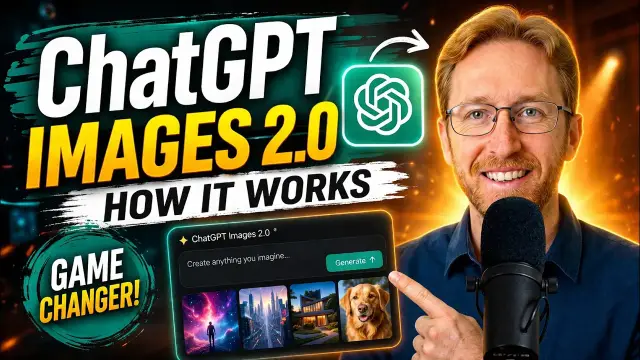
After a little bit more tweaking, we've been able to come up with this YouTube thumbnail right here, which really looks quite impressive. If you can see it got the the uh the consistency right with the image that I uploaded that looks almost exactly like me or the photo that I uploaded and it added the OpenAI logo which sometimes it will have difficulty with in the previous version. I would probably want to remove some of the text because the less text the better on a YouTube thumbnail.
So I'm just going to tell it to make this image simpler. I don't really like what it came up with here. It just doesn't look super polished and it didn't do exactly quite what I wanted it to do. But overall, like the level of quality is very good. But I'm just going to tell it to make this simpler with less text and keep the overall design. And sure enough, it was able to come up with this YouTube thumbnail.
You can see it removed a lot of the text and it kept the overall design just like I told it to. We've still got the logo in the upper left with Chet Images 2.5. The image quality is quite good. Okay, so after quite a bit more experimenting, I've told it to create a thumbnail showing a before and after version of myself with Chetch Images 2.5. And I think this looks much better. I definitely like this one quite a lot more than what I had before.
And yeah, it's just really clean and polished and it it it gets the it gets the message across right away. I will say that the image quality is a little bit blurry. Like if I go ahead and zoom in, it is a little bit blurry, but overall still very high quality image and it should be just fine for a YouTube thumbnail. So this is one of the best ways to create thumbnails.
And then you can also throw it into something like Vid IQ in order to further tweak the thumbnails. This is kind of like my daily workflow. So yeah, this just been a quick demo showing off the capabilities of the new Chetchup Petite Images 2.5. Hopefully you enjoyed the tutorial. Please go ahead, subscribe to the channel if you haven't already. Take care, stay safe. Peace from Thailand. I will see you in the next one. Signing off.