ChatGPT Images 2.0 first tests: selection edits and ISBNs
Watch on YouTube ↗ Subscribe on YouTube ↗
Written guide: ChatGPT Images 2.0: How to Use It, First Tests and Edits
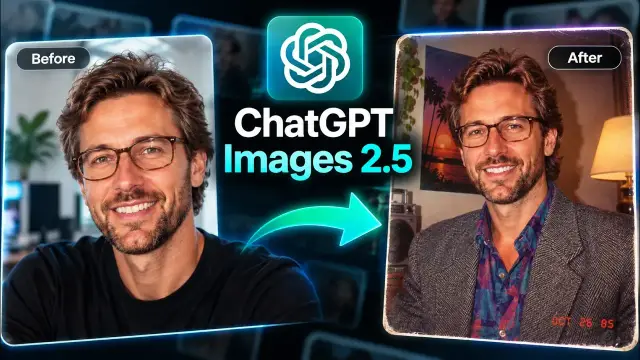
A hands-on tour of ChatGPT Images 2.0 right after launch: OpenAI's sample prompts, the selection tool for editing part of an image, a caricature from a selfie, an aspect ratio change, a house blueprint from a photo, a sketch turned photorealistic and a book back cover whose generated ISBN barcode scans to the right listing. The leaderboard lead over Nano Banana Pro 2 is a claim from the video, and results vary between runs.
Video summary
The video covers 13 parts: Introduction to ChatGPT Images 2.0, Benchmarks: Images 2.0 vs. Nano Banana Pro 2, Exploring the New Official Gallery (Text & Logic), How to Access the New Image Creation Mode, Testing 35mm Film Prompts & Character Consistency, Using the Selection Tool for Image Editing, 360-Degree Images & Video Game Graphics, Transforming Selfies into Caricatures (The Star Wars Shirt Test), Changing Aspect Ratios: Portrait to Landscape, AI Architecture: Creating House Blueprints from Photos, Sketch-to-Realism Transformation, Generating Scannable ISBNs & Product Mockups, and Final Verdict & How to Use It Today.
What this video covers
What you build
Images made in ChatGPT's image mode, including selection edits that change hair color and swap animals, plus a scannable ISBN image.
Tools used
Key steps
- 0:15 - Hear the claim that Images 2.0 leads Nano Banana Pro 2 by about 242 points on a leaderboard.
- 0:35 - Browse OpenAI's gallery for text, multilingual and logic examples.
- 2:01 - Open image creation mode in ChatGPT and run OpenAI's sample prompts, which give similar but different results.
- 3:43 - Select part of an image to change the hair color and replace rabbits with elephants.
- 5:38 - Turn a selfie into a caricature that includes a Boba Fett shirt.
- 6:40 - Change the aspect ratio from portrait to landscape.
- 7:03 - Create a house blueprint from a photo.
- 7:51 - Turn a simple sketch into a photorealistic portrait.
- 8:31 - Recreate a book back cover so the generated ISBN barcode scans to the right Amazon page.
Not covered
- Independent confirmation of the leaderboard scores.
- The accuracy of the house blueprint, since Mike says he is not an architect.
- Privacy of uploading selfies and photos, and rights questions around reproducing a book cover or copyrighted characters.
- A repeatable test. OpenAI's sample prompts do not reproduce its gallery images.
In this video
- 0:00 Introduction to ChatGPT Images 2.0
- 0:15 Benchmarks: Images 2.0 vs. Nano Banana Pro 2
- 0:35 Exploring the New Official Gallery (Text & Logic)
- 2:01 How to Access the New Image Creation Mode
- 3:00 Testing 35mm Film Prompts & Character Consistency
- 3:43 Using the Selection Tool for Image Editing
- 4:41 360-Degree Images & Video Game Graphics
- 5:38 Transforming Selfies into Caricatures (The Star Wars Shirt Test)
- 6:40 Changing Aspect Ratios: Portrait to Landscape
- 7:03 AI Architecture: Creating House Blueprints from Photos
- 7:51 Sketch-to-Realism Transformation
- 8:31 Generating Scannable ISBNs & Product Mockups
- 9:21 Final Verdict & How to Use It Today
Questions and answers
What can the selection tool do?
You select an area of a generated image and describe a change, such as hair color or replacing objects, and ChatGPT edits only that part.
Do OpenAI's sample prompts give the same images?
No. The results are similar in style but different characters and scenes.
Did the ISBN trick work?
Yes in the demo. Scanning the generated barcode opened the right book listing.
Keep learning
Transcript
Hey there, welcome to the channel. In this video, I'm excited to share with you how to get started using ChatGPT Images 2.0, which is OpenAI's latest and greatest image generation model. It's currently beating Nano Banana Pro 2 by about 242 points, even outpacing GPT image 1.5, which was the previous model. It's beating it by about 300 points, which is pretty much unprecedented. It is now the the best image generation model out there. And I've got the official website pulled up here.
So we could just go ahead and scroll through. These are all images that were generated using images 2.0. Can generate images in different languages. You can create your product mockups. You know, even comic book style images as well. Looks really cool what you can do with this and I look forward to testing it out in this video. So without further ado, please subscribe to the channel if you haven't already and let's get into it.
Read the rest of the transcript
I'm just going to go ahead and scroll through the website and we can actually just enlarge this so you can see what the image looks like. You can see that the text is absolutely perfect. There's none of that ghosting effect going on anymore like some of the previous image generation models. So yeah, really really amazing. And then this one is super colorful. You can see it got the periodic table here. The text looks perfect. We've got some blueprints in here as well.
Here's a handwritten note of a handwritten essay in pencil and then it was generated using the latest model. And yeah, you could just continue scrolling through all the images here. Here's another one that shows uh an image generated in different languages. So, we've got Arabic, Japanese, Chinese. All of it looks perfect as far as I can tell. And you can also generate, you know, anime style images using this as well. Here's an example of Sam Alman, the CEO of OpenAI.
This one also is really impressive as well. It looks like a an image that was generating using an old style camera. You can see it's very grainy. This is the prompt they used. So, I'm actually just going to come over here and we're going to get started with images 2.0. So, just come on over to chatgpt.com and you will see a popup most likely right here. It says image creation got a major update. It's faster, more creative, and better at getting the details right.
That's for sure. You can transform your photos, change selfies into head shot, remove backgrounds, and dramatically alter photos, just like this example here. You can also make comics and graphics to see your life as a comic strip. And you can show your ideas visually. Here's an example of a blueprint. And then in order to get started, just click on start creating. And that will drop you straight into image creation mode.
So, in this case, I'm just going to take that exact prompt that they have on the OpenAI website and I'm going to run it. And right away, you will see it will start generating the image. So, it's just going to sketch out the entire design and it will produce a result that will most likely look very similar to this, but we we'll see what it looks like. And here it is.
So, it does look quite similar to the one they have over here of the woman standing in front of a coastline, but it's a different character. You can see though that it does have that grainy effect to it as well, like it was shot on 35 mm film. And we can also create other images like they also have the prompt for this one.
So, if I wanted to create an image that looks quite similar to this, I can just take this exact prompt and come on over to chatd images and it will create an image. Okay, so this is what it was able to produce. Looks very, you know, futuristic, I guess. Uh, and also quite different from the one over here as well. Looks like you can also drop files here to add it to the conversation.
So, if I wanted to modify this in some way, I could also do that. And you can also uh select a section here. So, if I go ahead and select, I could say change this person's hair color. So, I'm going to select the hair and I'm going say change the hair color to white. And it should just go ahead and do that within a couple seconds. So, you can see it's now creating an image using the selection.
And it should just change the person's hair color to white within a couple seconds. So, we'll see if it can do it accurately. So, there we go. As you can see, it changed her hair color to white. It looks a little bit funky, but overall I would say it did a really good job of altering the hair color. And then if I wanted to, let's say, change these rabbits over here to something else. I can just say change the rabbits into elephants.
So, it's just going to modify this image using the selection that I've provided here. And while this is running, I'm going to come on over to Twitter here, and we can take a look through some of the other things that you could do with this. This is the official video that I showed you earlier. And here's one. This is a 360 degree image that was created using images 2.0. So, we've got Sam Alman, the CEO of Nvidia. We've got Tim Cook in here, Elon Musk.
That's pretty amazing as well. And you can also create video game graphics in here as well. So, this is an example using CHPT 2.0 and Cance 2.0 know to create in-game screenshots from a video. >> So, check this out. It's even got a video in here as well. And that's pretty impressive. Here's an example of a blueprint using uh images 2.0. And we're also going to come back over here and see if it was able to get this right. And boom. There we go.
So now it replaced the pink rabbits which we had earlier with elephants. As you can see there's the change. And next I want to create a caricature of myself using a picture. So I'm just going to upload a picture of me and say create a caricature. Definitely didn't spell that correctly. Of this person. I love the way it looks. They got the Star Wars shirt correct.
It also made my ears a little bit bigger and the glasses more pronounced and you know got a big smile on my face on the island with frizzy hair. And I really really like that. I'm just going to go ahead and actually save that real quick. We can easily download it. And it's funny. It says tropical beach selfie with Boba Fett because Boba Fett is on my shirt. So it's even able to identify what character that is on my shirt, which is pretty cool.
And I also have the option to edit this as well. So if I want to let's say remove elements from the image or change the aspect ratio to you know widescreen or landscape I have the option to do that as well. Clicked on it and then we can see that image is now in landscape mode. And again if I want to edit any aspect of the image I could just come over here and then we can select let's say this coconut tree right here which it
did replace. It actually replaced it with a coconut tree. Another thing that I want to see if Chetchi Pet can do is to create a blueprint of a house. So, let's say I take a picture of this house right here. I'm just going to go ahead and save it. And I just say create a blueprint of this house. So, now we'll see if it can actually just go ahead and create the blueprint. And sure enough, it was able to create the full blueprint of this house.
Now, keep in mind, I'm no architect, but I think that looks like a pretty accurate representation of the house. Pretty incredible. It's even got the pool in here. You can see it added the pool and the dining room, great room. It has a hot tub over here as well. So, if we look at the picture, I do see a hot tub right there. So, I was able to take that and it created this entire blueprint of the house.
Another really cool thing that you can do with JetP Images 2.0 is you can take a sketch of an image. So, in this case, I'm just going to save this from Pinterest. And we're going to come over to Chetchip PT. I'm just going to upload that photo. And I'm going to say turn this into an accurate photo of the person. So, that should take the sketch and it's going to turn it into a real life image of a person.
And sure enough, true to form, I was able to take this sketch, just a very, very simple image that I got from Pinterest, and turn it into an accurate photorealistic version of the woman in the image, which is really incredible. Last but not least, I want to show you how to upload the back cover of a book, scan the ISBN, and then it will take you directly over to the book listing.
So, I've got Give and Take pulled up here, one of my favorite books by Adam Grant. I'm just going to go ahead and save this image as I've already done. And then I've uploaded it over here to ChatGPT. And I just said create an identical image, making sure to keep the ISBN the same. So now you can see this is the image that it generated.
And if I go ahead and scan that ISBN right here, it should take me straight over to the book listing where I can buy the book. And sure enough, it was able to take me directly over to Amazon give and take where you can see that I can buy the book simply by scanning the image generated with ChatGPT. Pretty amazing. Thank you so much for watching this video.
I hope you found it useful and I look forward to seeing what you're able to create with ChatGPT images 2.0. Let me know if you have any questions down below. And that's all for now. Thanks so much for watching. Take care. Stay safe. Peace from Thailand. I'll see you in the next one. Signing off.