Facebook Messenger Auto-Replies With Make.com and ChatGPT
Quick answer
In Make.com create a scenario with the Facebook Messenger Watch messages trigger and a webhook with a verify token you choose, add an OpenAI create-a-completion module that writes a reply to the incoming text, and a Messenger send-a-message module that returns it. Then create an app in Meta for Developers, connect your page, generate a page access token and paste in the webhook URL. Going live needs the pages messaging permission and business verification, which was still pending in my July 2025 walkthrough, so the bot was not shown working.
This is a July 2025 build. The hardest part is the Meta developer portal, not Make.com. Replying to customers automatically can go wrong, so test with your own account and read every reply before you go live. The Make.com link is an affiliate link. For the Gmail version of the same idea, see the Make.com Gmail auto-reply.
1. Build the three-module scenario
Create a new scenario, search for Messenger and choose Watch messages. It needs a webhook, which is a listener for new messages, and a verify token that can be any text you make up. Next add OpenAI, create a completion, to write a reply to the message text, and a Messenger send-a-message module that uses the access token and the ChatGPT result as the message. A custom ChatGPT assistant module can replace the plain completion if you want one tightly scoped job: professional replies on Messenger. The Make help center shows a more complex flow with a router.
2. Create the Meta developer app
In Meta for Developers create an app, choose the Other use case and the Business type and link it to your Facebook page. Connect the page and generate the page access token. In the Messenger settings add the webhook URL from Make.com and the verify token, and subscribe to the fields you need. You can also subscribe to fields such as name and email to build a list as messages come in, but check privacy rules first.
3. Fix a failed webhook check
The first webhook verification failed. I fixed it by creating a new webhook in Make.com and pasting its URL and verify token into the app again.
4. Permissions and business verification
Before the app can go live you request the pages messaging permissions and verify your business with Meta. My approval was still pending, so I could not show a live reply. Switch the app to live only after that.
Done when
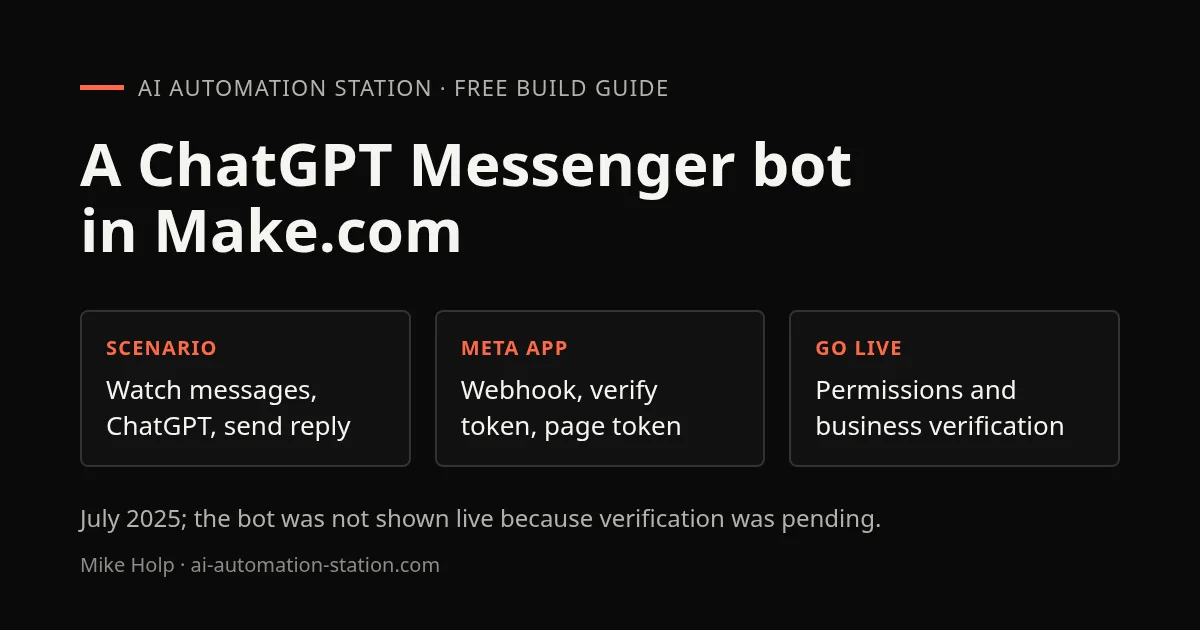
- Watch messages, ChatGPT, send reply
- Webhook, verify token, page token
- Permissions and business verification
What I didn't cover
- A working live reply. I ended before Meta approved the business.
- Cost of the OpenAI calls per message.
- Replying to comments, which I said I was not sure was possible.
Watch the walkthrough
- 0:00 Introduction to Messenger Bot Automation
- 1:30 Key Benefits & How Automation Saves Time
- 2:15 Setting Up a New Scenario in Make.com
- 3:30 Creating Your Facebook Developer App
- 4:41 Connecting Your Facebook Page
- 5:36 Configuring Web Hooks and API Setup
- 8:12 Integrating Chat GPT for Replies
- 9:47 Sending Automated Responses via Chat GPT
- 12:04 Troubleshooting Web Hook Issues
- 13:36 Business Verification & Permissions
- 15:37 Testing and Going Live
- 17:15 Conclusion & Final Tips
From the video
Lines from the video's transcript that this guide does not cover, lightly trimmed. Each time opens the video at that point. Read the full transcript.
- 1:08
It's not going to take very long. Pretty much the most difficult part is setting up the app within the Facebook developer developer portal.
- 6:01
We're just going to click on verify. and save. Looks like the callback URL of verify token couldn't be validated.
- 9:09
That's all there is to it. And completion tokens you can just leave as 2048.
FAQ
Why did the webhook check fail?
My first attempt failed. A new webhook in Make.com with its URL and verify token pasted into the app fixed it.
Can I go live straight away?
No. The app needs the pages messaging permission and business verification first.
What is the verify token?
Any text you choose. It must match in Make.com and in the Meta app.
Sources
- Video: How I Saved Hours Every Day by Automating My Messenger (recorded July 2025)
- Sign up through my affiliate link: Make.com
- Make.com: make.com (Checked November 15, 2026)
Build the next one with AI Income Lab
Step-by-step courses, reusable templates, and a community that answers when you get stuck.
Members get the Claude Code & Skills and Codex Tutorials & Courses lessons.
- Courses for builds like this one
- Copy-ready templates
- Ask questions while you build
- Weekly coaching on VIP


