Make.com Gmail Auto-Reply: Watch, Write and Send With AI
Quick answer
In Make.com add a Gmail watch-emails module for unread inbox messages, then an OpenAI create-a-completion module with four messages: a system role, a task description, a reply format and the email text. Add a sleep step so replies are not instant and a send-email module that replies to the sender and saves a copy in Sent. Run it unlinked from the send step first, read the draft, then connect it.
This follows a July 2025 build that took about five minutes to assemble. It replies to real people, so the most important part is testing before the send step is connected. I also mentioned a paid template, which you do not need to follow along. The Make.com link below is an affiliate link. For a simpler first scenario, try a Make.com filter and sheet.
1. Watch the inbox
Right-click the canvas, add a module and choose Email, then Watch emails. Connect Gmail with the restricted Google connection, or use IMAP for another provider. I selected the Inbox folder and unread emails only. You can also limit it to one sender address, which is a good way to start.
2. Write the reply with OpenAI
Add the OpenAI create a completion module and connect it with an API key from platform.openai.com. I used a GPT-4 family model. The four messages I used were: a developer/system message saying it is an email assistant; a user message describing the inbox and the task, a professional and succinct reply; an assistant message with the reply format, filled with the sender’s name; and a user message holding the email’s text content.
Use the plain text of the email, not the HTML, so tags do not confuse the model. I also told it to sign off with only my first and last name, because it kept inventing empty company details. One limit: a reply chain pastes the whole thread in, including my earlier messages, and I found no way around that.
3. Delay, then send
Add Tools, then Sleep. I used a short wait, about 90 seconds, so replies do not look instant, and suggested a longer one. The maximum I could enter was 300. Then add Send an email, tick Save message after sending and pick the Sent folder so you keep a record. Send to the original sender’s address, set the subject to “Re:” plus the original subject and use the model’s message content as plain text. Skip attachments, because repeated attachments can look like spam.
4. Test before you send anything
When I ran it, the watch module stopped on the latest message, so I chose a specific email from the list to start from. I unlinked the send step and read the model’s draft first. The reply to a hotel marketing contact was polite and sensible, and later a vacation auto-reply came back as another automated reply. Because this automation can write to real contacts, review several drafts before you link the send step, and consider sending to yourself first.
Done when
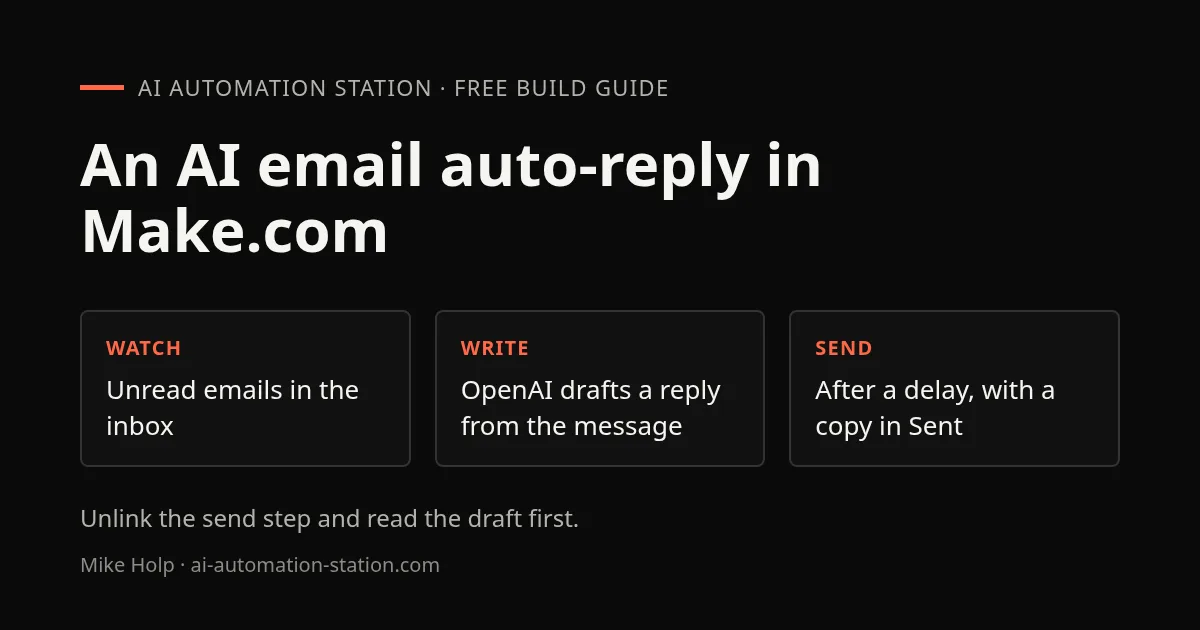
- Unread emails in the inbox
- OpenAI drafts a reply from the message
- After a delay, with a copy in Sent
What I didn't cover
- How often the replies were wrong or off tone. I read a few drafts but did not measure it.
- Gmail’s own sending limits and spam rules for automated replies.
- A system that avoids replying to automated senders or to the same person twice.
Watch the walkthrough

From the video
Lines from the video's transcript that this guide does not cover, lightly trimmed. Each time opens the video at that point. Read the full transcript.
- 5:42
Obviously there's all the different models but in most cases I find that GPT 4.0 works best.
- 14:22
It's turned on and it's just going to be automatically running every 60 minutes checking for new emails coming in, right?
- 16:52
It's actually going to wait 90 seconds, which I don't want to do for the purposes of this example.
FAQ
Can it reply to every email?
It can, but I limited it to unread inbox messages and recommend a single sender at first. Replying to everything risks replying to newsletters and automated mail.
Why add a sleep step?
So replies are not instant. The build used about 90 seconds, and I suggested a longer wait; the module capped the value I could enter at 300.
Which OpenAI model does it use?
A GPT-4 family model in my walkthrough. Pick a current model in the module.
Sources
- Video: This Make.com Automation Saved Me 10 Hours a Week on Emails (recorded July 2025)
- Sign up through my affiliate link: Make.com
- Make.com: make.com (Checked November 15, 2026)
Build the next one with AI Income Lab
Step-by-step courses, reusable templates, and a community that answers when you get stuck.
Members get the Claude Code & Skills and Codex Tutorials & Courses lessons.
- Courses for builds like this one
- Copy-ready templates
- Ask questions while you build
- Weekly coaching on VIP


