ZCode desktop app: GLM 5.2 free plan on a real project
Watch on YouTube ↗ Subscribe on YouTube ↗
Written guide: ZCode GLM Desktop: Install, Plans and Review
Install ZCode, the official desktop app from Z.ai, and run GLM 5.2 on an existing project with plugins, skills, a built-in terminal and browser, and usage tracking. The test stays on the free plan, which this walkthrough says includes 5 million GLM tokens per day.
Video summary
GLM 5.2 desktop app (ZCode) setup: install on Linux/Windows/Mac, pricing tiers, terminal + config, Bridgebench scores, thinking levels, project indexing, and a live site code review. How to use GLM 5.2 in the official ZCode desktop.
GLM 5.2 tutorial — Claude Code alternative with a dedicated desktop UI from Z.ai.
The video covers 10 parts: Introduction to GLM 5.2 and its new official desktop app, Zcode., Supported operating systems and running the app locally on Linux., Exploring pricing plans from the free tier to premium coding options., Accessing the built-in terminal and editing configuration files., Breaking down token pricing, usage metrics, and platform rankings., Reviewing model performance benchmarks on Bridgebench., Adjusting agent thinking levels and daily credit settings., Comparing the app workflow directly against terminal-based tools., Activating project indexing and reviewing total session token usage., and Running a full site code review and community resources overview..
What this video covers
What you build
Nothing is built from scratch. The video shows ZCode suggesting features for and starting a code review of the existing Tube Analytics project.
Tools used
Key steps
- 1:05 - Download ZCode for macOS, Windows or Linux, here running on Debian.
- 2:10 - Compare the free plan with the three paid coding plans.
- 3:15 - Review changed files grouped by staged and unstaged edits, and open the built-in terminal and browser from the side panel.
- 6:31 - Set the model mode, thinking level and permission mode, and check daily credit use.
- 7:37 - Add plugins such as Superpowers and confirm existing skills were imported automatically.
- 8:42 - Turn on folder indexing and view total token usage across sessions.
- 9:48 - Start a new task that runs the code review plugin in ask before changes mode.
Not covered
- The finished feature suggestions and code review results are not shown.
- Turbo mode and the paid coding plans are not tested.
- Installation on macOS or Windows is not shown.
In this video
- 0:00 Introduction to GLM 5.2 and its new official desktop app, Zcode.
- 1:05 Supported operating systems and running the app locally on Linux.
- 2:10 Exploring pricing plans from the free tier to premium coding options.
- 3:15 Accessing the built-in terminal and editing configuration files.
- 4:21 Breaking down token pricing, usage metrics, and platform rankings.
- 5:26 Reviewing model performance benchmarks on Bridgebench.
- 6:31 Adjusting agent thinking levels and daily credit settings.
- 7:37 Comparing the app workflow directly against terminal-based tools.
- 8:42 Activating project indexing and reviewing total session token usage.
- 9:48 Running a full site code review and community resources overview.
Questions and answers
Is ZCode free?
Yes, there is a free plan. As stated in my walkthrough, it includes 5 million GLM tokens per day, and paid coding plans cost $16, $65 and $144 per month.
Does ZCode run on Linux?
Yes. The video says it is available for macOS, Windows and Linux, and runs it on Debian.
Why use ZCode instead of GLM 5.2 in OpenCode?
The desktop app makes GLM 5.2 easier for people who are not comfortable in the terminal, Mike says. It also shows sub-agents and file edits in a side panel.
Keep learning
Transcript
Hey there, welcome to the channel. In this video, I'm going to be taking you through how to get started setting up and installing Zcode, which is the official code editor/IDE for GLM 5.2. This is one of the easiest ways to get started with this new latest and greatest AI model coming out of China. It's currently giving Claude Fable 5 a run for its money across all benchmarks. So, enjoy the tutorial. Please subscribe to the channel if you haven't already.
And also go ahead and check out my Skool community. We've currently got almost 3,000 members in there. New people are joining every single day. Go ahead, introduce yourself inside the community. Would love to see you inside. And with that being said, let's go ahead and start the tutorial. This is the official code editor for Z.AI, the company that makes GLM 5.2. I've got the website pulled up here. I'm also going to leave a link in the description below where you can get started.
Read the rest of the transcript
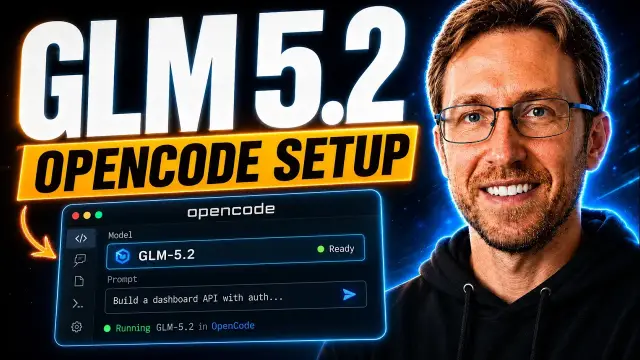
It's completely free and it's also available for Mac OS, Windows, as well as Linux. Luckily, I'm running on Debian. So, I've already installed it and we've got it running over here. So, this is the desktop app for ZAI where you can run GL 5.2 models. So, if you haven't previously seen my other video, I showed you how to install it inside OpenCode. This was the easiest way to do it prior to the new desktop app.
All you have to do is just come over here and select it either on OpenCode Go or OpenCode Zen and then you can get started right away inside OpenCode. But now, if you want to use a desktop app, they provide that for you through their official website over here. And this is also interactive as well, which is kind of cool. So you can play around with it and see the different things that it can do before actually installing the app.
And then you can choose a coding plan or you can just use the free plan which gives you a certain number of credits every single day. If you want to take a look at the different plans that they offer, you can just come over to their coding plan here and you can get started with either the light pro or max plan. Light is $16 per month. Pro is $65 a month and max if you want to go hardcore is $144 per month.
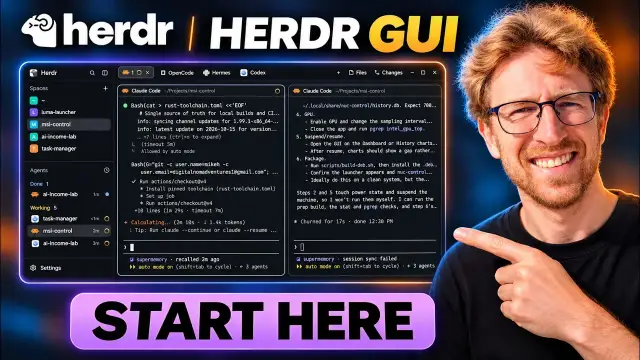
But you can also get started completely for free on the free plan. So let's just minimize this and we can come over to the desktop app here. I'm already in my local directory for Tube Analytics which is my software as a service and I've just told it to suggest new features just to see what it can do. We can also click here and we can easily see the changes that have been made which is a really nice feature.
So we can see all of the files over here that are being changed and we can also group by unstaged and staged edits. So I've been doing a lot of work inside Claude Opus 4.8 and it went ahead and changed a lot of these files which I can then commit to GitHub anytime I want to. So that's a really nice feature. And we can also take a look at some of the other things inside this side panel over here.
Uh if we want to exit this out, we could just close that. And now we can open up this tab. And you can see we can start a terminal from over here. And then we can just open up that file over here inside nano in the sidebar. So that's really cool. It can also do a browser. So you can also open up your browser over here. So now I can just go ahead and start running my browser.
And I can even, you know, I can open up tube analytics over here if I want to. So this is really nice feature. And this is not something that you would get inside VS Code or any other code editor as far as I can tell. Uh it just makes it really really easy to test things. Yeah. So we could just go ahead and minimize that. We could come back over here and see what it was doing for the suggested features.
So it's just running different sub agents over here. it spawned the brainstorming skill because I'm asking it to do some planning to suggest the features and then we can see what it's doing in each one of the sub agents. So this is a lot better than running it over here inside OpenCode. If you haven't seen my previous video showing how to run GL5.2 inside OpenCode, go ahead and take a look at that. And we can also come over to OpenCode.
Here you can see these are the top models according to usage of the models across OpenCode Go. Uh Deepseek V4 Flash is number one, Deepseek V4 Pro is number two on OpenCode. We've also got Miniax and then GeoM 5.2 is currently ranking number four on the platform. And you can also see how much it costs over here as well. Uh it's got all of the data. So it costs $1.40 per 1 million input tokens and $4.40 40 cents per 1 million output tokens.
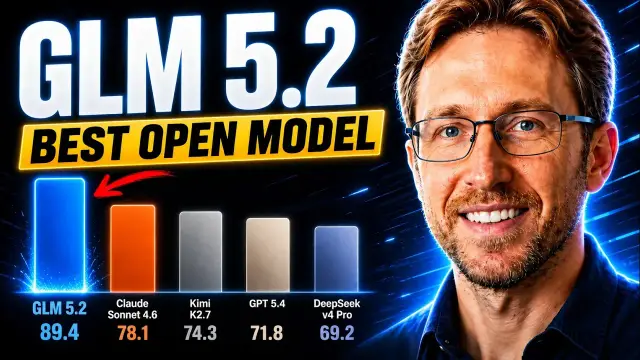
That's about 10 times cheaper than the new Claw and Fable 5. So, it's definitely, you know, one of the best models out there coming from China. We can also take a look at some of the benchmarks over here as well. GLM 5.2 on max mode. In terms of intelligence, it's definitely giving Claude Fable 5 a run for its money. It's a 51, while Claude Fable 5 is a 60. GLM 5.2 to on max mode is considerably faster than Fable 5 and it's also cheaper as well.
So, it's only 48 cents per 1 million tokens compared to $2.75 for Claude Fable 5. And I can say with certainty that Fable 5 is also chewing through my credits faster than any other AI model I've used. So, I've had to drop down to Opus 4.8 to do most of my coding tasks. And then I just use Fable 5 for the planning phases. I'm also going to come over here to Bridgebench.
And you can see JM 5.2 is doing really, really well across all of the benchmarks including reasoning, refactoring, UI, way up there with the others. And it's also a lot cheaper in a lot of ways and faster than Sonnet 5, which is the new model from Claude as well as Fable and a bunch of other ones. Currently ranking number four in speed. So yeah, I just want to see what this can do inside the desktop app. You can also set your mode down here as well.
So you can use use either GM 5.2, just regular mode, or you can switch over to turbo, which I'm assuming is going to be even faster. And you can turn on the thought level. And you can also see how many credits you've used over here as well. So the free plan includes uh we could take a look at the free plan that includes 5 million GLM tokens per day. And then if you want to upgrade to like coding light, that's going to be $16 per month.
But in this case, I'm just going to stick on the free plan because I'm not going to be using 5.2 all that often. And it looks like I've only used, you know, 28% of my current credits. We can set the thinking level to no thinking, high, or max. I would just recommend high in this case. And we can also set the mode over here. So, it's either planning mode, uh, it can edit files automatically, or it can ask before changes or full access.
In this case, I just want to continue with my new feature suggestion. So, I'm going to say go ahead and continue. And now, it's just going to continue thinking going through some of the other planning documents that I have over here. And it's just pulling in everything. And then again, we can also expand out this sidebar and take a look at all of the files as they're being edited over here as well. So overall, I really like this desktop app.
I think it's going to make GLM 5.2 a lot more accessible for most people that aren't necessarily comfortable doing things over here inside OpenCode using the terminal. We can also take a look at some of the skills. So it also pulled in all of my skills over here as well automatically, and they're all turned on and ready to go. So I've got my plugins and all my skills over here inside the Zcode app. We can add MCP servers from here. We can add additional plugins.
It even allows me to discover new plugins from here as well. So, if I want to add any of these plugins like superpowers I definitely want. I'm just going to go ahead and add a few of the most important plugins. We'll just go ahead and add all of these. So, now all the plugins are installed. Uh we could take a look at different commands that are available now inside Zcode after I've added these plugins.
So we could do like a code review, commit, push, feature development, all that stuff. And we can turn on indexing as well. So if I want to turn on indexing of folders, I could just turn that on. And we can see our usage over here as well. So currently I've used 867,000 tokens across six sessions. And I'm just using GLM 5.2. No turbo mode for now. So, overall, I think this is a really, really cool app, and it's very easy to use. Let's just stop this.
Or I guess we can also open up a new task, and I could just tell it to use that plugin that I just installed and do a a full code review. And we're going to switch over to ask before changes. So, that's going to use that plugin for code review. And now, it's just going to start running a full site audit and seeing anything that I might want to fix up on Tube Analytics.
By the way, if you haven't checked out Tube Analytics yet, this is my YouTube analytics platform. It's a software as a service and it is extremely powerful. Prices start at $19 per month for the starter plan and then you can also get professional or enterprise plan depending on how much you want to use it. Go ahead, check out Tube Analytics. I've got a link in the description below if you want to check it out. And also feel free to join my Skool community.
We've currently got almost 3,000 members in here. I just switched it over to free trial and then it's $29 per month after the 7-day free trial. You could take a look around the classroom for all of the videos, tutorials, and courses, including my coaching program. This one's high ticket. And then also introduce yourself inside the community tab. Love to see you inside the Skool community. And with that being said, thank you so much for watching this video.
Please go ahead, subscribe to the channel if you haven't already, and I look forward to sharing more tutorials very soon on this channel. Signing off.