Gamma Presentation From a Pasted Plan: Client Coaching Deck
Quick answer
In Gamma choose Create new, paste your outline as text, pick Presentation and 16 by 9, and generate from notes. On the free plan I got ten cards, set text to concise, chose the audience, tone, language and a light theme, and let Gamma pick images in a line art style. The deck took about three minutes. I changed a heading, edited one image with Gamma’s AI agent and exported to Google Slides. Quoted plans: Plus $12, Pro $25 and Ultra $100 a month.
Prices and plan names change. Confirm them on the vendor page before you buy. Checked November 15, 2026.
This follows a March 2026 walkthrough where I made a deck for a client who had never used ChatGPT, about an hour before the session. The Gamma link is an affiliate link. Prices and card limits are the ones I quoted, so check Gamma’s page. For a workshop deck with a website export, see the Gamma workshop guide.
1. Write the plan first
I asked ChatGPT for a four-day coaching plan aimed at a complete beginner, laid out day by day. The plan’s opening idea was that a new learner has two problems at once: they do not know what the tool is and they do not know how to think with it. That plan became the outline Gamma works from.
2. Paste it into Gamma
Choose Create new. The options are a one-line prompt, pasted text, a template or an imported file or URL. I pasted text, chose Presentation, a 16 by 9 format and Generate from notes or outline, then went to the prompt editor. The free plan allowed ten cards. I set the amount of text to concise because I would speak to the slides, and set the audience, tone and language. I chose the light theme.
3. Pick the images
I let Gamma choose the image model and selected a line art style. The AI then built the slides in real time in about three minutes. It was a solid deck for a beginner, and I liked the imagery.
4. Edit and export
To change an image, use Edit with agent and type what you want, or tap a suggestion. I picked “make the path golden” and the image changed within seconds. Present in the tab or full screen, or export as PowerPoint, PDF, Google Slides or PNG. I use Linux without PowerPoint, so I exported to Google Slides, signed in and opened the deck in my account. The formatting still needed some work there, and the deck looked better inside Gamma.
5. What the paid plans quoted
The pricing page listed Plus at $12, Pro at $25 and Ultra at $100 a month, with more cards and credits on higher tiers. I stayed on the free plan.
Done when
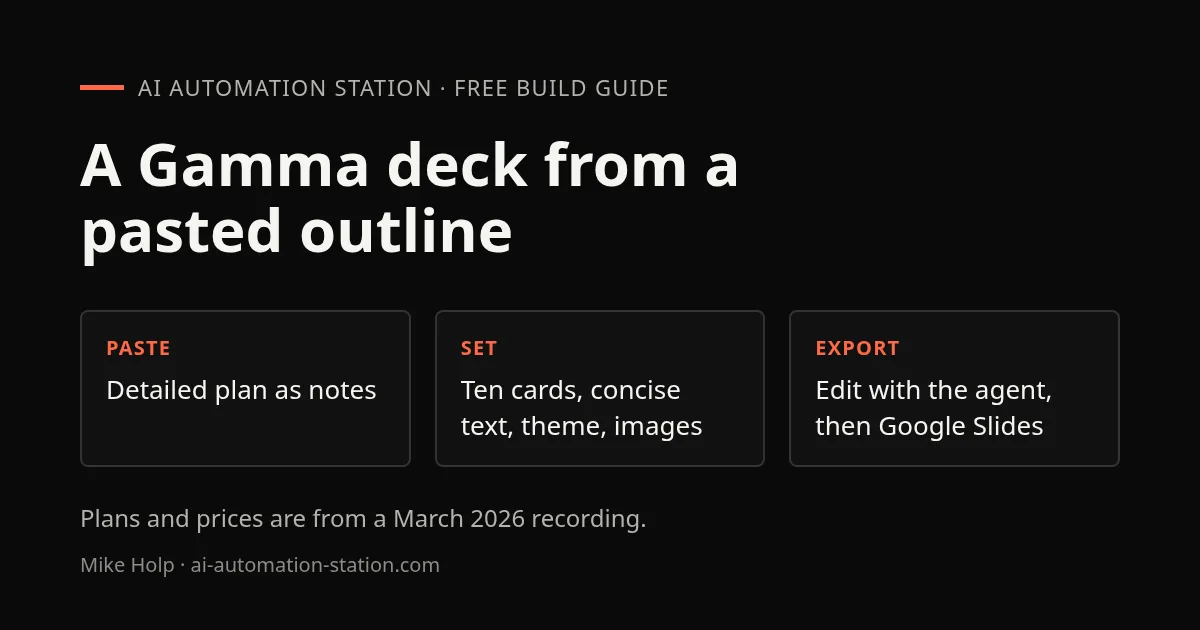
- Detailed plan as notes
- Ten cards, concise text, theme, images
- Edit with the agent, then Google Slides
What I didn't cover
- Whether Gamma’s free limits are still ten cards.
- How the client found the deck. The session happened after this walkthrough.
- Fact-checking the generated slide text.
Watch the walkthrough

- 0:00 Intro to Gamma.app: Using AI to build presentations, documents, and websites
- 1:20 Getting Started: Logging in and a quick look at a previously built "AI-powered digital nomad" presentation.
- 2:11 Creation Options: Choosing between one-line prompts, pasting text, or using templates.
- 3:01 The Workflow: Pasting a detailed 4-day coaching plan into Gamma to generate an outline.
- 3:43 Customizing Settings: Selecting target audience, tone, language, and theme (Light vs. Dark).
- 4:47 Image Generation: Setting up AI image models and selecting an art style (e.g., line art).
- 5:44 AI Real-time Build: Watching the AI construct the slides and content in just a few minutes.
- 6:51 Pricing & Plans: Comparing the Plus, Pro, and Ultra tiers for more cards and credits.
- 9:40 Editing with AI: Using the built-in AI agent to modify specific slide images and text elements.
- 10:19 Exporting & Presenting: How to export your final deck to PDF, PowerPoint, or Google Slides.
From the video
Lines from the video's transcript that this guide does not cover, lightly trimmed. Each time opens the video at that point. Read the full transcript.
FAQ
How many cards does the free plan allow?
Ten cards in my walkthrough, which was enough for my four-day plan.
Can I export to PowerPoint?
Yes, along with PDF, Google Slides and PNG. I used Google Slides.
Can I change a single image?
Yes. Edit with agent lets you describe the change, and it updated one image in seconds.
Sources
- Video: Gamma AI Just Changed How I Make Presentations! (recorded March 2026)
- Try Gamma through my affiliate link: Gamma
- Gamma: gamma.app
Build the next one with AI Income Lab
Step-by-step courses, reusable templates, and a community that answers when you get stuck.
Members get the Claude Code & Skills and Codex Tutorials & Courses lessons.
- Courses for builds like this one
- Copy-ready templates
- Ask questions while you build
- Weekly coaching on VIP


