CleanYourTV with Claude Code: TCL Setup and Risks
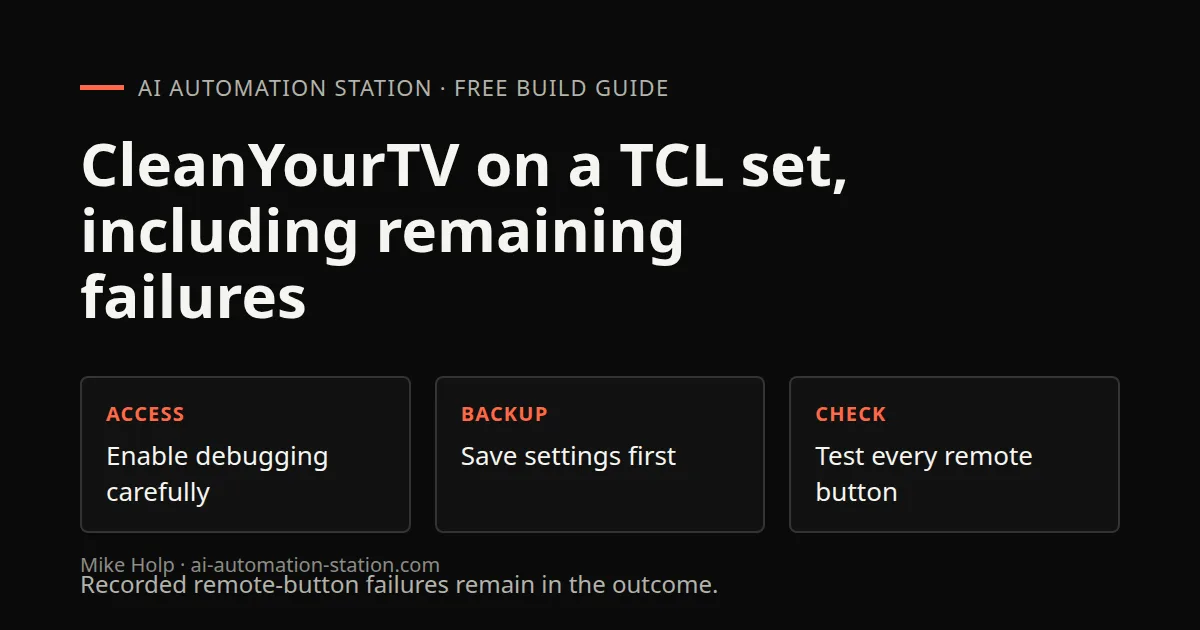
Quick answer: Confirm the TV is Android or Google TV, back up settings, then follow the recorded CleanYourTV launcher change and retest every remote button. Several physical buttons stopped working on the TCL set in the recording. This is a device modification, not a cosmetic website setting.
CleanYourTV can change an Android TV or Google TV home screen by disabling selected packages and installing a different launcher. That is a device modification, not a cosmetic website setting. In the AAS recording, Mike gets a cleaner launcher working on a TCL set, but several physical remote buttons stop working. A useful guide must include both outcomes.
The current project instructions say the Android workflow does not apply to Samsung Tizen, LG webOS or other non-Android systems. A familiar brand name alone is not enough. Confirm the exact operating system and model before attempting any change.
Prepare before connecting
You need access to the TV, its remote and a computer on the appropriate network. The recording uses Claude Code and a project-supplied prompt. It does not establish that every model needs the same settings or supports the same launcher.
Keep a record of the current apps, input behavior, network connection and remote functions. The official prompt calls for backing up package lists and settings, plus a restore script. Those precautions are not a guarantee that every firmware problem is reversible.
Do not upload credentials into an ordinary chat or authorize an unfamiliar computer. Network debugging adds access to the TV and should not remain exposed unnecessarily after work is finished.
1. Enable the relevant developer options
On his TCL, Mike opens Settings, System and About, selects the Android TV OS build seven times, then enables debugging in Developer options. Menu names and wireless-debugging pairing vary by device.
He approves the computer on the TV. The initial discovery and repeated approval prompts are part of the connection process, not proof that the requested changes are safe. Use only your own device and a trusted computer. The current project documentation is the source for device-specific requirements.
2. Use the project prompt and inspect the backup
Mike supplies the CleanYourTV prompt to Claude Code. The agent identifies the set, obtains project files and starts a backup. It asks which streaming, casting and voice features he uses.
Those choices matter. Disabling an unused streaming app is different from disabling the services needed for settings, inputs, remote pairing or boot. The official project warns against disabling core Android packages and recommends small batches. Do not substitute a generic “remove all bloat” request for the project’s safeguards.
3. Keep the apps and controls you actually need
The recording retains a small set of streaming apps and chooses a four-app dock. It also notes an app Mike wants to re-enable. A preference checklist is therefore not a one-time formality. Compare the resulting device with what you intended to keep.
After a reboot, Mike reports that menus feel faster. That is his subjective observation. No controlled startup-time, RAM or streaming benchmark is supplied, so this article does not quantify an improvement.
4. Treat launcher installation and networking as separate checks
The agent builds a launcher using Docker because the local Android SDK is missing. The transcript does not provide a complete reproducible Docker build command.
The device also needs its Wi-Fi network saved again before a setup component is disabled. Mike performs that step on the TV, then continues. This is a firmware-specific complication, not a universal instruction to forget every TV’s network. Follow the current documentation for the exact device and stop if the network or restore path is unclear.
5. Test the physical remote before calling it finished
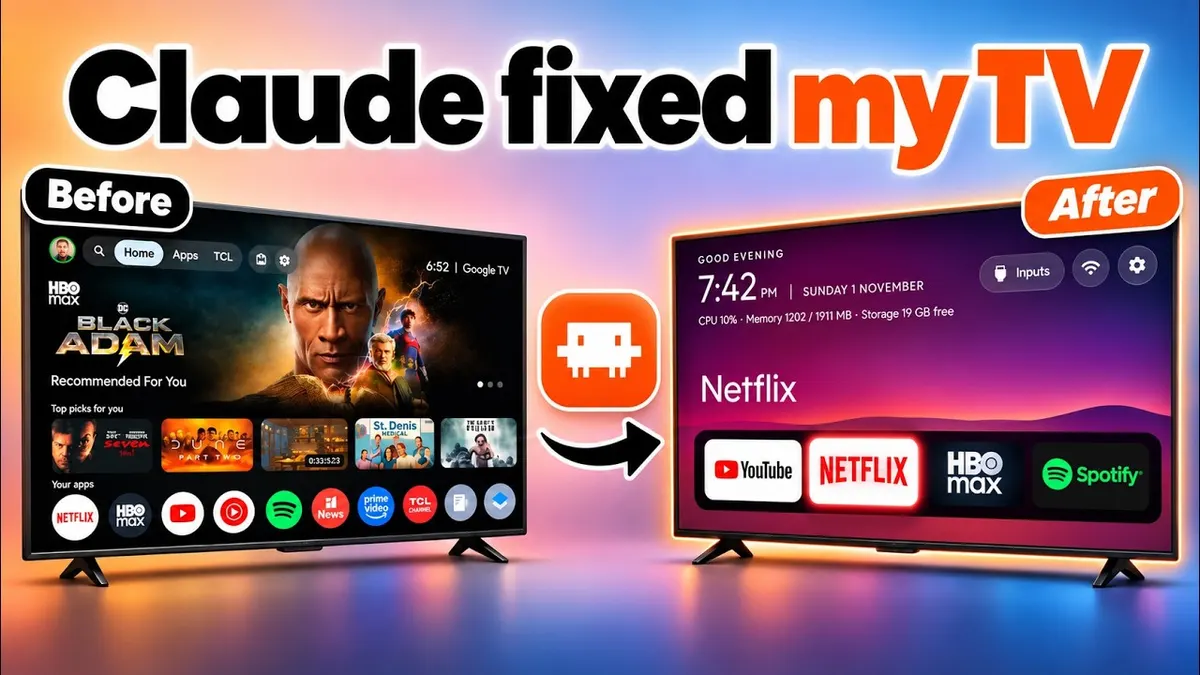
The new launcher opens Netflix and other retained apps, and Mike applies a scene theme. But his Settings, Netflix and YouTube remote buttons do not work during testing. The Settings problem is still reported near the end.
Use the actual remote to check Home, Settings, inputs, app shortcuts, power, volume and held-button behavior. A screenshot or an injected button event cannot establish that every physical key still works. Do not report the setup as complete while essential controls are broken.
Limitations and recovery
The official project describes disabling packages rather than uninstalling them and provides undo guidance. That is a project feature, not a risk-free promise. Its current prompt documents firmware-specific hazards, including boot problems and lost button behavior. Preserve your backup and stop when an operation falls outside the supported device path.
After an approved test, close the debugging access using the project’s documented checks. This article does not reproduce network workarounds or recommend bypassing a sandbox, device restriction or site control.
Watch the walkthrough
FAQ
Did the recording fix every remote button?
No. Essential button issues remain part of the recorded outcome.
Will this remove every advertisement?
No universal claim is supported. The current project distinguishes launcher/package changes from other ad sources.
Is it suitable for every smart TV?
No. Start with the exact operating system and model, not the marketing label “smart TV.”
You may also like


Build the next one with AI Income Lab
Step-by-step courses, reusable templates, and a community that answers when you get stuck.
Members get the Claude Code & Skills and Codex Tutorials & Courses lessons.
- Courses for builds like this one
- Copy-ready templates
- Ask questions while you build
- Weekly coaching on VIP


