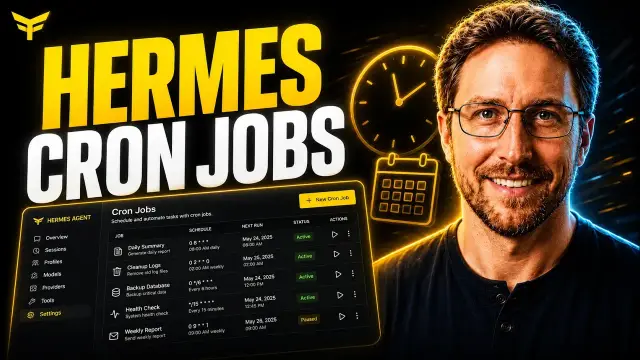
Hermes Agent cron jobs: five agent-written scheduled tasks
Watch on YouTube ↗ Subscribe on YouTube ↗
Written guide: Hermes Agent CLI Cron Jobs: Install and Schedule
Set up scheduled jobs in Hermes Agent: install it, run the setup wizard with a free DeepSeek V4 Flash model, ask the agent what to automate, and let it write scripts and schedule five cron jobs. The video also tours existing jobs that sync email subscribers and write YouTube reports, and shows pausing and triggering jobs in the desktop app. The new jobs are created but their results are not shown.
Video summary
Automate your entire workflow in minutes with Hermes Agent — hourly, daily, weekly, or monthly cron jobs from the CLI.
The video covers 10 parts: -- Introduction to Hermes Agent, -- Running Hermes Setup, -- Auditing Built-In Agent Skills & Tools, -- Asking the Agent for Automation Recommendations, -- Reviewing the Agent's Suggested Cron Jobs, -- Managing Active Jobs (Hermes cron list), -- Inspecting Generated Python Scripts & Reports, -- Pausing and Triggering Tasks in the Desktop GUI, -- How to Build a Custom Scheduled Task from Scratch, and -- Outro.
What this video covers
What you build
Five Hermes cron jobs written by the agent, namely a nightly database backup, a morning channel digest, a trading app job, a server health check every four hours and an IndexNow ping, managed from the CLI and desktop app.
Tools used
Key steps
- 0:32 - Run the curl installer and the Hermes setup wizard, choosing the Nous portal and DeepSeek V4 Flash.
- 1:14 - Look through the built-in skills and optional skills.
- 1:36 - Ask Hermes which cron jobs it would recommend for the business.
- 2:51 - Review the suggested jobs and tell Hermes to go ahead.
- 3:53 - List existing jobs with hermes cron list, including a daily email subscriber sync.
- 4:46 - Open the generated Python scripts and markdown reports for YouTube trends and channel performance.
- 6:01 - Pause and trigger jobs from the desktop app's schedules tab.
- 7:39 - Create a custom scheduled task from the desktop app with a prompt, destination and frequency.
Not covered
- Whether any of the new jobs ran successfully. The video shows them being scheduled.
- Where database backups are stored, how they are secured or restored.
- Error handling for jobs that fail, or limits on what scripts an agent may run unattended.
- Costs of running model-driven jobs on a schedule.
In this video
- 0:00 -- Introduction to Hermes Agent
- 0:32 -- Running Hermes Setup
- 1:14 -- Auditing Built-In Agent Skills & Tools
- 1:36 -- Asking the Agent for Automation Recommendations
- 2:51 -- Reviewing the Agent's Suggested Cron Jobs
- 3:53 -- Managing Active Jobs (Hermes cron list)
- 4:46 -- Inspecting Generated Python Scripts & Reports
- 6:01 -- Pausing and Triggering Tasks in the Desktop GUI
- 7:39 -- How to Build a Custom Scheduled Task from Scratch
- 8:44 -- Outro
Questions and answers
What kind of schedules can I set?
The desktop app offers every 30 minutes, hourly, daily at a time, weekly with a day, or a custom schedule.
Which jobs did Hermes recommend?
A nightly backup, a morning stats digest, trading app jobs, a four-hourly server health check and an IndexNow ping.
Do I have to use the terminal?
No. The desktop app can create, pause and trigger jobs, although Mike also shows the CLI.
Keep learning
Transcript
Hey there, welcome to the channel. In this video, I'm going to be showing you how to set up scheduled jobs through Hermes Agent, which run on either an hourly, daily, weekly, monthly basis. All you have to do is come over to the website. There's a link in the description below, and you're just going to copy and paste this oneline curl command. So, I'm going to come over to my terminal.
We're just going to copy and paste that in, and it's going to install the Hermes agent, as you can see, it's doing right now. and it's installing and updating all of the packages to make sure I have all the latest versions. And now it's running the setup wizard. So this is the second step. You just need to run Hermes setup. And then from here we can choose the model that we want to use.
Read the rest of the transcript
As you can see, we have a lot of different options to choose from. And in this case, I'm just going to use the Noose portal which is built directly into Hermes agent. I'm just going to use DeepSeek V1 V4 flash. And we can also choose our platform. If you want to set up a gateway here, you have a lot of options including Telegram, Discord, Slack, WhatsApp, and email, and many more, including SMS. So, we're just going to go ahead and skip that for now.
And I'm going to select done. And now, from here, it's gone ahead and updated everything. And then I'm just going to run Hermes. Right away, you can see the version number as well as all the available tools, available skills. If I want to see all of the skills that are built directly into Hermes agent when you first install it, you can take a look through them here. And then they've also got a bunch of optional ones here.
So if you want to install any of these, you could just come on down and copy and paste this prompt and then run it in the terminal in order to install the skill. And now if I want to create a new cron job or, you know, a scheduled AI agent that's going to run for me every day, I can just type something into the prompt here.
Or we also have the option to come over to the Hermes desktop app, which I've also made a tutorial about on this channel. So, in this case, I'm just going to click on schedule crown job. And it says schedule crown job to back up my database every night. That's just an example of one that you can use. And I'm just going to switch over to auto mode here. And then we can go ahead and run that.
I'm assuming that I'll have to provide some more instructions over here. It looks like the model actually had an error. So, I'm just going to scroll down and use miniax instead. And then we can just go ahead and copy and paste that in again. And in the meantime, I'm going to come back over to the terminal here. And we could say which crown jobs would you recommend setting up for my business?
So if you don't know what you should be automating, it's best just to ask Gemini or CHPT or Claude or in this case Hermes agent based on everything that it knows about you because this is a self-learning agent. It learns more and more about you the more you use the agent. And in this case, we're using DeepSeek V4 Flash, which is completely free to use through Hermes agent. So, as you can see, it says, "Good question based on what I know about your setup.
Here's what I recommend for the YouTube Analytics platform." It's identified which packages I'm using there, as well as the trading dashboard that I've created. And here's the recommended crown jobs. So, it's recommending a database backup nightly at 3:00 a.m. Bacon time zone so that I can back up all of my data on a daily basis. It's also recommending a daily digest. So, every morning at 8 a.m. Bangkok, it will pull fresh channel stats, subscriber counts, and view data.
So, I get a report ready to start work in my email every single day. And it's also recommending some crown jobs for my stock tracking app as well as a server health check every four hours. And then the last one is the index now SEO ping. Index now, if you don't know already, is the indexing solution through Bing. And now it's just saying, you know, you want me to set any of these up?
It's going to write the scripts and schedule them via cron job with delivery to the chat. So, I'm just going to say go ahead. So, if I want to display all of the cron jobs that currently exist and are running on my computer on a daily basis, you could just do Hermes cron list and it will show you the scheduled jobs that are currently running. So, for example, this one right here, it takes all of my email subscribers from my Skool community, which is over here.
We've got about 2700 members in here at the time of recording, and it's growing fast, completely free to join. This is the scheduled time, so that's 900 p.m. every single day. It's going to repeat every day. And you can see the next run time here, as well as the delivery methods. So, in this case, I'm just running it locally on my computer.
And this runs every single day and it just goes ahead and updates my email marketing platform and sends out the email sequence to all new subscribers in my Skool community. Saves me a lot of time. And then I've also got a YouTube channel performance report that I'm generating every day as well as researching YouTube trending topics in the AI space. And that's just generating a report.
So if I want to show you what that looks like, you can see over here this is the report that it's generating for YouTube trending topics. This is in the markdown language. So, it's very easy to read and analyze. And you can see here it's just providing me with different trending topics in the AI space as well as the total number of views, the average views, the top videos, and it should also show the channel names over here as well with the links.
And then we've also got a YouTube report for my own channel. This is running on AI Automation Station. What it shows is total number of subscribers, total tracked views, number of videos tracked, and it shows all of the videos here, as well as my top performers by 24 hours, and some of my underperforming videos as well. And this is basically just a Python script.
So, if I want to open up the script over here, you can see this is what the script looks like, which is generating the trending topics. And that was just created completely for free with Hermes agent. And we've got another one for the channel report over here as well written in Python. And that's just running should be every single day. And then you can also see in the desktop app over here under schedules, you could take a look at your crown jobs over here.
And if you want to pause any of them, you can just go ahead and click on the pause button. That will pause the cron job. So these ones I actually don't really want to run. So I'll pause those. And I definitely want to keep the uh email subscriber one running. So, it just makes it really, really easy to manage your cron jobs in the desktop app. So, with that being said, we're going to come back over to Hermes agent.
And it looks like it's already created the scripts for the cron jobs. So, this one right here is just checking the the health. It's doing a health check on my dev server, it looks like. And it was able to write that script in, you know, just a couple minutes. And it's also created another one for my stock trading app. You can see what that looks like. And these are just shell files.
So these are just, you know, simple shell files that are going to run every day. Now it's in the process of going ahead and scheduling those cron jobs. So as you can see here, it says all five cron jobs are live and running. Here's the rundown of what it did and created. You can see here it has now added all of those cron jobs or scheduled daily jobs to the cron list. And you can see all of them over here.
Then I can also come over here and refresh this as well. And as you can see, it has gone ahead and updated the chron jobs. And I can trigger any of these as well. So if I want to just go ahead and run this one, for example, I can go ahead and do that. And that's just going to run the chron job quickly and easily through the Hermes agent desktop app.
Again, I've already made a tutorial on the channel showing how to set this up if you want to check that out if you need help installing the Hermes agent desktop app. And you can also schedule cron jobs if you don't want to use the terminal which is a bit complicated over here. You can just run a new task and you can say exactly what you want it to do by entering in the prompt. You can choose where to run it as well.
That could either be locally on your own machine, Telegram, Discord, Slack, WhatsApp, whatever. You can also set your frequency here. So it could be every 30 minutes, every hour, daily at a certain time, weekly at a certain time. You can choose the day of the week and then also custom. So if you want it to run, you know, three times a week for example, you can set that over here and you can just give it a name.
So you also have the option to set these up through the desktop app as well or you can just be a power user and you know do everything through the terminal over here. It's entirely up to you. So, you know, if you're looking to save time and money ultimately uh doing this sort of stuff, it's really good to set up these cron jobs, which you can do either in Hermes agent, openclaw, or even just locally if you're using Linux. They have cron built directly into Linux.
Hopefully, you got value from this video. Please go ahead and check out my Skool community over here. We've got about 2,700 members in here at the time of recording. I offer a lot of value inside here. It's completely free to join. You can check out the classroom for lots of tutorials and courses. And you can also ask your questions inside the community tab over here. We're getting new posts every single day. We'd love to see you inside the Skool community.
And with that being said, thank you so much for watching this video. Take care. Stay safe. Peace from Thailand. Signing off.