Build a Chat Web App in Google AI Studio, No Code
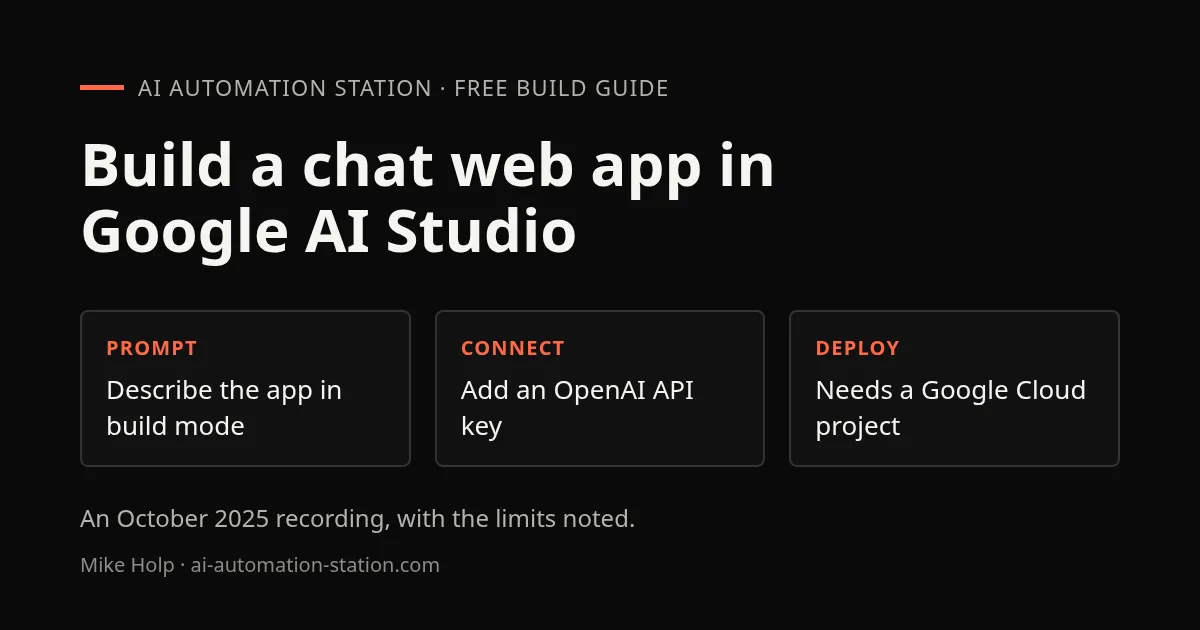
Quick answer: Open Google AI Studio, choose Build, and describe the app in a prompt. The recording had a working ChatGPT-style interface in about 2 to 3 minutes and a chat connected to the OpenAI API in about 12 minutes in total. Deploying from AI Studio needs a Google Cloud project with billing linked, which the recording stopped short of doing.
This is a beginner build from an October 2025 recording. It is a first web app made only from prompts, not production code, and AI Studio’s interface changes often, so check the current screens against what is described here. If you are choosing between prompt-to-app tools, Lovable, Base44 and Replit compared covers three others. For the same idea in a coding agent, see building apps with AI coding agents.
1. Start from a template or a prompt
AI Studio is built on Gemini. In the left menu the recording chose Build, which opens a dashboard with two starting points: a template, or one of the provided examples. The templates listed included a live agent using bidirectional streaming (the recording said it was not sure what that means), Veo 3 for generated video, image generation and example web apps.
The recording started with the Veo 3 template. It shows all the generated code, and pressing Generate with a default prompt produced a futuristic city. That template is a quick way to see what the builder can do before you write a prompt of your own.
2. Build the chat app from a prompt
For the real build, the prompt was written first in ChatGPT: a web app that emulates ChatGPT. It was pasted into AI Studio with the default settings, and Run started the build. AI Studio created all the files, which the recording called the repository. You can save the project to GitHub after signing in, or download it as a zip.
The first version was built in roughly 2 to 3 minutes. The preview can be made full screen and switched between mobile, tablet and desktop views. The interface had a dark and light mode from the start. At this stage the chat used the built-in model, not OpenAI.
3. Connect the OpenAI API
The recording then sent one follow-up prompt: integrate this with the OpenAI API. The preview showed an error saying the OpenAI API key was missing, and the Auto fix button was used. To get a key, the recording opened platform.openai.com, created a new key named Google AI Studio, and copied it. The app then asked for the key in its own interface, and it was entered there and saved.
Test messages followed: hello, who built you (the answer named OpenAI), a request to print Hello world in Python, and a request for a complete web app in Python. Each answer came back from the OpenAI model.
A note from this site, not the recording: a key typed into a browser app can be read by anyone who can open that page. That is fine for a private test. For anything public, keep the key on a server, set a spending limit on the key, and do not share the preview link. The recording said the security of the key in a deployed app was not covered.
4. Download, share or deploy
To deploy, the recording named the project (a ChatGPT replica) and selected it. It then said billing must be set up first, which is done in Google Cloud Console by linking a billing account. The card details were not entered on camera, so the deployed version was not shown. The intro said the tool is free to use; the recording also said deploying appears to be a paid service. Check Google’s current pricing before you rely on either statement.
The total build, including the OpenAI connection, took about 12 minutes. The recording called the result close to ChatGPT, not identical.
What this recording did not cover
- The API cost of running the chat app.
- The security of keeping an API key in a deployed app.
- A completed deployment.
For a build that ends with a reviewed change instead, try the task-list filter exercise.
Watch the walkthrough
- 0:00 Google AI Studio Tutorial
- 0:40 Using Web App Templates
- 1:20 Gemini V3 Image Generation
- 2:05 Deploying AI Web Apps
- 2:50 Building ChatGPT Clone
- 4:00 Connecting OpenAI API
- 5:10 Testing ChatGPT Features
- 6:20 Deploying ChatGPT Replica
- 7:10 Community And Courses
FAQ
Do you need to write code?
No. The app was built from prompts in AI Studio build mode. You can read and download the generated files if you want them.
Can the app use OpenAI models if AI Studio is built on Gemini?
Yes. The recording asked AI Studio to integrate the OpenAI API, supplied an OpenAI key, and the chat answered from an OpenAI model.
Can I export the code?
Yes. The recording downloaded the project as a zip and showed the option to save it to GitHub.
Is deploying free?
Not confirmed. The recording said deploying needs a Google Cloud project with a billing account. Check Google’s current pricing.
Sources
- Video: Build Web Apps In Minutes with Google AI Studio! (recorded October 2025)
- Google AI Studio: aistudio.google.com
- OpenAI API keys: platform.openai.com
Build the next one with AI Income Lab
Step-by-step courses, reusable templates, and a community that answers when you get stuck.
Members get the Claude Code & Skills and Codex Tutorials & Courses lessons.
- Courses for builds like this one
- Copy-ready templates
- Ask questions while you build
- Weekly coaching on VIP


