How to use ChatGPT on Linux: web and desktop options
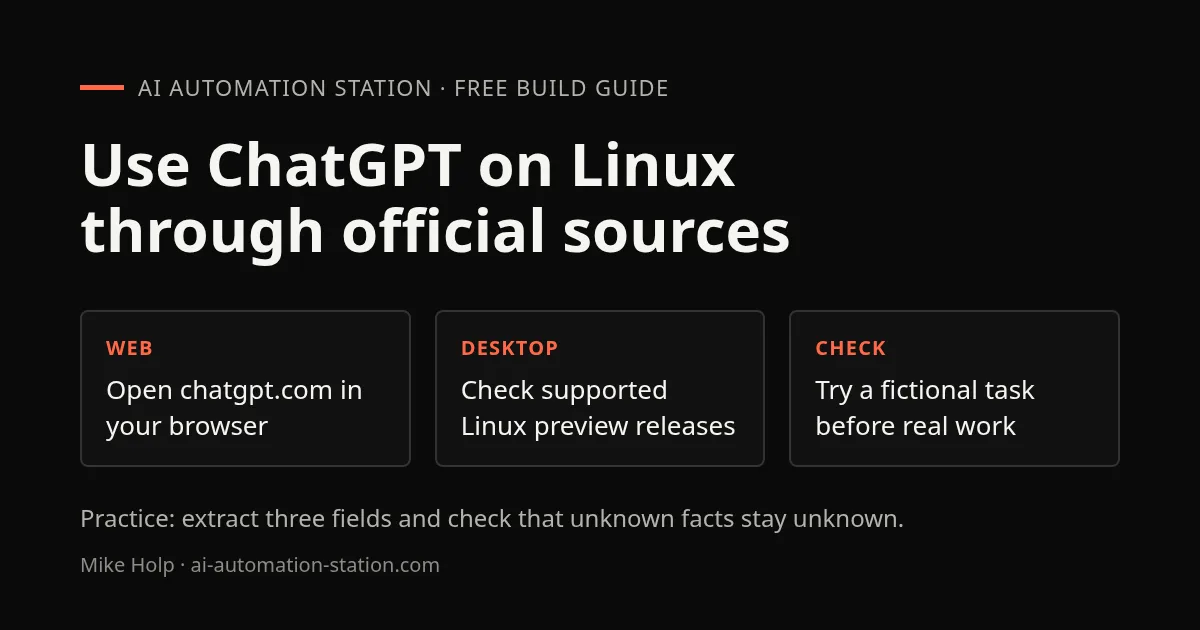
Quick answer: start with chatgpt.com in your browser. For a desktop install, follow OpenAI’s current Linux preview requirements and official download links. First try the fictional exercise below before using private material.
Option 1: use the official web app
Open chatgpt.com in a current browser, confirm the address, and sign in using the options shown. Features and access depend on your account, region and workspace settings. If access fails, check the official Help Center before installing a replacement client.
Option 2: check the official Linux preview
As checked on November 6, 2026, OpenAI’s installation guide lists Ubuntu 24.04 and 26.04 LTS, Debian 13, Fedora 43 and 44, and current, fully updated Arch Linux desktop releases. Packages are available for x64 and ARM64. Other distributions are not formally supported. Run uname -m to check your architecture: x86_64 means x64; aarch64 or arm64 means ARM64.
- Open the official installation guide and download the package for your distribution and architecture:
.debfor Ubuntu or Debian,.rpmfor Fedora, or the documented Arch script. - Follow OpenAI’s distribution-specific install steps. The Arch script configures a repository and performs a full system upgrade after confirmation; review it before running it.
- Open ChatGPT from the applications menu and sign in. If the preview is unavailable for your system, use the web app instead.
For example, OpenAI documents these commands for the x64 downloads in ~/Downloads. Use the ARM64 filename from its guide if needed:
cd ~/Downloads
# Ubuntu 24.04/26.04 or Debian 13
sudo apt install ./chatgpt_amd64.deb
# Fedora 43/44
sudo dnf install ./chatgpt.x86_64.rpm
OpenAI’s release notes say browser actions work in the Linux app, but controlling other desktop apps is not yet supported. Native Wayland support is experimental. These steps follow the vendor documentation; this guide has not tested an installation on each distribution.
Check the publisher before signing in
Community wrappers are separate projects. They may handle cookies, credentials or conversation data. Prefer the official web app or official package for private work, and do not enter account details into a client whose publisher you have not checked.
If the web app or desktop app fails
- Confirm the browser and system clock are current and the network works.
- Try the official web app to distinguish an account issue from a package issue.
- Compare your distribution with the current official preview requirements.
- Use OpenAI Help for account-specific errors; changing clients does not repair an account restriction.
Practice: a first chat you can check
Open chatgpt.com in your browser and start a new chat using the access options shown for your account and region. No package install is needed for this exercise. Paste only this fictional note:
From this note, return Task, Owner, and Due date.
Use “not stated” for any missing value. Do not invent a date.

Note: Robin will review the demo script. No deadline has been agreed.
Check that the result describes reviewing the demo script, names Robin as the owner, and says the due date is not stated. Wording can vary, but an invented deadline fails the check. Then ask for the same facts as three bullet points and verify that changing the format did not change the facts.
If the page does not load or you cannot sign in, check the browser, account access and network before trying a desktop package. Keep this fictional note as a small comparison when you later try the official app. This is a check for you to run, not a claim that your account or installation has already been tested.
FAQ
Do I need to install a Linux package to use ChatGPT?
No. The official web app at chatgpt.com works in a browser. Use it for the first exercise before deciding whether you need a desktop app.
Is the Linux desktop preview the same as an unofficial wrapper?
No. Follow OpenAI’s current release notes and download links for the official preview and its supported distributions. A community wrapper has a different publisher and may handle your account or conversation data differently.
Sources
Build the next one with AI Income Lab
Step-by-step courses, reusable templates, and a community that answers when you get stuck.
Members get the Claude Code & Skills and Codex Tutorials & Courses lessons.
- Courses for builds like this one
- Copy-ready templates
- Ask questions while you build
- Weekly coaching on VIP


