Nano Banana Pro thumbnails in KIE: ChatGPT prompt, face swap
Watch on YouTube ↗ Subscribe on YouTube ↗
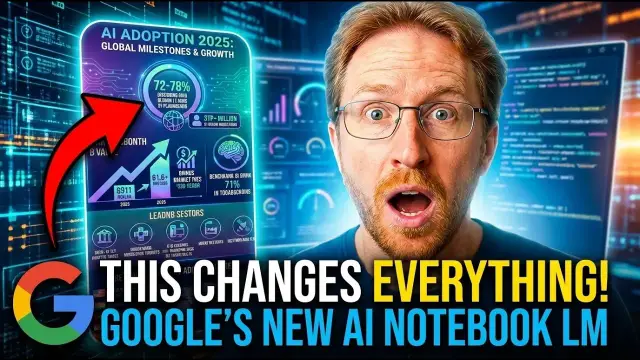
Make YouTube thumbnails with Nano Banana Pro through KIE: ChatGPT writes a thumbnail prompt, KIE regenerates an existing thumbnail from it at 16:9 and 1K, and Gemini swaps in Mike's face with a wide-open-mouth expression. Each run costs about 18 credits, roughly 30 images for $5. The thumbnails are replaced on three videos with starting click-through rates around 3.3 to 3.8 percent, but no new rates are shown, and one face swap fails.
Video summary
The video covers 8 parts: Introduction, KIE Nano Banana, ChatGPT Prompt, Gemini Face Replacement, Thumbnail Optimization, Automation With N8N, VidIQ SEO Optimization, and Final Tips.
What this video covers
What you build
Regenerated YouTube thumbnails from a ChatGPT-written prompt in KIE's Nano Banana Pro, with face replacement in Gemini and manual uploads in YouTube Studio.
Tools used
Key steps
- 1:00 - Sign up for KIE, add credits and open Nano Banana Pro in the models market.
- 2:00 - Write a detailed thumbnail prompt in ChatGPT and paste it into KIE with an existing thumbnail.
- 3:00 - Replace the generated person with Mike's face in Gemini, keeping the surprised expression.
- 5:00 - Set 16:9, 1K and PNG, then regenerate another low-CTR thumbnail.
- 6:00 - Mention automating the process in n8n in a later video.
- 7:00 - Check title, description and thumbnail scores in vidIQ.
Not covered
- Click-through rate after the changes. Only the old rates of about 3.3 to 3.8 percent are shown.
- A reliable face swap. One attempt does not insert Mike and Gemini's limit is reached.
- Whether the wide-open-mouth style works for every audience, which is Mike's belief.
- Disclosure of AI-edited faces and thumbnails, and the cost beyond the quoted credits.
In this video
- 0:00 Introduction
- 1:00 KIE Nano Banana
- 2:00 ChatGPT Prompt
- 3:00 Gemini Face Replacement
- 5:00 Thumbnail Optimization
- 6:00 Automation With N8N
- 7:00 VidIQ SEO Optimization
- 8:00 Final Tips
Questions and answers
How much does each thumbnail cost?
About 18 credits per run, and Mike estimates around 30 images for $5.
Why 1K resolution?
Higher resolution makes files too large to upload to YouTube, Mike says.
Do I need a designer?
Not according to Mike, but no CTR improvement is shown yet.
Keep learning
Transcript
Hey there, welcome to the channel. In this video, I'm excited to share with you step by step how to create professional, high quality YouTube thumbnails that will ultimately lead to a higher click-through rate and get more people watching your videos, more subscribers, and ultimately more revenue on YouTube, which is what we all want at the end of the day. The best part is you do not need to hire a graphic designer or virtual assistant or anyone else in order to do this.
You can do it completely for free or very cheap using Nano Banana Pro which is built directly into Kie. So I'm going to show you how to create the prompt using ChatGPT, how to run it in KIE and stay tuned for an upcoming video where I'll show you how to automate the entire process in N. You do not need to hire a graphic designer. You don't need to hire a virtual assistant or anyone else to do this for you.
Read the rest of the transcript
You can simply use a tool like KIE, which has Nano Banana Pro built directly into it to create the thumbnails in minutes. And then you can just come on over to your YouTube channel and upload them. It's really as easy as that. So, in this video, I'm going to show you step by step how to do this. I'm also going to give you the prompt to create really beautiful, compelling images just like this one using Nano Banana Pro.
And without further ado, let's get into the tutorial. So, first of all, you're just going to want to go to kie.ai. There's a link in the description below where you can sign up. It's completely free to get started. And I do recommend adding some credits to your account because each of these AI models will use a certain number of credits every time you run it. But it can be as low as $5 and that gives you up to a,000 credits.
So, all you're going to want to do is just come on over to billing and then add some credits to your account. But I think they give you some credits for free to get started. And then you'll come over to models market right here. And you're just going to click on nano banana pro. As you can see, they have a lot of different AI models built directly into this. And it ends up being quite a bit cheaper than using Google AI Studio or Google Gemini.
So, I highly recommend KIE. and you're just going to click on Nano Banana Pro and it will open up right over here. So, this is what you're going to look like. This is your playground. And then you can also integrate this into NA if you want to automate the entire process as well. Stay tuned for an upcoming video where I'll show you how to automate this process in NA. But for now, I just want to take you through how to do this manually within KIE.
So, this prompt right here I've created using ChatGPT. If you want to create your own prompt, all you have to do is come on over to ChatGpt. I do recommend using the paid plus version of this, but you can also do it on the free plan. It works just as well. And then you'll come down and you'll just create this prompt right here. So, I just typed create a detailed prompt for Nano Banana Pro to create compelling, highquality, professional YouTube thumbnails that increase click-through rate dramatically.
And then it created this entire prompt for me right here. I'm not going to read this entire prompt. If you want the prompt, just uh drop a comment down below and I can uh copy and paste it for you. But know that this works really really well and you can create a very very similar prompt just within ChatGPT as easy as can be. Right.
So once you have the prompt, you're just going to come over here to KIE and you're simply going to copy and paste that prompt in right here as you can see. And then you can upload your existing thumbnail. So in this case, I just used um one of my thumbnails and it created this image right here using the prompt over here. And then now obviously that is not a picture of me.
So if I do want to replace that particular person, whoever that is, with a picture of me, I can come over to Google Gemini and then I can upload the reference image right here. So I've just uploaded that image that was created using KIE and then I also uploaded a picture of myself which was also AI generated right here. And then I just say replace person in the left image with a picture of me on the right with the same wide open mouth expression.
So, I wanted to use this style because I know that these types of these types of thumbnail images can do really, really well on YouTube, showing a surprised expression. So, I've specifically designed my prompt to include this wide open mouth expression in all of the images. In the final output right here, it just says, "Produce one thumbnail image that looks native to top tier YouTube creators." It also goes on to say, "The main subject should have wide open mouth with surprised expression." And I also made
sure to include, "You can recreate the image using the original if it will get a higher click-through rate because I noticed it was just copying the exact same design over and over again, and I wanted to actually use its imagination to come up with with different types of images based on what I upload." Right? So, that's what I was able to create. And as you can see, it replaced the person with a picture of me with the same wide open mouth expression.
And this looks way better than the original image. If I scroll down here, I've actually already replaced it now. So you can see here, this is the new image. And the old image was not very good at all. And if we take a look at the click-through rate over here, you can see it's only 3.8%. And obviously I want to increase the click-through rate to get more views on the video and ultimately more subscribers, more revenue, and a higher watch time as well.
So this is one of the highest leverage activities that you can do on your YouTube channel in order to increase views, watch time, and subscribers and ultimately revenue, which is the most important thing here. Uh I could show you a few other examples as well. If I come over to my thumbnails here, you can see here's another one that I generated using Nano Banana Pro. Again, wide open mouth expression, which is important here.
Almost all of them now have this same expression and it's ultimately going to lead to a lot more clicks on the video because that immediately gets your attention and it makes you want to click on the video, right? And that's obviously the mo one of the most important things that you can that you can uh optimize on your YouTube channel. So now I want to show you how this works.
So I'm just going to come over here to another video that I want to optimize the thumbnail on. This one right here. I know that this can be made better. And if I come over to analytics, we can take a look at the current click-through rate, which is 3.7, which again is not very good. Good. I would like to get that up to like 6 or 8% ideally. So, I'm going to come down and I'm just going to come down and download this thumbnail image.
Just going to save that image. And then I'm going to come over here and then upload it directly to KIE. And again, this can pretty easily be automated using N. So, I'm going to make another tutorial showing how to do that as well. If you want to just automatically create uh these thumbnails without doing it manually, that's another option as well. And then you want to make sure to set the aspect ratio down here to 16x9 because that's the correct format for YouTube.
And then typically for resolution, I just use 1K because anything over 1K is going to be too large for uploading to YouTube. So just set 1K. And then I'm choosing PNG as a format. And then right here you can see the number of run credits is about 18. So I would say you'd probably be able to generate about 30 or so images for $5 using Nano Banana Pro in KIE. So I'm just going to click on run and it's going to issue it this prompt.
It's going to use the reference image that I've already uploaded and it's going to generate a completely new YouTube thumbnail optimized for a high click-through rate within less than a minute. Typically, doesn't take much longer than that. And boom, there we go. So, as you can see, it took the original image, which we can pull up over here, and you'll see the difference here.
So, it didn't really change all that much with the image, but it did use that open mouth expression just like I told it to. And it also added a drop shadow to the text here. And also, it removed the Gima Gemini logo in the bottom right as well, which is also very useful. So, I'm just going to go ahead and download that image. And within a couple seconds, I can just quickly and easily upload that new image. and then click save.
It's going to update the thumbnail image and hopefully, I would imagine, it's going to get a much higher click-through rate with this new image. So, that's pretty much all there is to it. You can save on hiring a graphic designer. It's completely unnecessary to hire a designer. And you can also do this for free as well if you want to use Gemini, but I do recommend using the the paid um you know the the pro version of Nano Banana because it's just a lot more professional
in terms of what it can create. And for this one, I'm going to do the exact same thing. I'm just going to come back down here. I'm going to download this image, which as you can see, this thumbnail is not very good. It doesn't really get the person's attention. It's on a gray background. It's easy to miss, right? So, I'm going to click on save here. And then I'm just going to do the exact same thing as I did for the other image.
We're just going to come over here, upload that YouTube thumbnail, and then click run. And it's going to create hopefully a much better image, ideally with my face on it with the wide open mouth expression. We'll see if it's able to do that as well. And then we can update this image. If we take a look at the click-through rate for this particular video, we'll just come over to reach here. And you can see again, it's very, very low. It's only 3.3%.
So, definitely could be a lot better. There's room for improvement. And then ultimately, that's going to lead to more views as well. And I also use Vid IQ to optimize the title, the description. You can see they're both 100 out of 100. and the thumbnail and the tags as well down below. So, there's a link in the description below if you want to create your free account on Vid IQ. This is the number one tool that I recommend for optimizing your SEO on YouTube.
That also helps tremendously to get more views. So, I'm just going to come back over here and boom, there we go. So, it created this image, which looks a lot better right off the bat, but as you can see, that is not a picture of me. So, I'm going to save this image and then I'm going to come over to just the regular Gemini right here. And we're going to do the exact same thing as I did for this image for the new one.
So, I'm just going to upload this picture that it created. And then I'm also going to upload this picture of myself right here. And we're just going to say replace the person in the left image with a picture of me on the right with the same expression. and it's going to create something very very similar to this with the new image. And then we can just come over here and upload that as the new image.
So I'll do one more real quick as well while we have time here. I'm just going to scroll down. And this one, for example, is also not very good at all. It's just a basic image that I created in Canva and it really kind of sucks. So I'm just going to go ahead and download this image as well. and we're going to do the exact same thing. You can see how fast this is. It doesn't take very long at all.
And ultimately, this is going to reap you rewards on your YouTube channel. So, I'm just going to click on run once again. And within a couple seconds, it will create a new thumbnail. And by the way, every time that you run this, it's also training Nano Banana Pro. So, it should get faster and faster as far as I'm as far as I can tell uh the more that you run this. So, it just gets faster and faster.
And unfortunately, this one, it wasn't in this case, it didn't replace the image with a picture of me, unfortunately. Not exactly sure what happened there. We can also come over to AI Studio, Google AI Studio, and we can try it over here as well to see if it has better results. So, I'll load up AI Studio here. And while that's loading, we're going to check over here. And that's not very good at all. Unfortunately, it added the same image twice.
So, I can actually just remove this one and then keep the other one as well. So, let's come back to our dashboard in AI Studio here. And then we're just going to load up Nano Banana Pro, which is built directly into AI Studio, but you will need a paid API key, which I currently don't have for some reason. So, I can't run this in uh AI Studio, but normally if I had the paid API key, I could just go ahead and run it over here.
So, that's not going to work for now. But anyway, you get the general idea. Uh it's usually pretty easy to replace a person in an image using Gemini. I could also do do it in KIE as well. Uh but in this case, I've actually run out of uh my I've hit my limit for Nano Banana Pro on Gemini. So, we'll have to try that again later. But anyway, that shows you how easy this can be. No graphic designer.
You don't need to hire a VA or anything to do this for you. You can just use Nano Banana Pro, which is built directly into KIE. So, thank you so much for watching this video. Please subscribe to the channel if you got value from this, and I will see you in the next one. Signing off. Peace in Thailand.