GEO AEO Tracker setup: Bright Data audits and competitors
Watch on YouTube ↗ Subscribe on YouTube ↗
Written guide: Free AEO Tracker: GEO/AEO Tracker GitHub with Bright Data
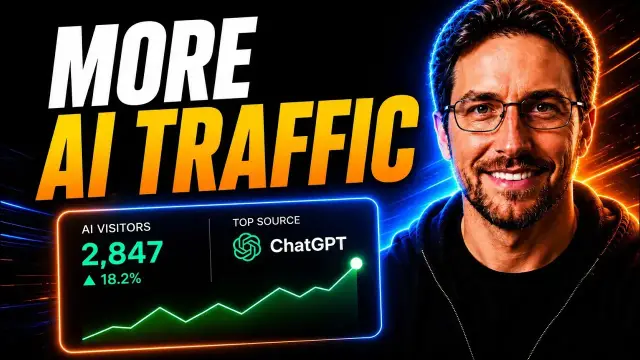
Set up a free self-hosted GEO and AEO tracker from GitHub that queries six AI models through Bright Data scrapers, then run an audit, add competitors and schedule checks every 12 hours. The audit gives readiness scores around 75 to 80 percent and lists fixes. Bright Data's free trial is used, and one run costs about two cents. Mike points to Trakkr as another tool.
Video summary
The video covers 10 parts: Intro: Why your brand needs AI Visibility (GEO/AEO)., Why use a free, self-hosted tracker over expensive $500/mo tools?, Installation: Cloning the GitHub repo and integrating with Claude Code., Setting up Bright Data for free web scraping credits., Installing the Bright Data CLI and MCP for seamless AI interaction., Running an AEO Audit: Checking "readiness" scores across 6 LLM models., Analyzing AI Visibility: Tracking mentions and citations over time., Competitor Tracking: Adding rivals like VidIQ and SocialBlade to your dashboard., Optimizing Content: Using generated niche queries to improve AI rankings., and Scheduling Auto-Runs: How to automate your visibility tracking every 12 hours..
What this video covers
What you build
A local dashboard from a GitHub repo with Bright Data keys, the Bright Data CLI and MCP in Claude Code, an AEO readiness audit, citation tracking, competitor tracking and a 12-hour auto-run schedule.
Tools used
Key steps
- 1:23 - Clone the repo, run npm install and put the skill in the Claude Code skills folder.
- 1:45 - Create a free Bright Data account and use its free trial credits for the scrapers.
- 3:51 - Install the Bright Data CLI and add its MCP to Claude Code, Cursor and Codex.
- 5:24 - Run an AEO audit, which shows 17 of 20 checks passing and a score near 75 percent for one article.
- 6:29 - Track brand mentions and citations across the six models over time.
- 7:48 - Add competitors and track prompts to generate niche queries.
- 8:46 - Use the generated queries to improve articles and set the auto-run to every 12 hours.
Not covered
- How accurate the scraped AI answers are, or whether Bright Data's terms cover scraping those chat products.
- Real changes in citations over time, since the tracker has only just started.
- Bright Data costs at scale. The video quotes a $500 a month plan and $1.50 per 1,000 records, and only about two cents spent.
- The project's maturity. The repo had about 108 stars at the time.
In this video
- 0:00 Intro: Why your brand needs AI Visibility (GEO/AEO).
- 0:26 Why use a free, self-hosted tracker over expensive $500/mo tools?
- 1:23 Installation: Cloning the GitHub repo and integrating with Claude Code.
- 1:45 Setting up Bright Data for free web scraping credits.
- 3:51 Installing the Bright Data CLI and MCP for seamless AI interaction.
- 5:24 Running an AEO Audit: Checking "readiness" scores across 6 LLM models.
- 6:29 Analyzing AI Visibility: Tracking mentions and citations over time.
- 7:48 Competitor Tracking: Adding rivals like VidIQ and SocialBlade to your dashboard.
- 8:46 Optimizing Content: Using generated niche queries to improve AI rankings.
- 9:00 Scheduling Auto-Runs: How to automate your visibility tracking every 12 hours.
Questions and answers
Is the GEO AEO Tracker free?
The software is free and self-hosted, but it needs Bright Data credits for scraping, covered by a trial in the video.
Which AI models does it query?
ChatGPT, Perplexity, Copilot, Gemini, Google AI and Grok.
What did the audit find?
A score of 75 to 80 percent on the pages tested, with issues such as page size, inline JavaScript weight and a missing no-script fallback.
Keep learning
Transcript
Hey there, welcome to the channel. In this video, I'm going to be taking you through how to get started using a free GitHub repository over here. It's the GEOAEO tracker. It's currently got about 108 stars. What this does is that it allows you to increase your visibility in the major LLMs. So, that's ChatGPT, Claude, Gemini, Perplexity, and Bing, and many others. And here's the specific reason why you should be using a skill like the GEOAEO tracker.
It says AI models are replacing traditional search for millions of queries. So, Google is becoming less and less relevant. And if your brand isn't visible in ChatGPT, Perplexity, or Gemini responses, you're essentially invisible to a growing audience of users. Existing tools charge $200 to $500 per month. They lock you into a closed ecosystems and store your data on their servers. But by using this specific skill, you can bring your own keys.
Read the rest of the transcript
You get access to six AI models simultaneously, more coverage than paid tools, and it's only $0 per month. It's self-hosted, open source, forever free, local first by default. You've got your index DB local storage, no external database. This is what you get access to, 13 feature tabs, the brand mentions, all of the crawlers that are crawling your site, responses, visibility analytics, uh citations, citation opportunities. It includes a AEO audit as well.
So, in order to install this, we just have to scroll down, and we're going to do a git clone, which I've already done over here. You can see I'm already in the directory, and I'm just going to do npm install. What that's going to do is just going to install the package, and it will automatically integrate into Claude code, which I've got running over here. And then in order to run it, all you have to do is npm run test scraper.
And what that's going to do is it's going to pull in the data from Bright Data. So, we will need to create an account on Bright Data, which is over here. So, I'm just going to go ahead and sign up completely for free. We'll use my GitHub account in this particular case, and that will create my Bright Data account, and then from there I can get the API key.
We're also going to need an Open Router API key, which I'll show you how to get a little bit later in this tutorial. And then we just need to create these environment variables in our .env file. So, we need the Bright Data key, and then a couple of other things here for ChatGPT, Perplexity, Copilot, Gemini, Google AI, and also Grok. So, first of all, I need to activate my free trial, and in order to do that, I can add a payment method.
I'm actually going to skip that for now, and then we can just use the free trial. And it looks like good news is on the free trial, I do have $2.50, and that's per 1,000 requests. And if I want to upgrade my plan anytime, I can just click on upgrade, and it looks like the monthly plan starts at $500 a month, so that's pretty much out of the question for me. It's way outside my budget.
But in this case, I'm just going to stick with the free trial, and now we just need to figure out how to grab the individual LLM keys that we need inside Bright Data. So, if we search the Scrapers library for ChatGPT, we can find There it is. And that's just going to extract search results and citations from ChatGPT.
And you're just going to search for the particular LLM, and then you can click on the scraper right here, and then you just copy and paste it from the URL up here. Now, keep in mind there's other tools out there in order to do this. There's one that I've made a tutorial about called Tracker, which I highly, highly recommend. This one is really, really powerful. I'll leave a link down below if you want to check it out.
But basically, this does all of this stuff for you, and it shows you how to optimize your site for the AI crawlers as well. But I'll leave that for another video. Let's get back to Bright Data. I'm just going to click on ChatGPT here, and then we should be able to get our individual keys. I'm I'm to install the command line interface for Bright Data.
In order to do that, you just type npm install -g brightdata-cli, and that's going to install the command line interface for Bright Data. So, we can access a lot of this stuff from the command line over here. If I type login, it's going to bring up an authentication window. It says I'm successfully authenticated, and now it's starting up the command line interface, as you can see right here.
And if I want to add any integrations, I can click I can select add, and we can choose to add the Bright Data MCP to Claude Code. So, if I want to do that, I just type brightdata-add-mcp, and then I can select which IDEs. I'm just going to install it in Cursor, Codeax, and Claude Code, since I use all of those. And we'll just press enter. Now it's done. It added Bright Data MCP to Claude Code.
I'm just going to do backslash MCP, and Bright Data should now be available over here. Sure enough, there it is. It looks like it's connecting. We can easily access Bright Data from within Claude Code. I've just gone ahead and put the skill utter .claud.skills folder, and now it should be running on localhost 3000. So, this is what it looks like as it's running here. You just need to make sure to keep this separate from your main project.
So, what I would do is I would add all of these into a separate .env file in the directory for the particular skill that I'm running. And now I've already added all of the relevant keys into the .env file. So, I should be able to do an AEO audit this time. I'm just going to go ahead and run that. So, now you can see right here it gives me an AEO readiness score. It's showing a 17 out of 20 of the checks passed here.
So, I've got the LLMS.txt file. I've got the full LLMS file. I've got the robots file. We can see some things that we might want to fix as well. Looks like the no script fallback and then also the JavaScript weight as well. Looks like we need to reduce the size of the inline JavaScript. And you can see exactly what we need to do over here for GPT. And then also Perplexity, Copilot, Gemini, Google AI, and Grok.
We can just go ahead and turn all of those on. And you can see over here that my average AEO readiness score for the compare all article needs a bit of work. It shows me exactly what I may want to fix up over here including the page size, which is a little bit too big. It says that heavy pages may time out AI crawlers. So, I would need to reduce the size of the page, which is relatively easy to do.
But it still shows my average visibility up here is about 95% and here's my AEO readiness score, 75%. Now, I can do the exact same thing on my blog page. It's going to run the audit. That one was really fast. It says it's 80 out of 100. And I can do the same for my guides page and it immediately returns a result over here, 80% once again. We've also got the analytics page.
So, this is just basically going to track my average AI visibility over time as this continues running. Under project settings, I would recommend filling out all of the information for your brand and website. So, you're going to enter in your company name and then also you can choose your industry. In this case, it's going to be software as a service and then you can put in your brand description. So, now it's got all everything that it needs over here.
And then it will just start running, I think, automatically and it will show me the number of times my brand is mentioned, captured sources, citation opportunities, and then the latest runs as well. And you can see up here it's running across all six models and it should return a result down here in a few seconds as well. We can also keep track of our analytics over here.
So, the average visibility, positive, neutral, or negative, all of that is going to be displayed over time as this continues running, and it will also show the citations as well. Another thing I want to make sure to do is add in my competitors here, so I'm going to add vidiq.com, and then we're also going to put TubeBuddy in here, and SocialBlade, and ViewStats, which is MrBeast's YouTube analytics platform. And then we can build battle cards from this.
You can also see the responses over here as well. So, if you type in a specific keyword, you can see where you're being cited for this particular keyword. And we can see the citations over here, the most importantly. So, this is where my website is showing up in terms of number of citations versus some of my competitors like YouTube. We've got TubeMetrics in here.
And we can also track a bunch of different prompts, so I'm just going to go through and add all these prompts to be tracked right here. We'll just track all, actually. Just do track all, and then we can generate the queries. So, that's going to generate the niche queries, which I can use to optimize my articles in something like OpenCode over here.
This is how I'm optimizing all my blog articles for AI visibility so that they show up in the AI answer engines like ChatGPT, Gemini, all of those. Another cool thing that you might want to do inside the A E O grader is you can set up an auto run scheduler. So, I'm just going to set it to run every 12 hours, and we can turn this on, and then I'm just going to click on run.
So, we can see my funds have only dipped down about 2 cents, and you can see the web scraper API is only a dollar 50 per thousand records. Yeah, overall, I'm pretty impressed by this tool. It's completely free to use. I really hope you enjoyed watching the video. Please go ahead, subscribe to the channel if you haven't already, and I will see you in the next one. Take care, stay safe. Peace from Thailand. Signing off.