Codex desktop on Debian: build the unofficial community .deb
Watch on YouTube ↗ Subscribe on YouTube ↗
This walkthrough uses an unofficial Linux wrapper and mentions an earlier free community offer. For a new installation, check official platform support. Current AI Income Lab membership starts at $29/month as checked October 8, 2026. Check current membership plans.
A historical walkthrough of an unofficial Codex Linux desktop wrapper: building the Debian package, fixing an install lock, and opening a project.
Video summary
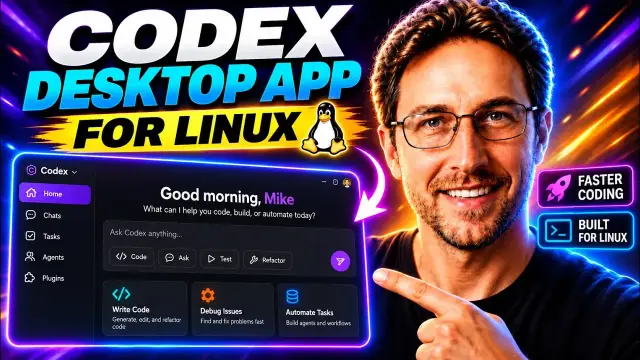
Codex Desktop on Linux (unofficial setup): install and run the Codex desktop app on Linux with the community build shown here — first launch, interface tour, and agent workflow test. Codex tutorial for Linux users who want ChatGPT Codex outside the browser.
The video covers 10 parts: Codex Linux App, What Changed, Desktop App Overview, Linux Setup, Installation Steps, First Launch, Codex Interface, Running Agents, Testing Workflow, and Final Thoughts.
What this video covers
What you build
A Codex desktop app running on Debian, built from a community GitHub project rather than an OpenAI download. The walkthrough clones the repository, runs its bootstrap and package steps and packages a .deb.
Tools used
Key steps
- 0:00 - See why the app is needed when the official one covered only Windows and Mac.
- 1:24 - Prepare the Linux setup.
- 2:10 - Clone the repository and run the make bootstrap and package steps.
- 3:02 - Launch the app for the first time.
- 3:48 - Tour the interface.
- 6:42 - Final thoughts on the build.
Not covered
- Whether the community project still builds or is maintained. It is unofficial and may have changed.
- Distributions other than Debian.
In this video
- 0:00 Codex Linux App
- 0:28 What Changed
- 0:55 Desktop App Overview
- 1:24 Linux Setup
- 2:10 Installation Steps
- 3:02 First Launch
- 3:48 Codex Interface
- 4:36 Running Agents
- 5:34 Testing Workflow
- 6:42 Final Thoughts
Questions and answers
Is this the official Codex Linux app?
No. It is a community project, and our walkthrough of the official ChatGPT and Codex app for Linux covers that route.
How heavy is the unofficial Codex desktop build?
Mike reports a repository around 1.4 GB so far and CPU at 99% on an older laptop while it compiled.
What features does the project list?
Among others it lists the standard Codex UI, a managed Node.js runtime, an auto update manager, multiple app windows and browser automation.
Keep learning
Build notes: an unofficial Linux wrapper
This walkthrough predates the channel’s later official Linux installation walkthrough. It builds and installs a third-party Codex desktop wrapper on Debian. Treat it as a record of that setup, not as the current official installation procedure.
What happens in my walkthrough
- Clone the wrapper project and run its bootstrap command. The process downloads dependencies and compiles the desktop package.
- Wait for the package build to finish. Mike reports high CPU usage during compilation on his laptop; that is a single-machine observation.
- Resolve the package-manager lock conflict. Another installation is running, so the initial install cannot take the lock. After that installation finishes, Mike retries the Debian package installation.
- Launch the app, import existing project settings, and open the TubeAnalytics repository.
- Start an audit with an installed skill and explore the plugin interface.
What the video does and does not establish
The desktop app launches and starts a project audit. The microphone control is visible, but dictation is not confirmed working in this walkthrough. The session also does not establish feature parity with the official clients or independently validate the audit findings.
Do not delete a package-manager lock merely to reproduce the install sequence. Check whether another package operation is active and let it finish. For a fresh setup, start with the later official Linux walkthrough and compatibility notes, which links to the vendor’s installation instructions.
Once your client opens a project, use the Codex workflow guide to make a small, reviewable change and verify it with the project’s own checks.
Read the Codex on Linux guide for the desktop app download, ChatGPT sign-in, and the distinction from the earlier unofficial setup. For the terminal CLI, follow how to install the Codex CLI.
Transcript
Hey there, welcome to the channel. In this video, I'm going to be showing you how to set up and install Codex, the desktop app on Linux. So, it's currently only available for Windows and Mac. But since I'm running Debian, I want to figure out how to install the desktop app on my system. So, I don't always need to use the command line interface. And luckily, there is an unofficial GitHub over here. It's currently got around 1,600 stars for a desktop app for Linux.
And it's relatively easy to set this up, it looks like. So, in this tutorial, I just want to show you how to install this on Linux. And then I will have access to all of the features inside the desktop app on my Linux system. You can see over here on the official Open AI developers page that you can install it for Mac OS and also for Windows, but obviously I rarely use Windows anymore. So, I'm just going to come over to GitHub here.
Read the rest of the transcript
I'll leave a link in the description below. But before we get started with the tutorial, I would like to personally invite you to join my free AI income lab community on Skool. We've currently got almost 3,000 members inside the community. It's completely free to join. And then I also offer paid plans as well. You can take a look around the classroom to get access to all of the tutorials, courses, and resources. Many of these also free. and go ahead and introduce yourself inside the community tab.
We're getting new people joining every single day. Would love to see you inside the Skool community. Link in the description below. And we're just going to start installing this. So, I'm just going to copy this oneline get clone command and come over to my projects directory. And that's just going to clone all the files. And then we can go ahead and cd into that. And from there, it looks like I just have to run this make command. Make bootstrap native.
So, we're going to go ahead and run that. I should already have make installed. Just enter in our password. And that's just going to pull everything from apt and it's going to start installing all of the packages that I need. As you can see, it's doing right now. And then we should be able to install it and run it on my Debian system with this make bootstrap activives command right here.
So, we can see down here, here's all the different features that you get that are built into the desktop app. It's got the standard Codex desktop UI, manage Linux, Node.js runtime. It's got all the native packages here as well. And we can install those with make, package, and install. It's also got the auto update manager, the app image self-build, uh, guey install prompts, Linux manager integration, so we can easily update this anytime we want.
Browser automations, uh, multiple app instances, so I can create as many desktop app windows as I want. Linux computer use, which would be fun to try out, as well as Linux features, frameworks, agent workspaces, wrapper updater button, a whole bunch of features built into this. So, let's see if it's almost finished over here. It looks like it's downloading Electron, which it should already have. Let me just zoom in so the text is a little bigger.
And now it's just installing all the Electron packages, web view, bunch of stuff here. It's building the Chrome extension host, downloading a whole bunch more packages, compiling them. Not exactly sure how large this directory is. Let's come over here and do a duh. It's about 1.4 GB so far. So, it should have everything that the normal Codex desktop app has that would run on Windows or Mac, but I can run it on Linux in this case.
Another really nice thing about the desktop app that I don't have access to currently inside the terminal is that I can talk directly to it using my microphone. So right now I have to type everything in manually which is a little bit tedious and timeconuming. So it'll be nice to have a feature where I can just talk directly to it so I don't have to constantly be typing like I'm doing over here.
So this thing is just like fixing up my search engine ranking performance on the website and that'll help me rank for longtail keywords on tube analytics which is my software as a service. So it is pretty easy to use the command line interface and it's also very very fast as well but it will be nice to have the desktop app installed as well if I want to use it at any time.
Okay, it's on the home stretch now just finishing up in compiling and installing some more packages. And looks like it's installing Codex Chrome extension. And that should be it. It's building the Linux computer system. If I want to take actions on my computer, that should be built in directly to the Codex desktop app as well. So we can see over here inside inside GitHub, you can either turn this off or on if you don't want access to it.
It's also got an MCP backend for the Linux computer. And then from here, once this is done, I should just be able to do a make install native. And then we'll have the Codex desktop app running on Linux. So yeah, each one of these commands will just build and install in the default package manager for your Linux distro. That could be deev rpm or pacman if you're on arch linux. Just says up here installation complete.
And then looks like I pretty much just have to run the shell script which is inside my local directory for the Codex desktop app. So we'll wait for this to finish. Looks like it's just creating thedev file from all the packages that it installed. And currently my CPU is at 99%. So this is quite resource intensive. It's doing a lot of building and compiling. CPU is completely maxed out. And I'm on a Lenovo Idea Pad which is honestly not the fastest.
And that's one of the reasons that I use Linux because Linux just runs way faster than Windows in many many ways. And honestly, if you're not using Linux for AI projects, then what are you doing, right? You should be using Linux because we've got everything built directly in over here. So, I'd highly recommend making the switch over to Debian or maybe Abuntu if you're building AI projects. Look like it's pretty much finished now. It's got thedev file, which is going to install.
And it's just asking for my root password. So, we'll go ahead and enter that in. And now it says DPKG front-end lock was locked. Oh, it's because I'm also installing some packages over here, which is now done. Looks like I'll need to do make install native. Or I could just do DPKG. Well, let's see if this works. Says all system dependencies found. Removing existing install directory. And this should just go ahead and run this.
Or I could also just run this command again because it had an error. So let's go ahead and just do a pseudo dpkg which is how you install dev files. And that should just go ahead and install the desktop app as it's doing now. So Codex desktop is unpacking. It's just setting up the Codex desktop app and we should be good to go. So I'm just going to type it in over here and we'll see what this looks like because I use Codex all the time.
This is my daily driver. So now we got on the desktop. I'm also going to add it down here to the taskbar as well. There we go. That looks good. There's the desktop app running on Linux. Not exactly sure what's going on here. It looks a little bit funky maybe. Ah, there we go. And it's asking what type of work do I do. So, I'm just going to say uh engineering. That's what I'm using Codex for. We can click continue.
So, this looks basically exactly the same as a Windows or MacOSS version of the desktop app. And now it's saying bring over your setup projects and recent chats. And it's recommending Claude code, which I'm not really using so much anymore, but we'll just go ahead and import that. And select items to import. We can import the tools and setup that. So that would include any skills and plugins as well. So I definitely want to import those. And boom.
Now we are inside the Codex desktop app running on Debian Linux. How cool is this? So now from here it looks like we can personalize codecs and right away I've got the microphone here which is going to be very very useful. So I can just click and hold here and it should allow me to dictate. Then I also just want to go ahead and open up my folder for my project.
Just going to go ahead and open up Tube Analytics which is my software as a service. So we can open that up over here. And it's asking select settings to import. I'm going to go ahead and import everything. And now from here, I should be able to use the microphone. Control shift D. Maybe it's because I'm currently recording something as well, but I could just do a test. I could say, you know, run a deep repository while it's a security scan.
I just say run a full site audit. And now it's going to pull in all the codec security instructions. And we're just running one of the skills inside the Codex desktop app on Linux to figure out if there's any things that I might want to fix up. And it has a history over here as well of all of the different commands inside the command line over here. So that's pretty nice to have. It's basically just saving saving everything that I'm doing inside the command line.
And also now we have access to all the plugins as well. So, Codex just recently announced a whole bunch of plugins which you can install, but you need the desktop app in order to use these. So, luckily I have the desktop app now. And if I wanted to install, let's say, Otter AI, I can just click on add plugin. It's going to add it in over here. And now I'll have access to that inside the desktop app. So, that's pretty cool.
And if we want to get started with that one, we should just be able to search for it over here. There it is. And now we can start using this particular plugin. All you have to do is click on try and chat. And then you can just message it right away. Run a deep security run over here as well on my project. So yeah, that's just a short tutorial showing how to set up the desktop app on Linux. Hopefully you enjoyed the video.
Please go ahead subscribe to the channel if you haven't already and also check out my Skool community. We've almost got 3,000 members over here. It's completely free to join. You could take a look around the classroom where I offer lots of courses, tutorials, and resources. Most of these also free, and introduce yourself inside the community tab. We're getting new people joining every single day. Would love to see you inside the Skool community. Please go ahead, subscribe to the channel if you haven't already.
And with that being said, take care, stay safe. Peace from Thailand. See you in the next one. Sign it off.